
Barcodes
Scrap Golem can print a barcode on each receipt and label. Scanning one takes you straight to that ticket, item or package, and scanning package labels is the quick way to load a shipment.
You need a Zebra barcode scanner. A scanner that only types what it reads, as a keyboard would, doesn't work. The version of Scrap Golem that runs in a web browser doesn't support scanners.
Print barcodes
Set up your printers first: see Printers.
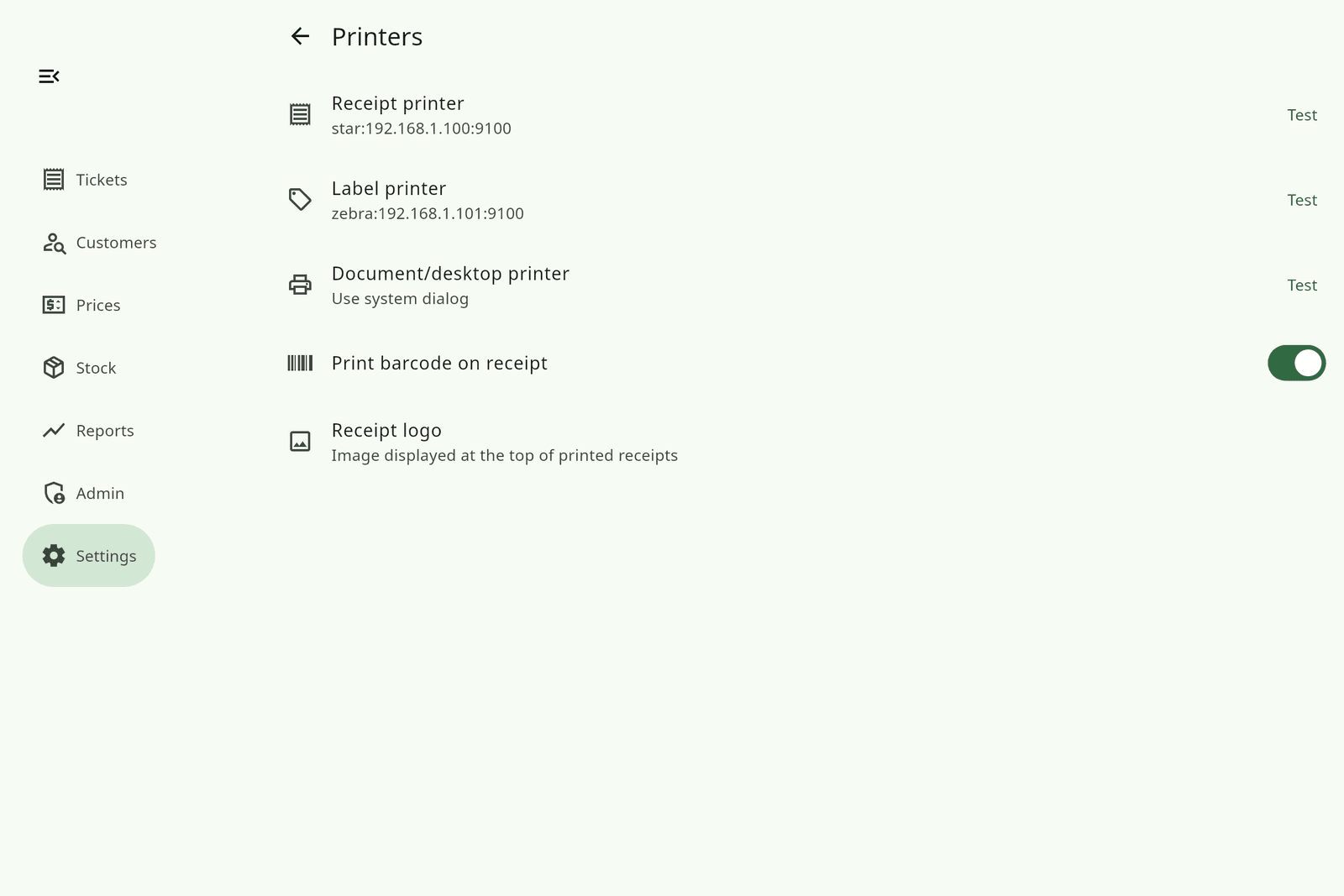
- Receipts: open Settings, Printers and turn on Print barcode on receipt. Each receipt printed on this device then carries its ticket's barcode.
- Package labels: open the package from Stock and tap Print. The label shows the commodity, the weights and the package's barcode.
- Item labels: open the item on its ticket, tap the menu button in the top right corner and choose Print.
Labels print on the label printer and always have a barcode.
Pair the scanner
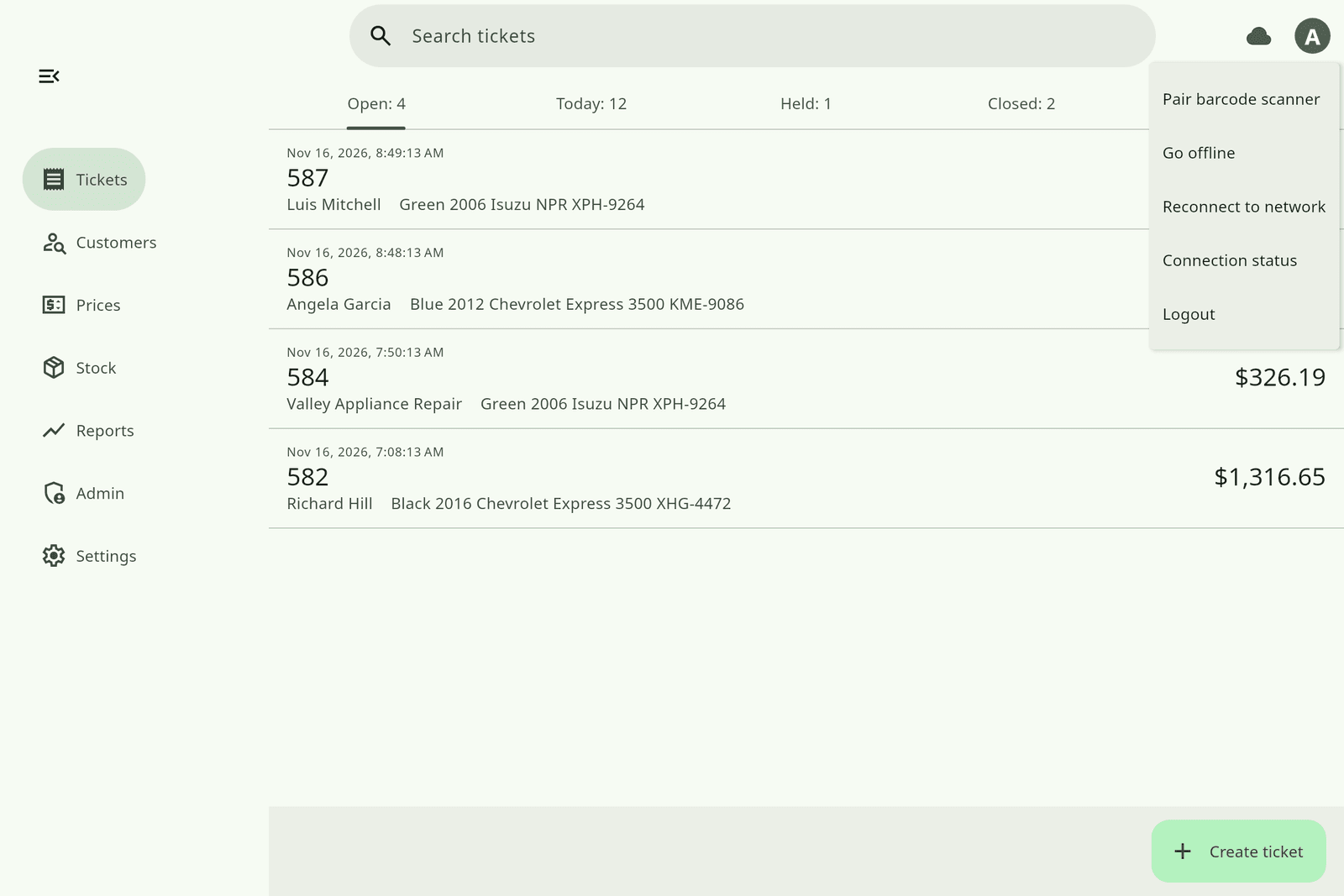
- Open Tickets and tap the circle with your initial in the top right corner.
- Choose Pair barcode scanner.
What happens next depends on the device.
On Android
The app shows a barcode under Scan to connect. Scan it with the scanner. When the scanner has connected, the app shows Active scanner and its name.
Bluetooth has to be on, and the app allowed to use it, before Scrap Golem starts. If the app says Bluetooth was not enabled on launch, turn Bluetooth on, then close Scrap Golem and open it again.
On Windows and Linux
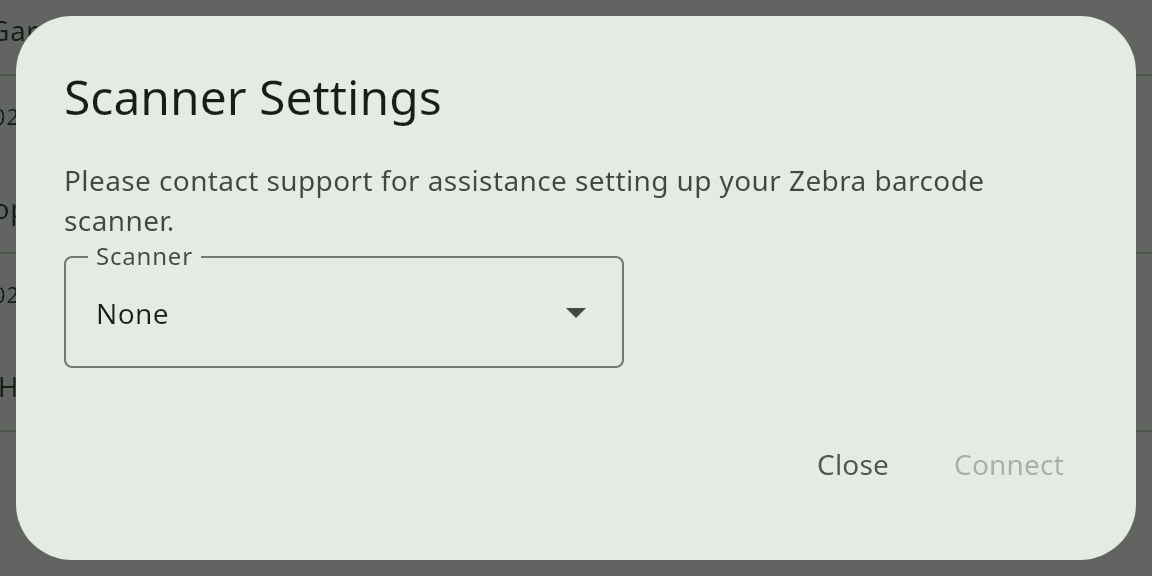
The scanner plugs in over USB and needs Zebra's CoreScanner driver, which is installed separately from Scrap Golem. If it is missing or not running, Scanner Settings says so in red. Contact support and we will help you set it up.
- Plug the scanner in.
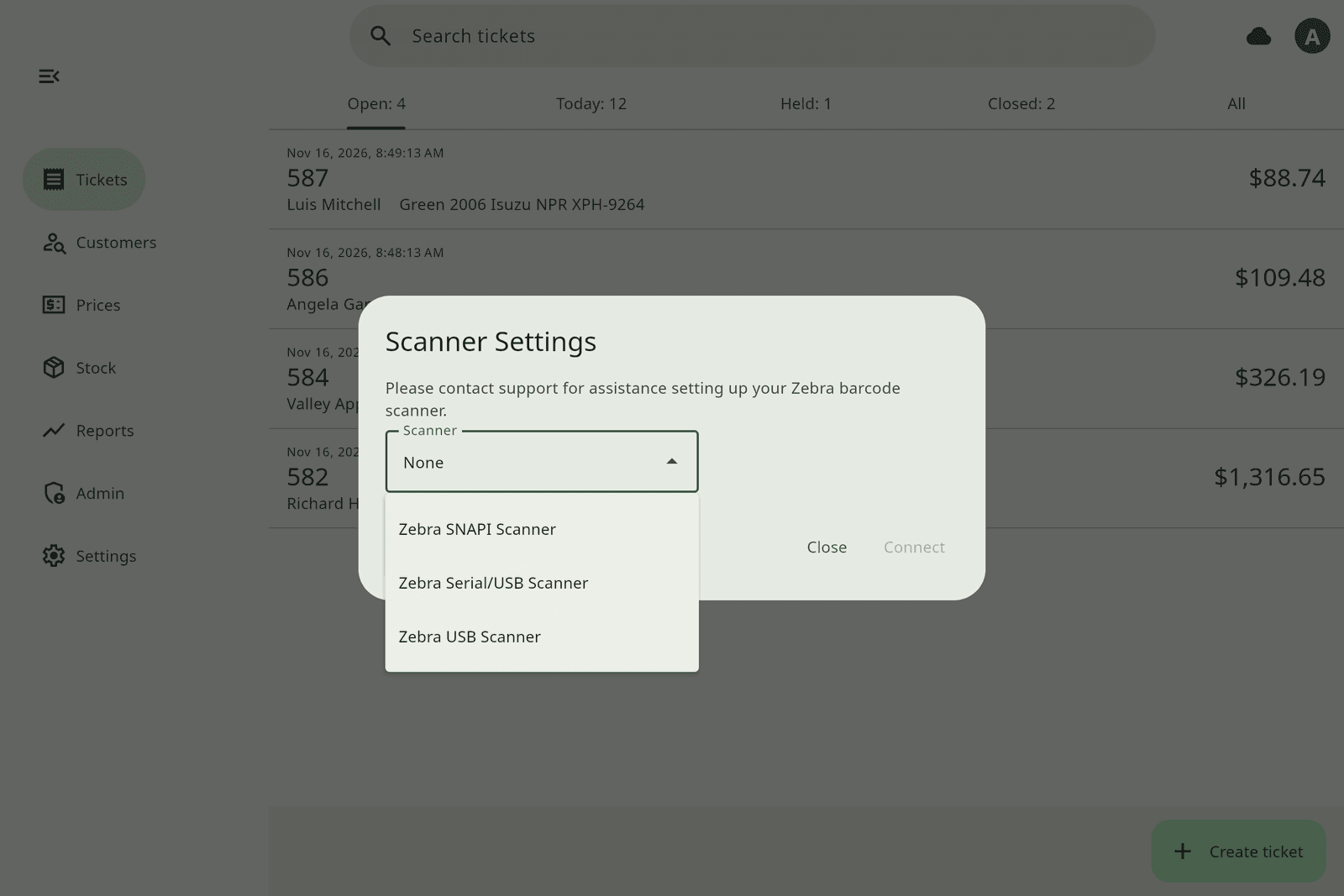
- In Scanner Settings, open the Scanner menu and choose the entry that matches how your scanner is set up to connect. If you aren't sure which, contact support.
- Tap Connect.
The app remembers the scanner and connects to it each time it starts. If it can't, it says so. Check that the scanner is plugged in, then open Scanner Settings and tap Connect again, or tap Forget scanner to stop using it.
Scan
On the Tickets screen, scan:
- a receipt, to open its ticket
- an item label, to open that item
- a package label, to open that package
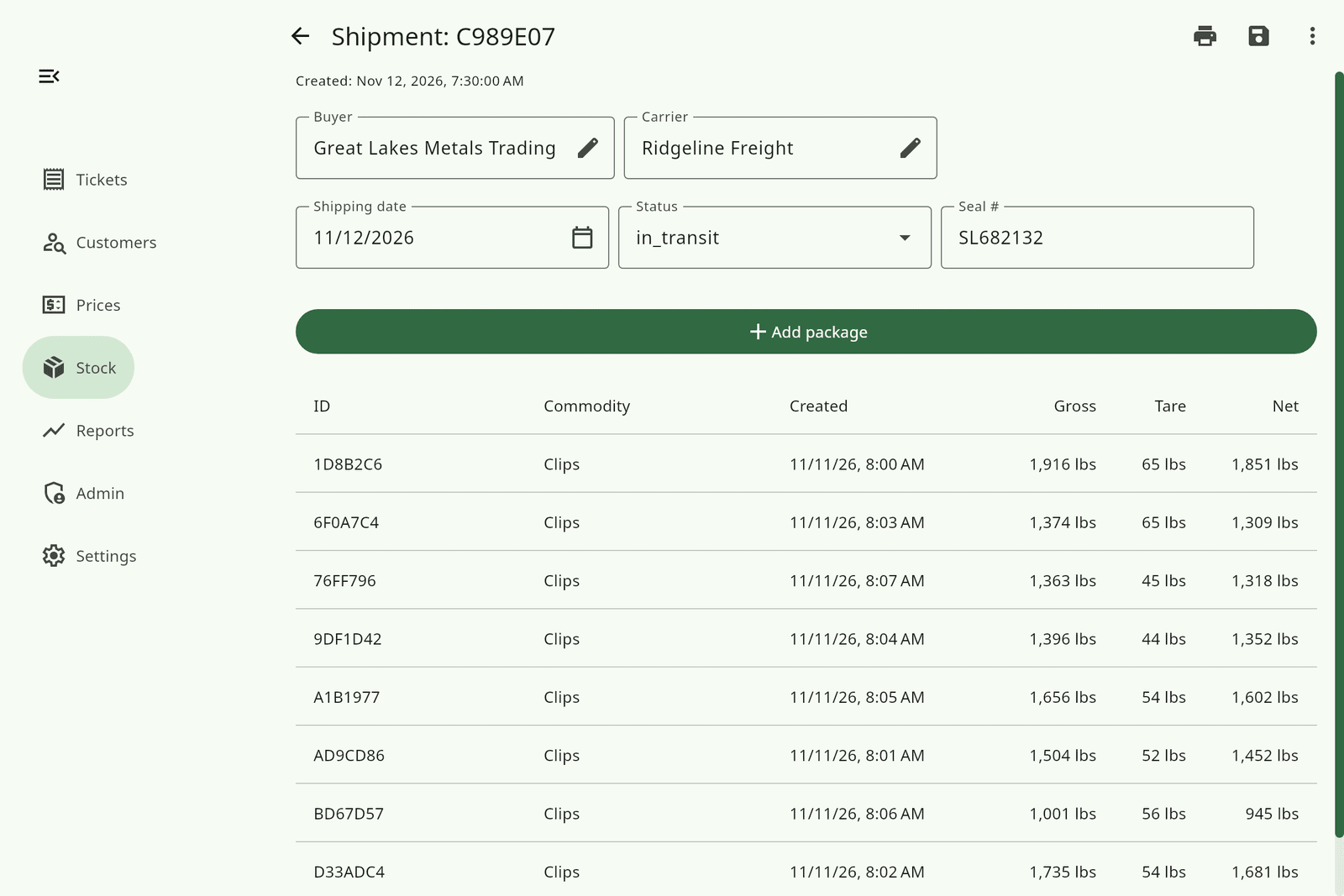
On a shipment, scan each package's label as it is loaded to add the package to the shipment. Open the shipment from Stock. On Android you can also tap the barcode button there and scan labels with the device's camera.
Driver's licenses: the same scanner reads the barcode on the back of a license. See Scanning licenses.
If the app shows Unrecognized barcode, the barcode isn't one that Scrap Golem printed.