Printers
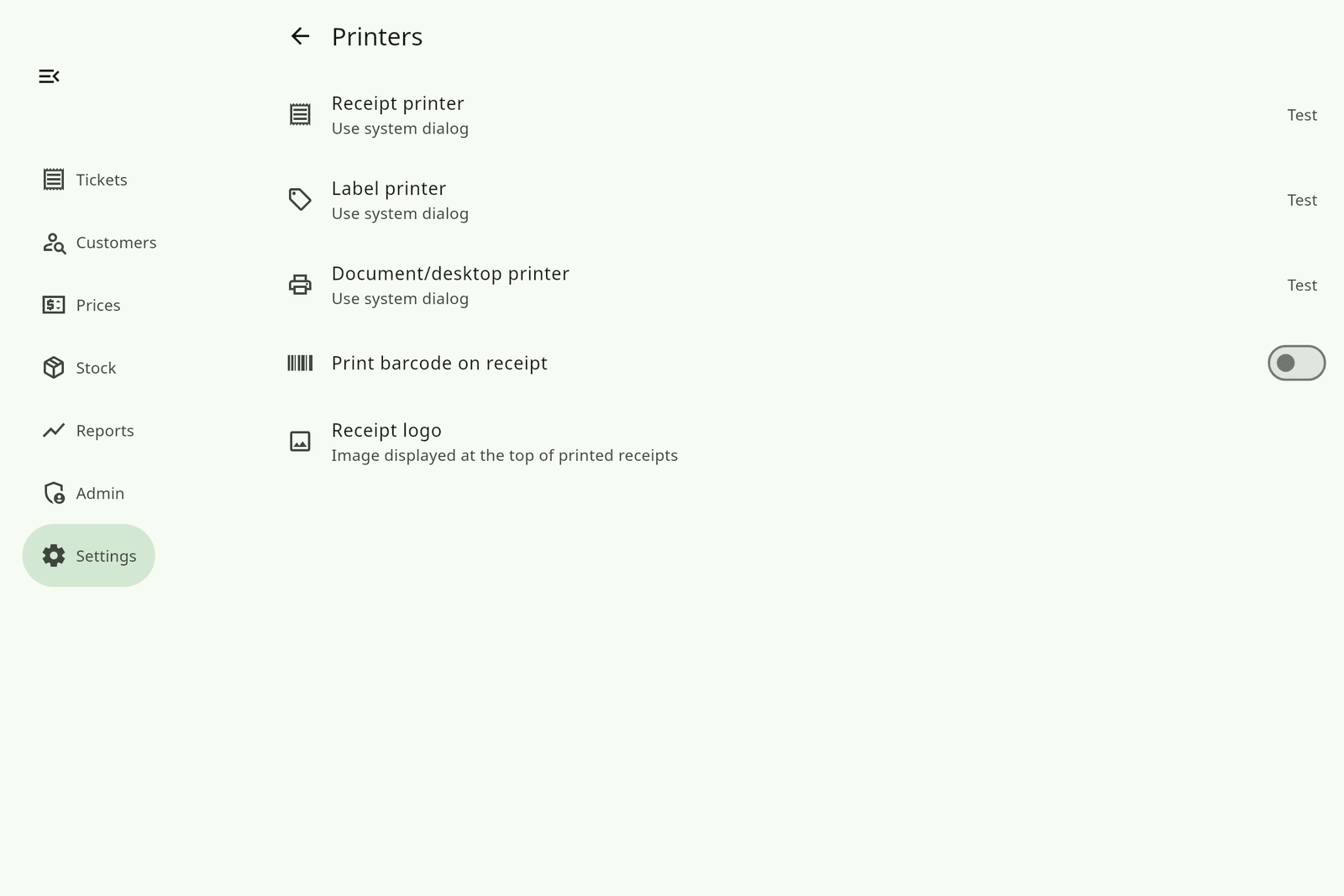
Scrap Golem prints three kinds of things, and each can go to its own printer:
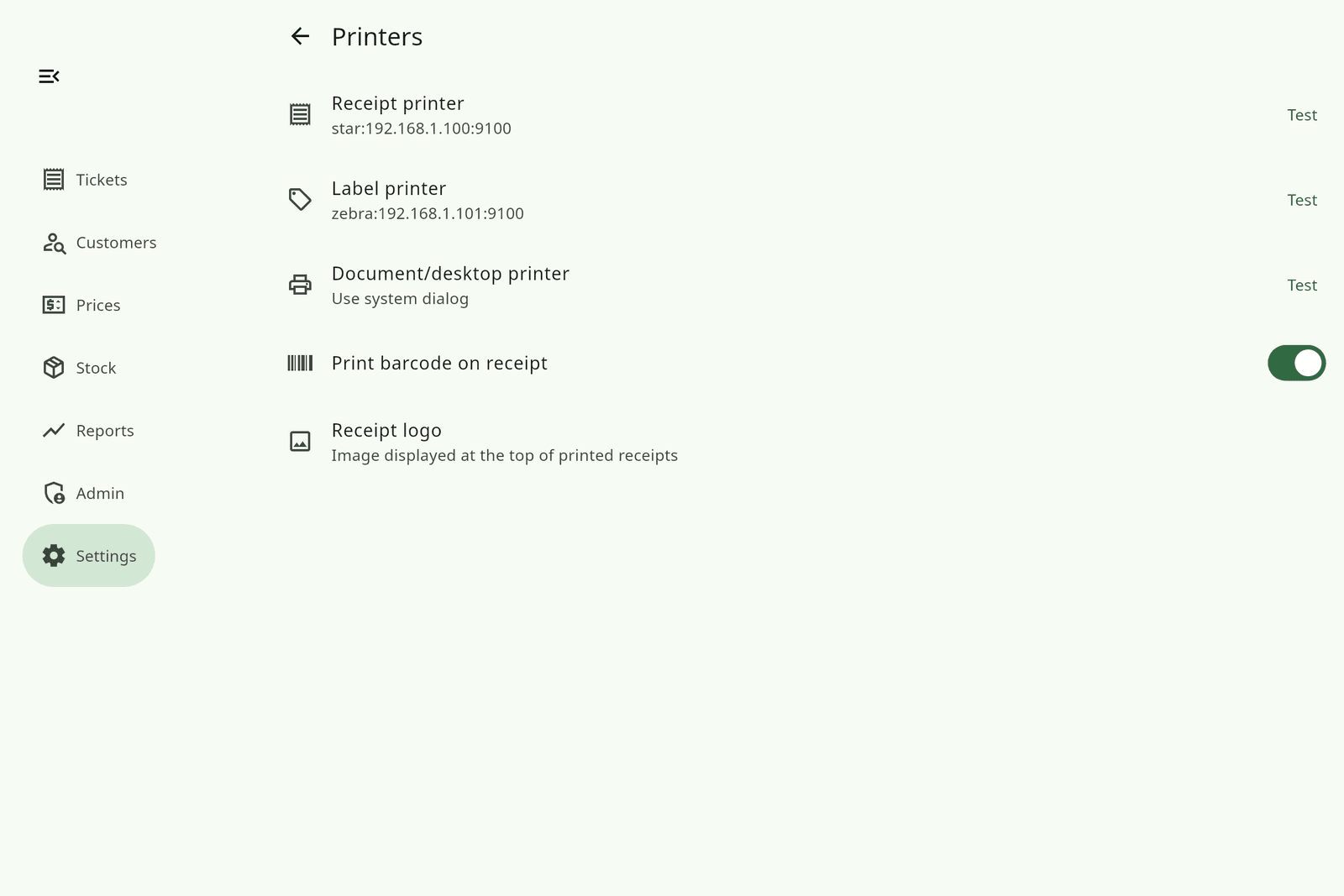
- Receipt printer: ticket receipts and the price list. Use a Star Micronics receipt printer.
- Label printer: labels for packages and items. Use a Zebra label printer.
- Document/desktop printer: full pages, such as bills of lading and customer reports. Any office printer works.
See the requirements for the models we recommend.
Printers are set up on each device, and the settings stay on that device. A tablet at the scale and a computer in the office can each use the printer nearest to them. The version of Scrap Golem that runs in a web browser can't print.
Open the printer settings
- Connect the printer first: plug it in and join it to the same network as the device, or, for a Star printer on Android, pair it over Bluetooth or plug it in over USB.
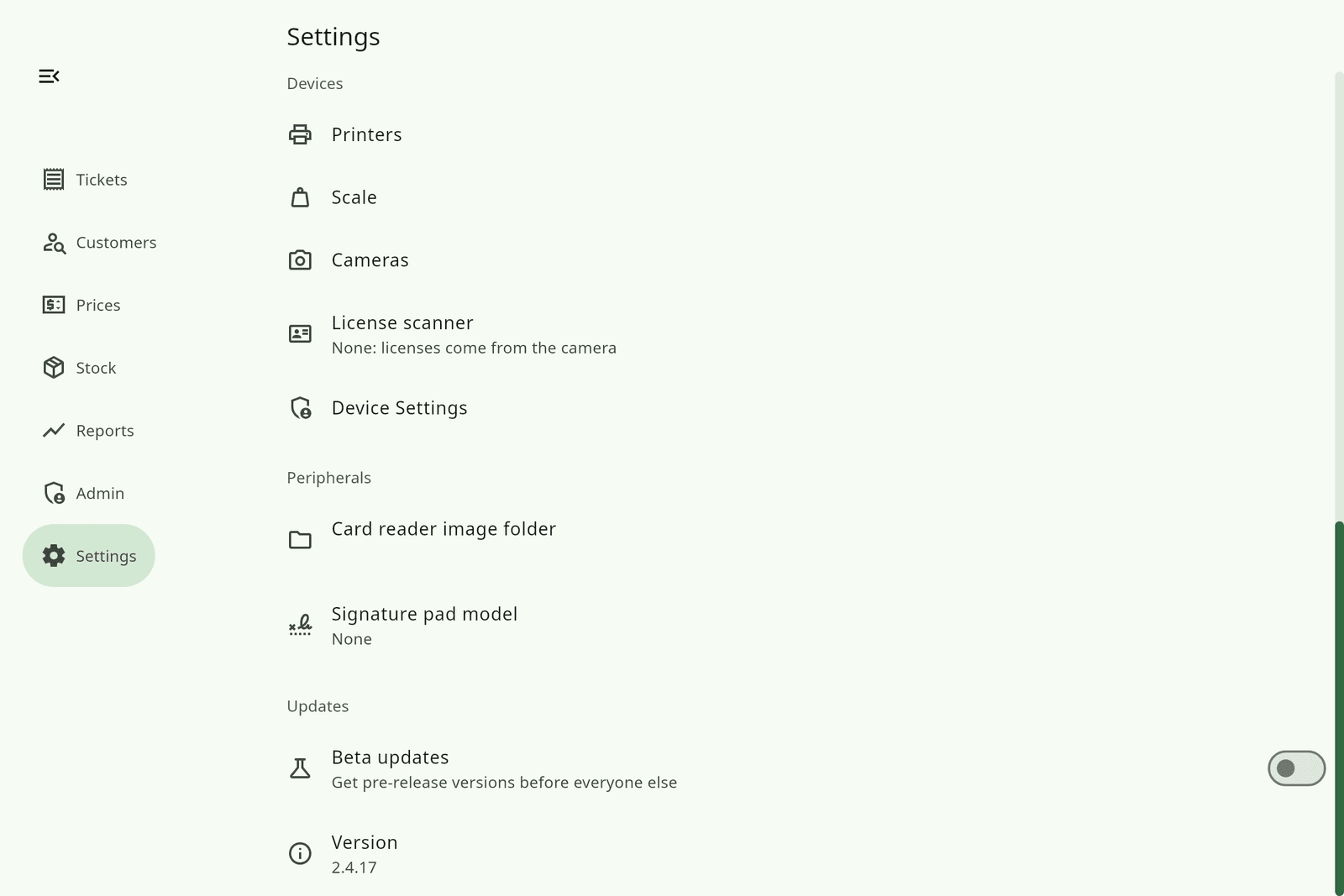
- Open Settings. Under Devices, tap Printers.
All three printers start out as Use system dialog.
Choose a printer
The app looks for printers as soon as the Printers screen opens. Give it a few seconds, then:
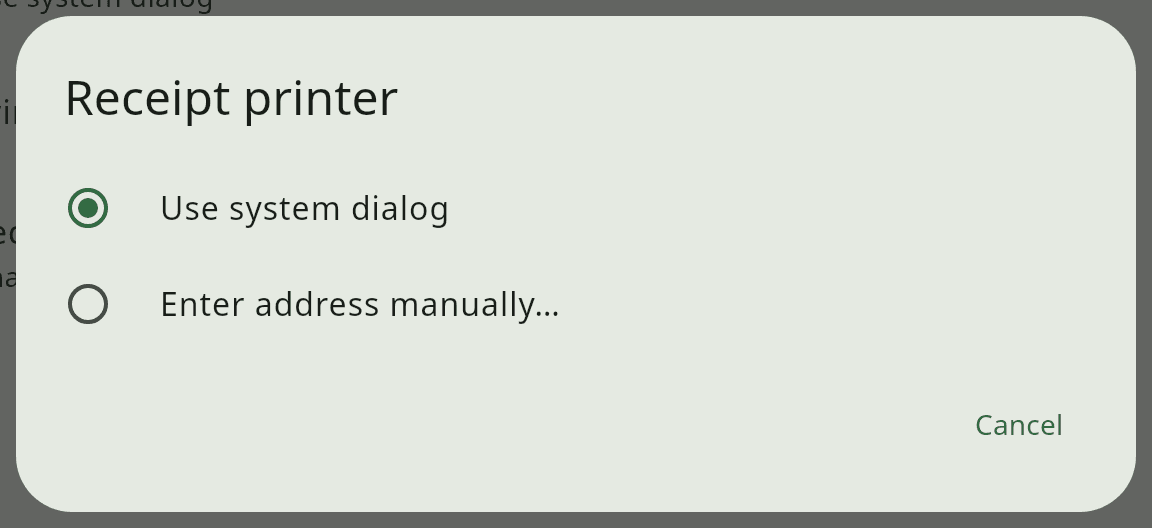
- Tap Receipt printer, Label printer or Document/desktop printer.
- Tap your printer in the list.
What the app can find depends on the device:
- Android: Star printers over Bluetooth, USB and the network, and Zebra printers on the network.
- Windows and Linux: Star and Zebra printers on the network.
Use system dialog hands the job to the device's own printing. On a computer, the usual print dialog opens each time. On Android, it uses Android printing. We recommend the Mopria print service there. This is the right choice for an ordinary office printer.
Enter the printer's address
If your printer isn't in the list, you can tell the app where it is. You need the printer's IP address, which most printers print on their self-test page.
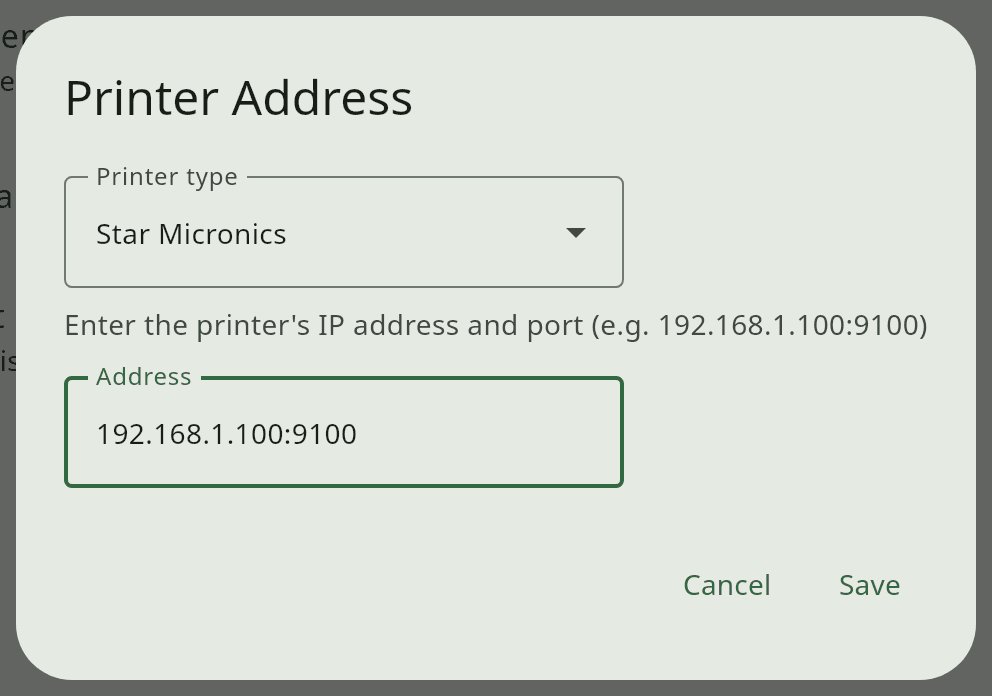
- Tap the printer setting, then Enter address manually….
- Choose the Printer type: Star Micronics or Zebra.
- Type the Address: the printer's IP address, a colon, and its port. The port is normally 9100, as in 192.168.1.100:9100.
- Tap Save.
A printer's IP address can change when it restarts. If a printer you entered by address stops printing, check that its address is still the same, or have your router always give it the same one.
Receipt options
Two more settings on the Printers screen change what a receipt looks like:
- Print barcode on receipt adds a barcode you can scan to open the ticket again. See Barcodes.
- Receipt logo puts your logo at the top of each receipt. Tap it and choose an image file. Remove logo takes it off again.
Check that it works
Tap Test beside a printer on the Printers screen to print a short test page on it. The page says which printer it was sent to and shows each text size and a barcode, so you can see that the printer is reachable and how its printing looks. For a printer set to Use system dialog, the test page goes to the device's own printing, as everything else does.
While a job is printing, a message at the bottom of the screen says so. If it fails, the message becomes Print error with the reason and a Retry button. The most common reasons:
- The printer is off, out of paper or has its cover open.
- The device and the printer aren't on the same network, or Bluetooth is turned off.
- The printer's address has changed.
- A Zebra printer is set as the receipt or document printer. Zebra printers only print labels.
The cash drawer
A cash drawer plugs into the Star receipt printer, which opens it. For the drawer to open when you pay a ticket in cash, the receipt printer has to be a Star printer, and the device's till station has to have Opens cash drawer on payouts turned on.