
Signing in and device modes
A device running Scrap Golem works in one of two ways:
- Single user: one person signs in with their email and password and stays signed in. This suits an office computer or someone's own tablet.
- Multiple employees: the device is shared. Each person taps an access card or enters a PIN to use it, and it locks again when they are done. This suits a tablet at the scale or the pay window, because every ticket and payment records who really did it.
The app asks How will this device be used? the first time it opens. You can change the answer later in Device Settings. The version of Scrap Golem that runs in a web browser is always single user.
Every person needs their own user first: see Users and roles.
Single user
Type your Email and password and tap Login. The app opens straight to your tickets from then on, with no lock screen.
- Forgot your password? Type your email, tap Forgot password, then Reset password. We email you a link to choose a new one.
- To sign out, open Tickets, tap the circle with your initial in the top right corner and choose Logout.
Multiple employees
A shared device rests on its lock screen. To use it, tap your access card on the card reader or enter your PIN. The PIN alone tells the app who you are, so no two people on a device can have the same one.
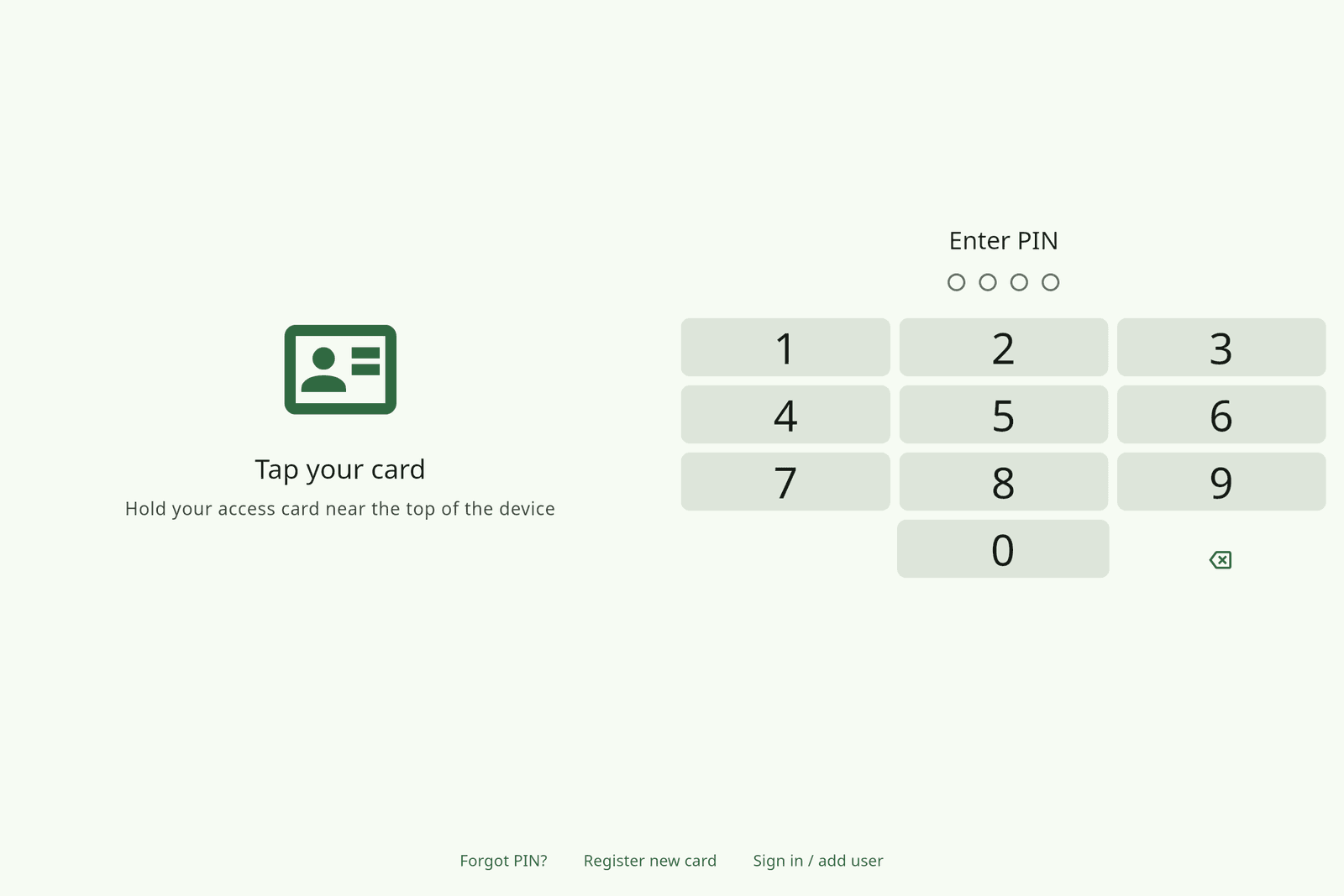
Add yourself to a device
Each person does this once on each shared device they use. Cards and PINs are kept on the device, so a PIN you set on one tablet doesn't work on another.
- On the lock screen, tap Sign in / add user.
- Sign in with your email and password.
- Tap your access card on the reader. If you don't have a card, tap Skip (use PIN only).
- Choose a PIN, then enter it again to confirm. With a card, you can tap Skip - use card only instead.
The app then opens, signed in as you.
Switch users
When you are done, open Tickets, tap the circle with your initial in the top right corner and choose Switch user. The device goes back to its lock screen for the next person.
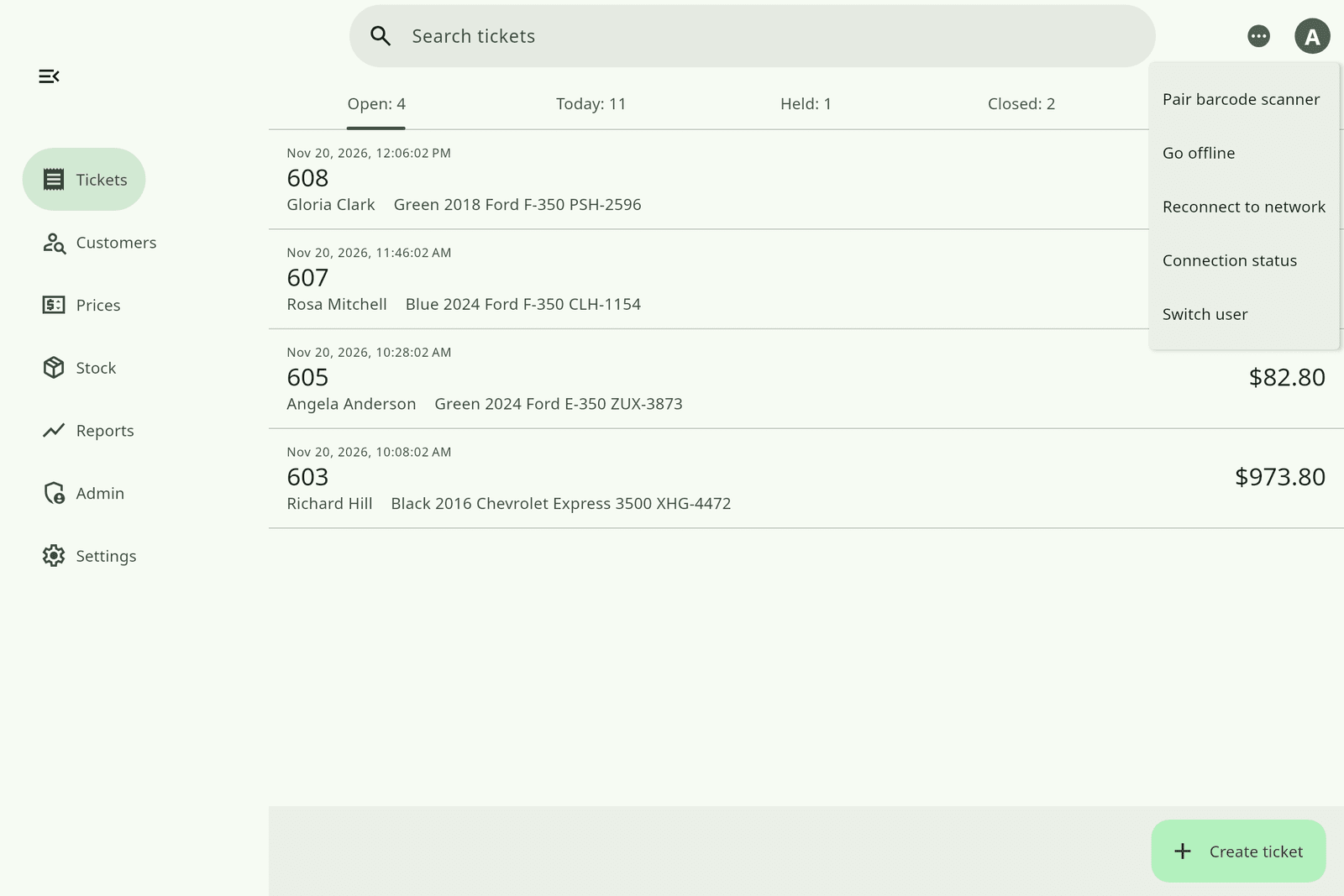
Someone else can also tap their card while you are signed in. The device switches straight to them.
To have the device lock by itself when nobody is using it, set an Idle timeout in Device Settings.
Forgotten PIN or lost card
Both start from the lock screen and ask for your email and password first.
- Forgot PIN? lets you choose a new PIN.
- Register new card replaces your card with the one you tap next. Your PIN stays the same.
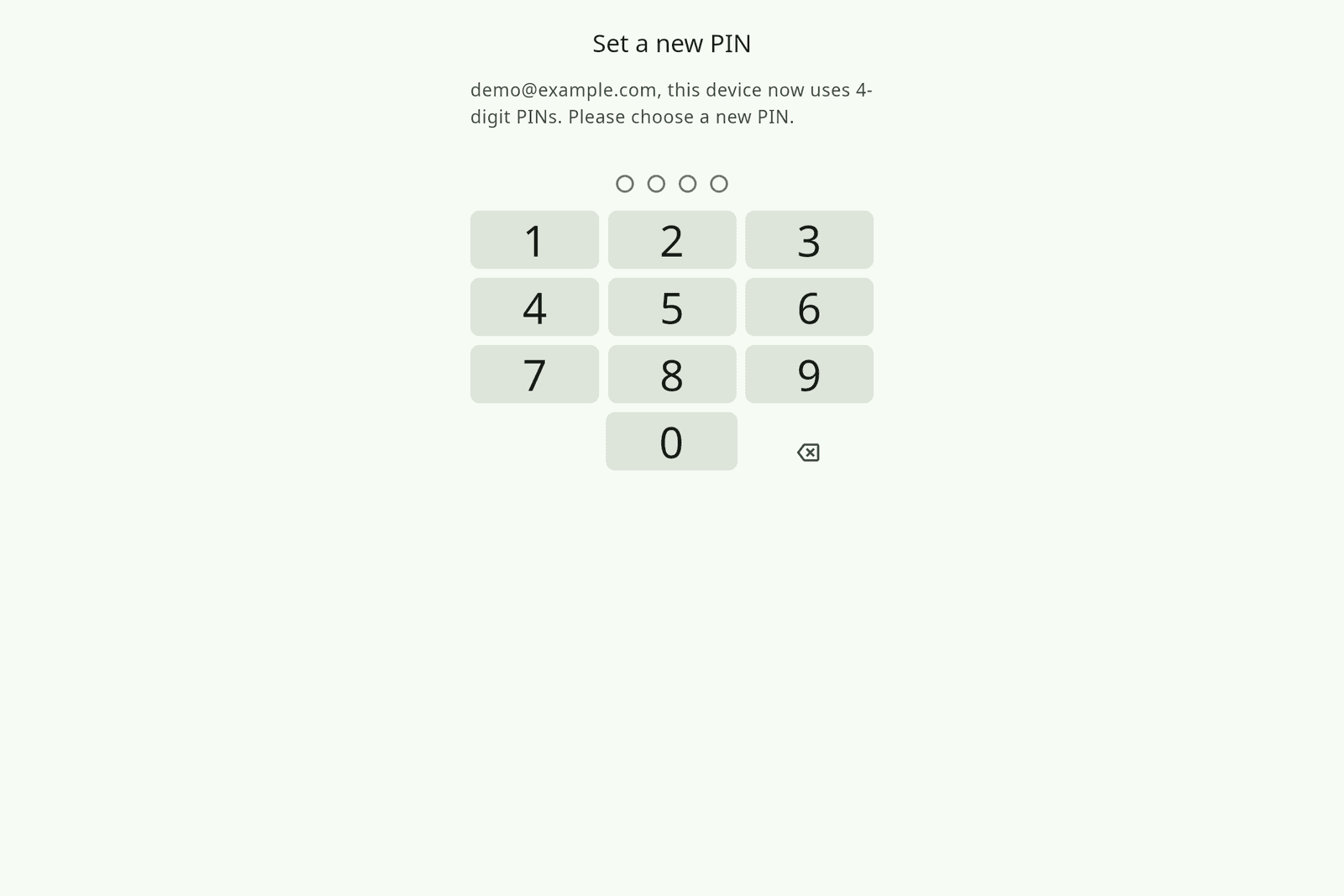
If a device says Session expired, it needs your password again before it will let you in. That can happen when it has gone a while without reaching the internet.
Device Settings
The account's owner and Admins can change how a device signs people in. Open Settings. Under Devices, tap Device Settings.
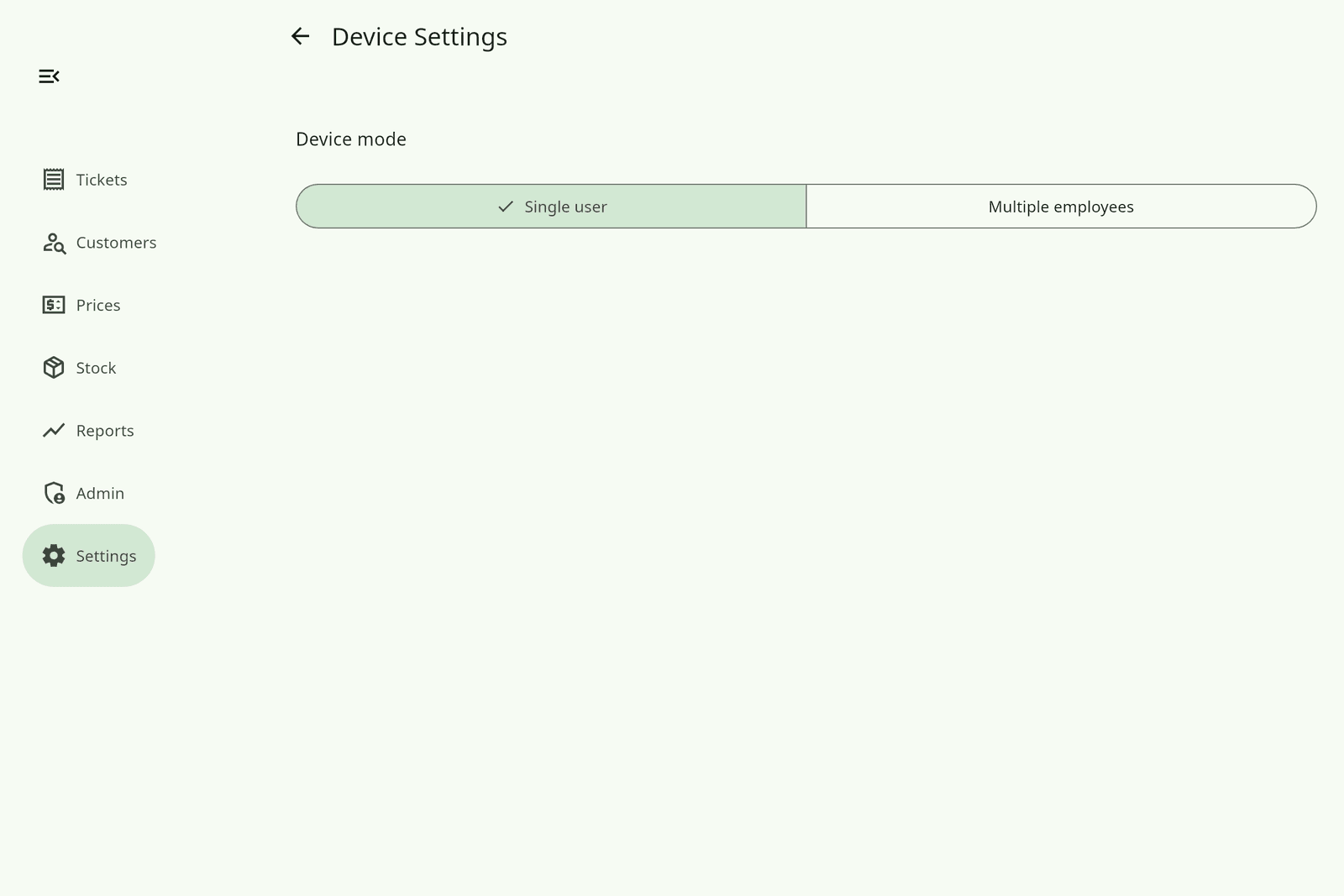
Device mode switches between Single user and Multiple employees. The change happens right away.
- Going to Multiple employees takes the device to its lock screen. You don't have a PIN there yet: tap Sign in / add user and sign in with your password to get back in, then use Forgot PIN? to choose a PIN.
- Going back to Single user only works when one person is left on the device. Remove the others first: under Settings, Users, open each one and tap Remove from device.
In Multiple employees mode there are two more settings:
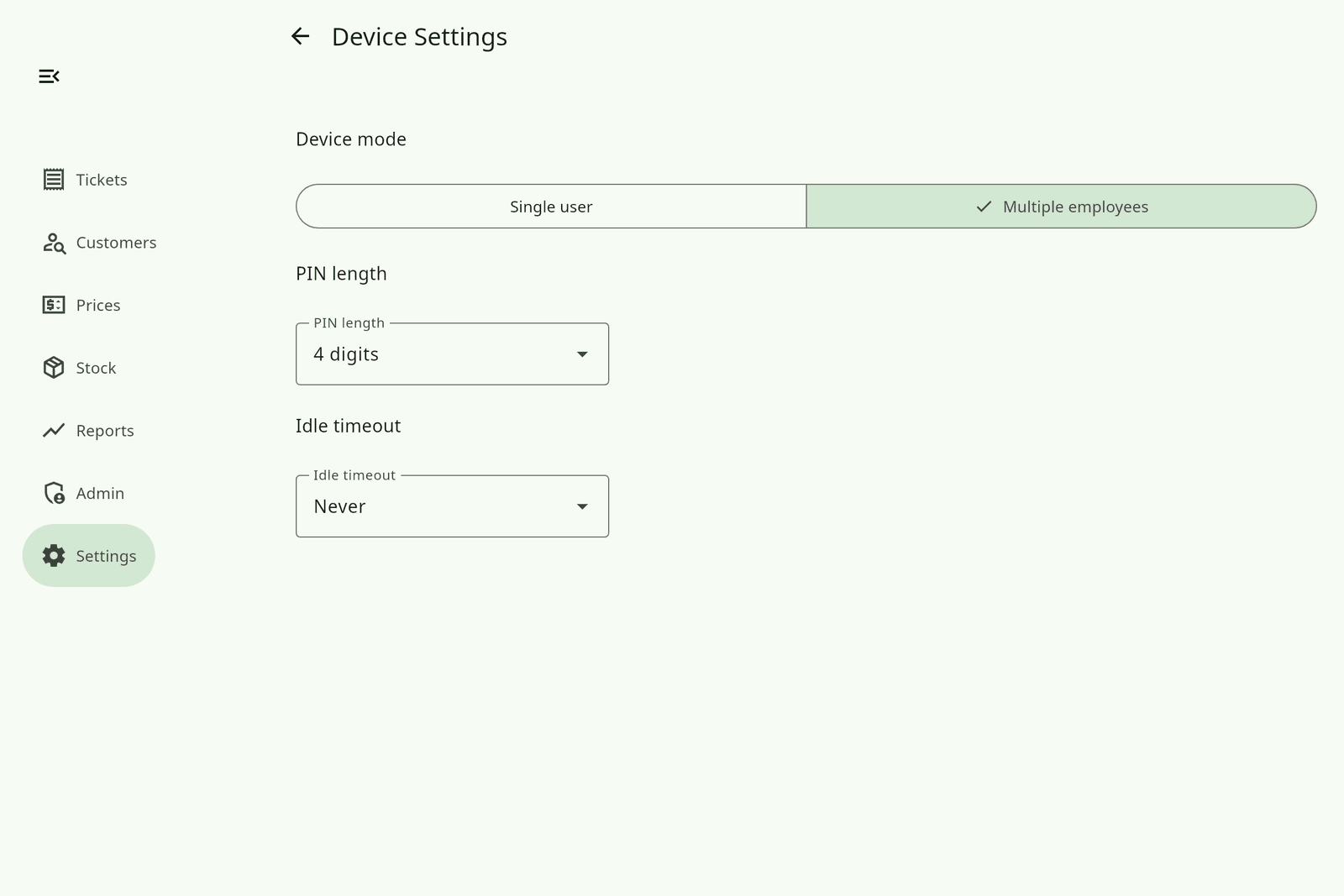
- PIN length: 4 digits or 6 digits. Changing it clears every PIN on the device. People with a card choose a new PIN the next time they sign in. People with only a PIN are removed from the device and have to add themselves again, which includes you if you have no card.
- Idle timeout: how long the device waits with nobody touching it before it locks, from 1 minute to 30 minutes. It starts at Never.
Access cards
Staff can sign in with NFC access cards instead of PINs.
- On Android, the device's own NFC reads cards held against it. For a tablet without NFC, or one in a case or mount, use a Bluetooth card reader: choose it under NFC reader in Device Settings.
- On Windows and Linux, plug in a USB card reader.
Contact support for the card readers we recommend.