
Scanning licenses
Scanning a driver's license saves typing and gives you the pictures of the ID that you need to keep. Scrap Golem reads the barcode on the back of the license and fills in the customer's name, license number, expiration date, date of birth and address.
There are three ways to scan, and you can set up more than one:
- A camera: the tablet's own camera, a webcam or a network camera. It takes the pictures and reads the barcode.
- A card or document scanner: scans both sides of the card.
- A Zebra barcode scanner: reads the barcode only, so it takes no pictures.
Each is set up on the device that uses it. The version of Scrap Golem that runs in a web browser can't scan: there you upload pictures of the license instead and type in the details.
Licenses and ID cards from US states and Canadian provinces have the barcode the app reads.
Use a camera
- Open Settings. Under Devices, tap Cameras.
- Tap License camera and choose the camera. On a computer it is Disabled until you choose one.
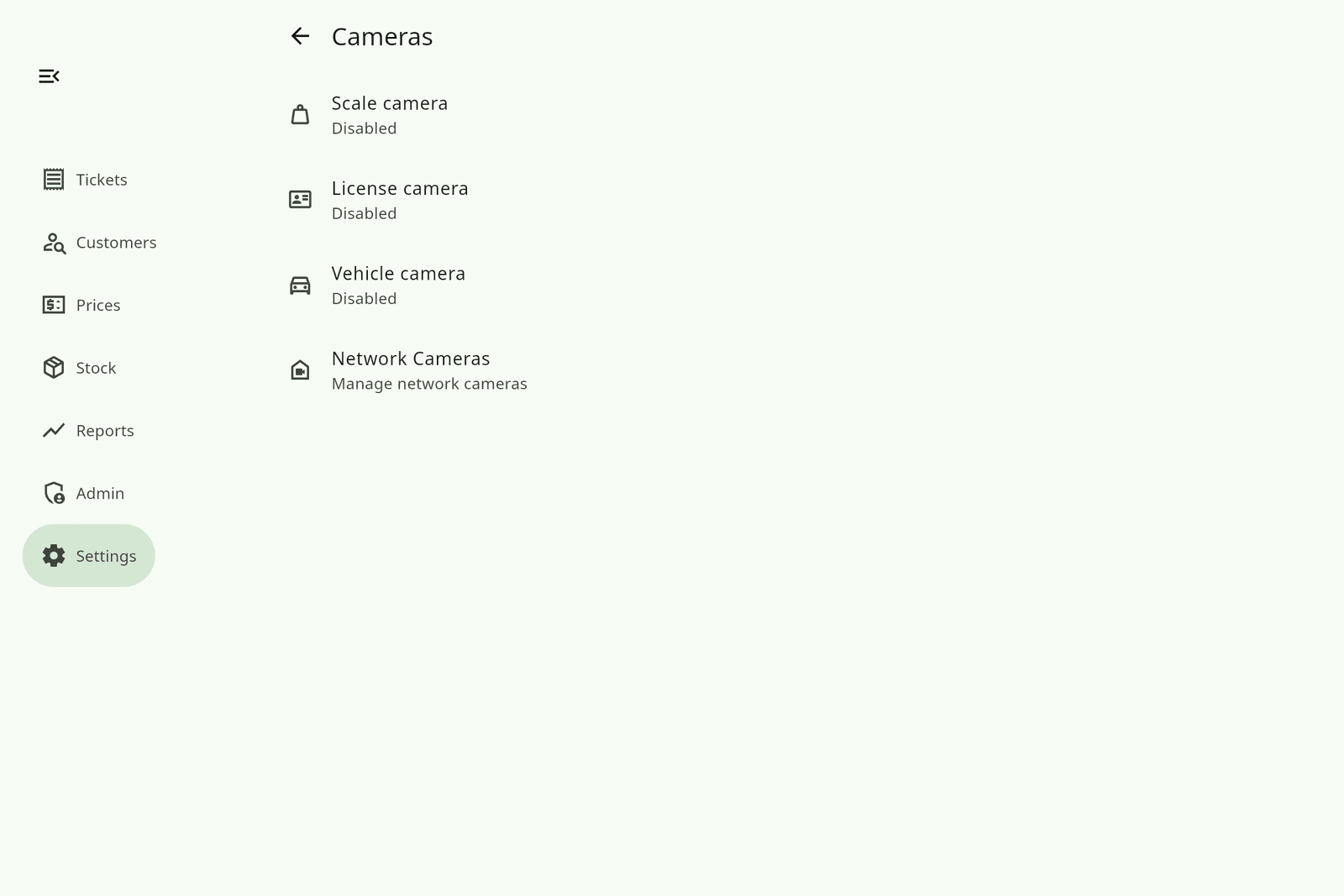
To scan a license:
- Open the customer's record. From a ticket, it opens when you choose the customer (see Building a ticket). From Customers, tap the customer, then Details, then Edit details.
- Under Identification, tap Back to scan the side with the barcode. The form fills in from it.
- Tap Front to take the picture of the front.
- Check the details against the card before you leave the customer's record.
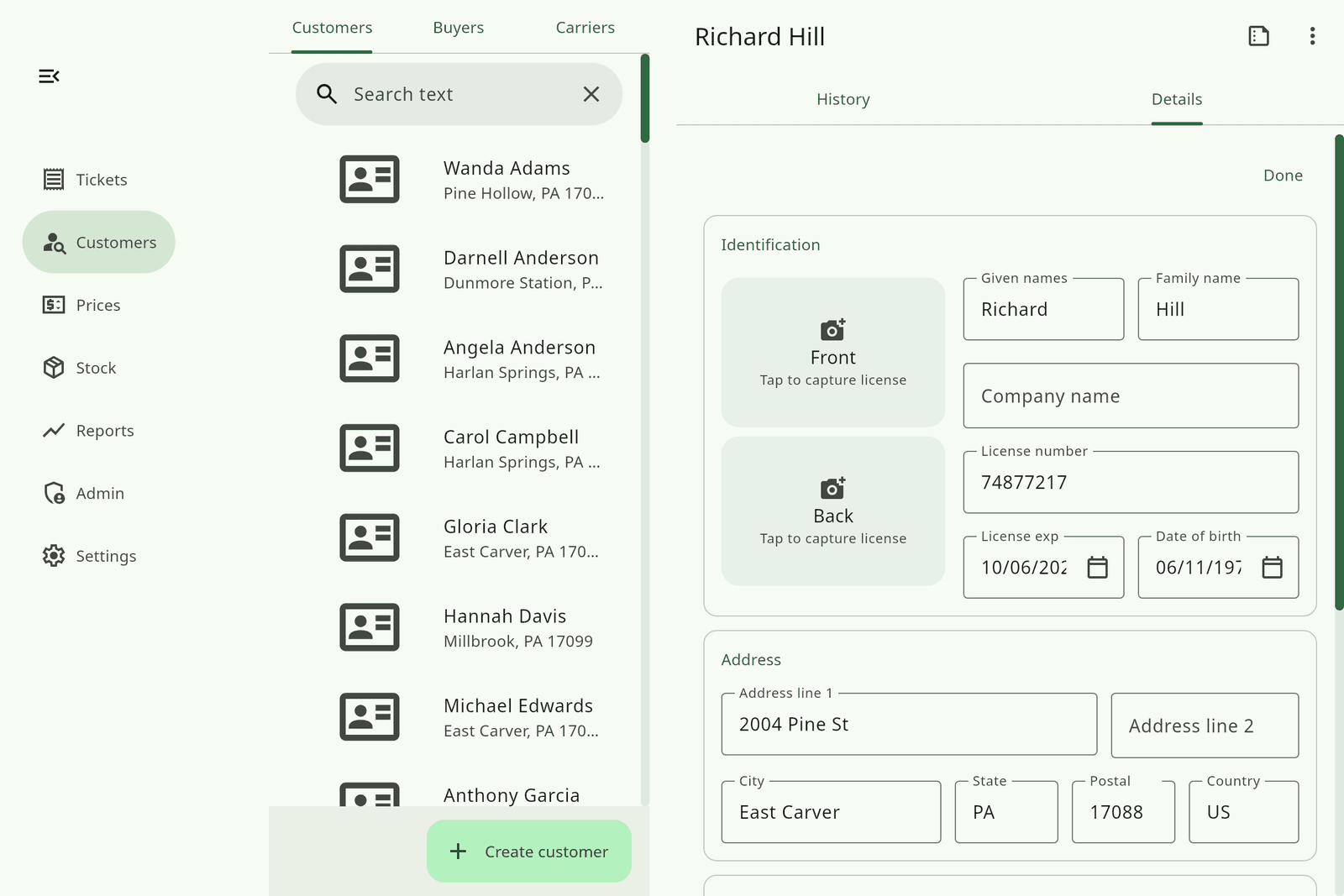
On Android the camera finds the card by itself and takes the picture when it is sharp:
- Put the card on a dark surface and fit it inside the guide.
- For the back, hold the camera close enough that the barcode is sharp, but not so close that it blurs.
- If the barcode hasn't been read after half a minute, tap Read barcode again.
On a computer, hold the card up to the camera so it fills the middle of the picture.
Take a new picture replaces a picture, and Turn the picture rotates one that came out sideways.
Use a card scanner
A scanner on your network that supports AirPrint or Mopria scanning works on Android and on computers. On Windows, a scanner with a WIA driver works too.
- Open Settings. Under Devices, tap License scanner.
- Wait while the app looks for scanners, then tap yours. Choose None to go back to using the camera.
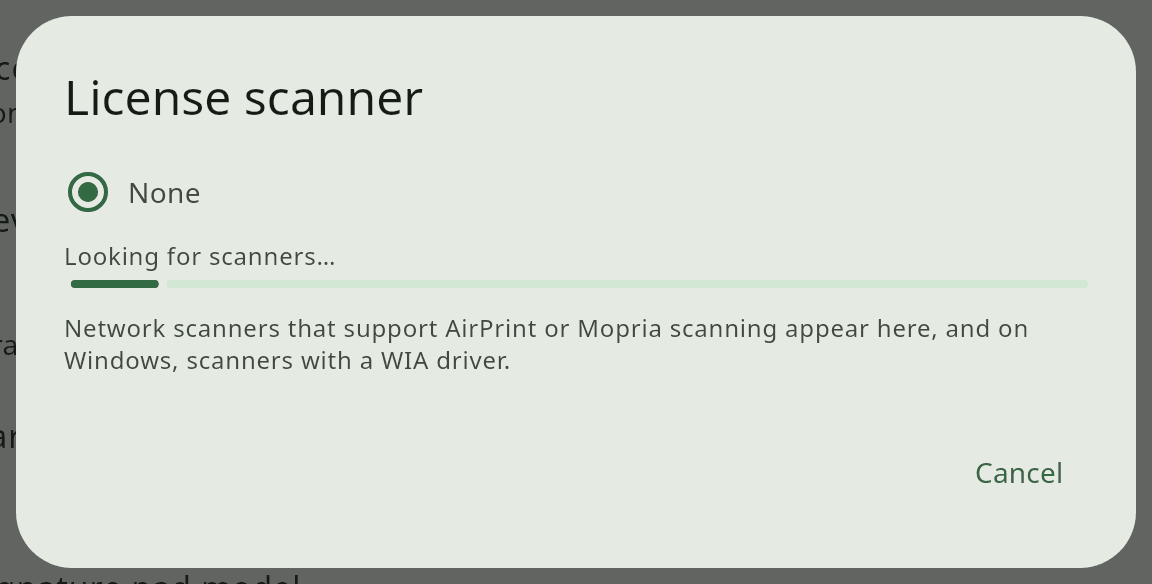
Once a scanner is chosen, a Scan license button appears at the top of the customer's record. Put the license in the scanner and tap it. The side with the barcode becomes the back. If the app can't tell which side it scanned, it asks.
A scanner that saves pictures to a folder
Some card scanners only save a picture to a folder on the computer. On Windows and Linux, the app can watch that folder:
- Open Settings. Under Peripherals, tap Card reader image folder and choose the folder your scanner saves to.
- Open the customer's record, then scan the card. The app shows New image scanned. Choose Add as front image or Add as back image.
Use a barcode scanner
A Zebra barcode scanner reads a license faster than anything else, but it takes no pictures, so use it along with a camera. Pair it first: see Barcodes.
- On a customer's record, scan the back of the license to fill in the form.
- On a ticket, scan the license to add that person as the ticket's driver. If they aren't a customer yet, the app creates them from the license and opens their record so you can finish it.
Check before buying
Whenever you add a customer to a ticket, Check before buying at the top of their record lists what is missing or out of date: an expired license, no license number, no date of birth, an incomplete address, or no picture of the front of their ID. It doesn't stop you from buying. If you pay a ticket for someone whose license has expired, the app asks you to confirm.