
Prices and commodities
A commodity is a material you buy, such as #1 copper. Each commodity belongs to a category, such as Copper, and has a price on each of your price lists. New accounts come with a default set of categories and commodities, so most yards only need to set their prices.
This page adds a new category and a commodity in it, then sets its price.
- Only the account's owner and Admins can add or change categories and commodities.
- Admins and Managers can set prices. Everyone else can look at the Prices screen but not change it.
- The device has to be online to save any of these changes.
Add a category
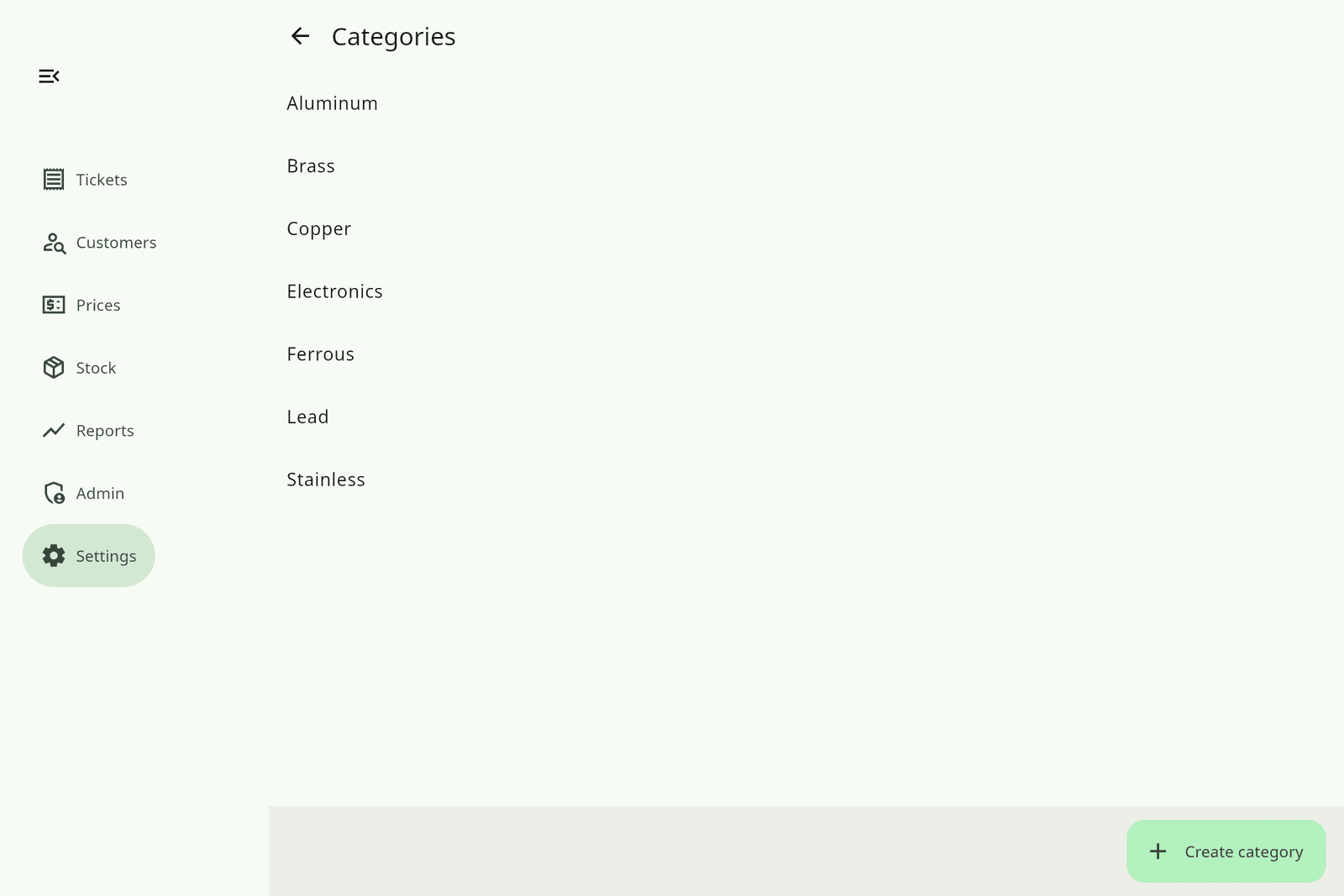
Categories group your commodities: in the picker when you add an item to a ticket, on the Prices screen, on the printed price list and in reports.
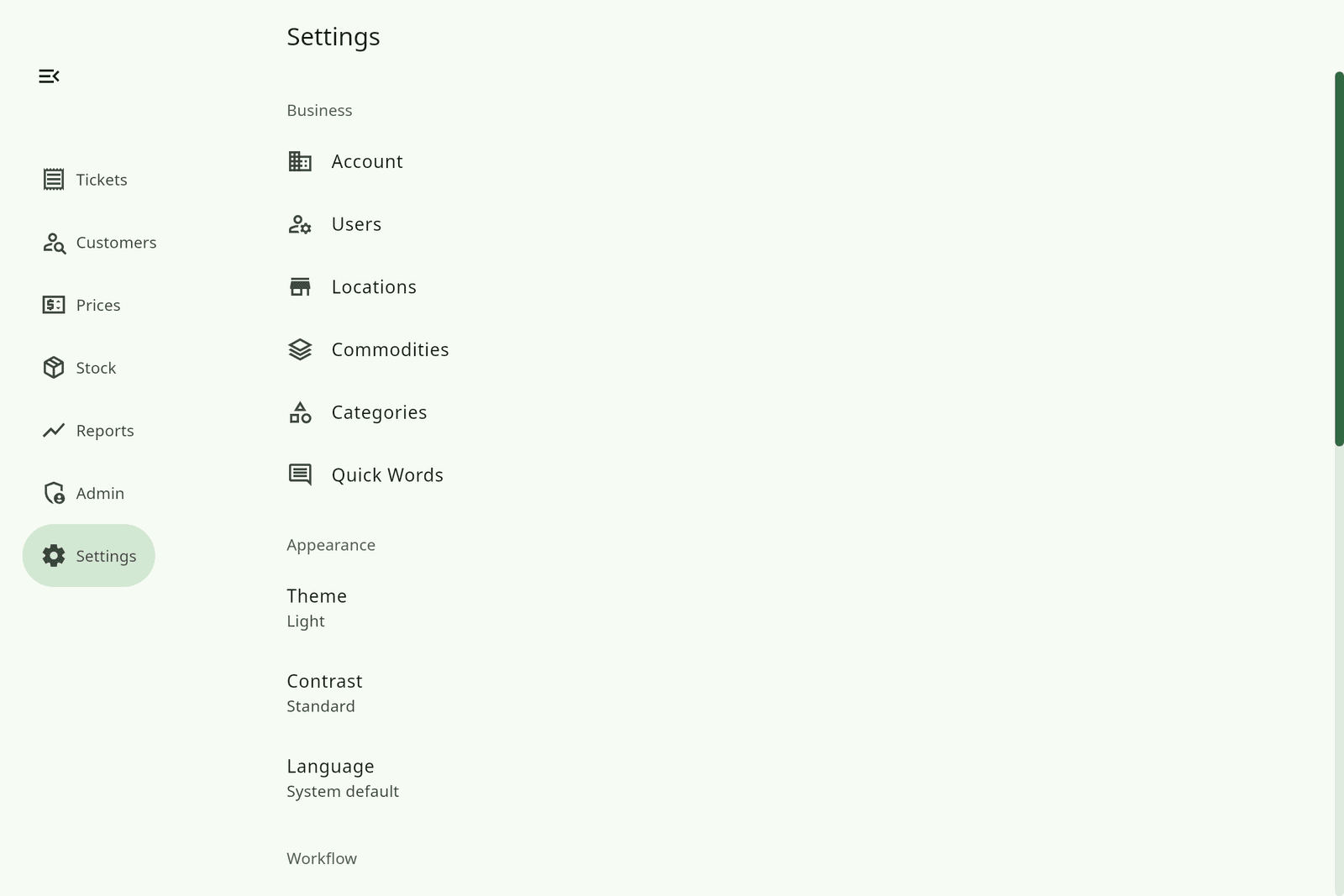
- Open Settings. Under Business, tap Categories.
- Tap Create category.
- Type the name in Category. Each category needs its own name.
- To give the category its own colors, tap the palette button beside Text color and Background color and pick each one. The colors are used for the category in the picker and for its heading on the Prices screen.
- Tap Save.
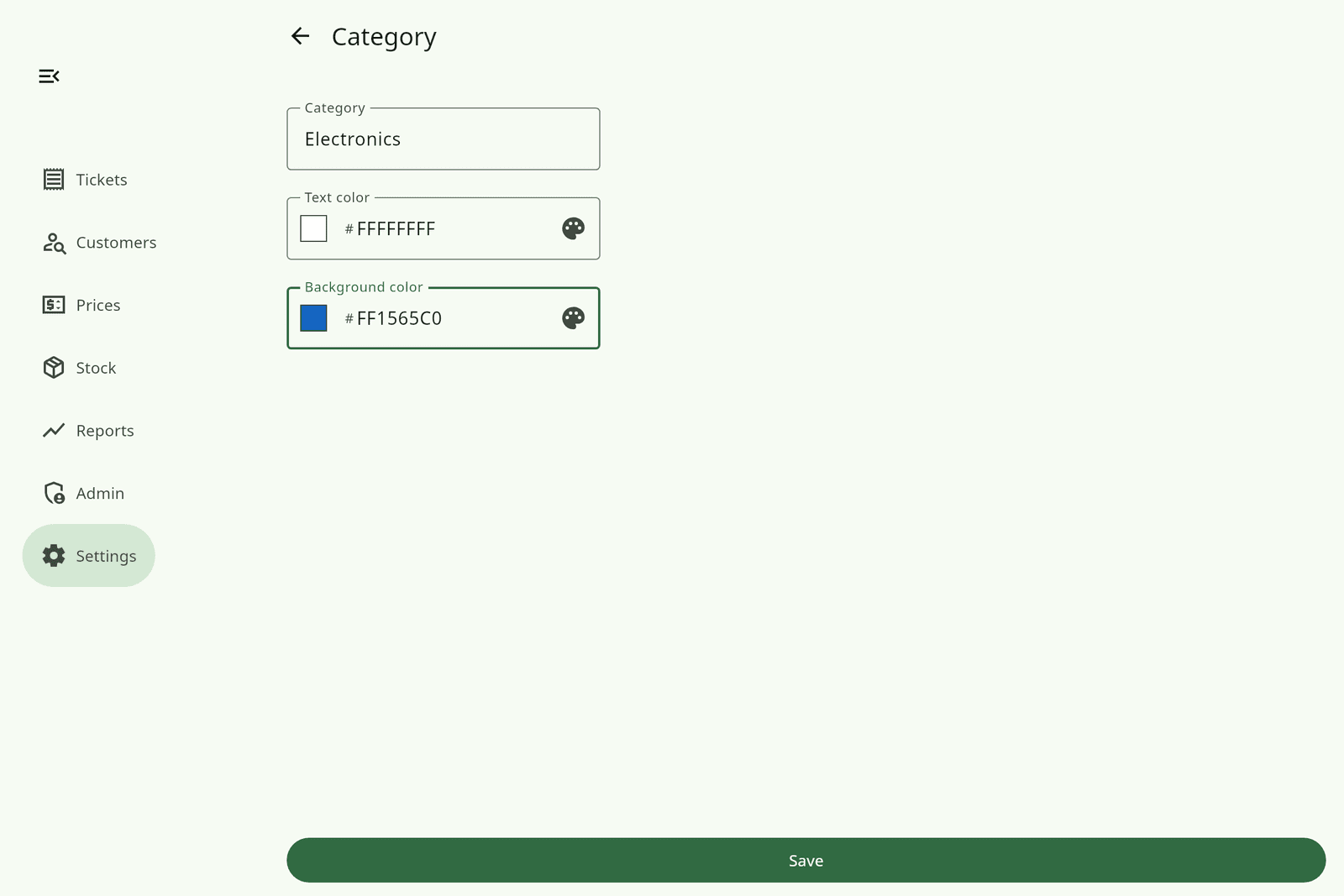
The new category joins the list. Tap a category to rename it or change its colors.
Add a commodity
- Open Settings. Under Business, tap Commodities.
- Tap Create commodity.
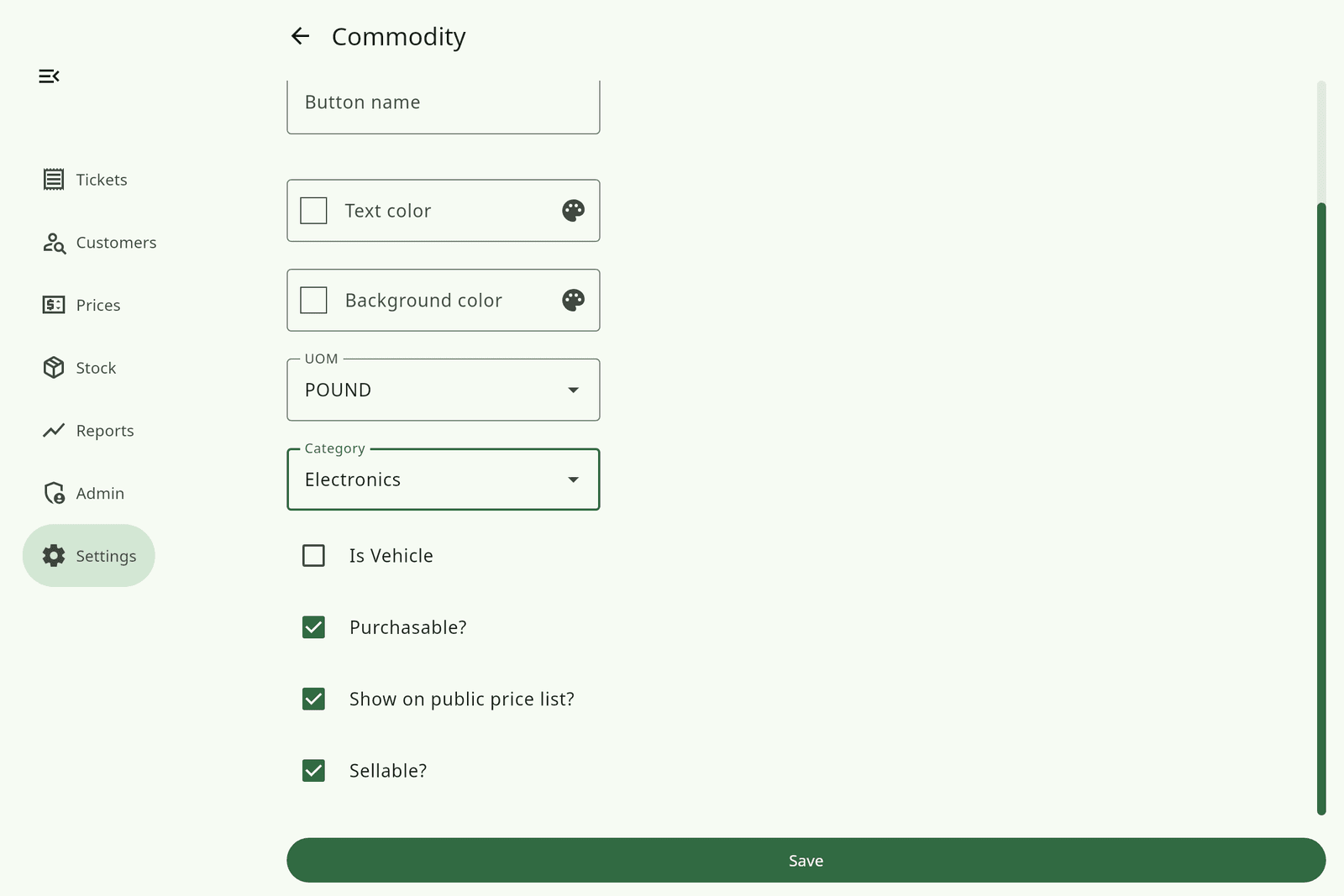
- Fill in the form:
- Commodity: the name, as it appears on tickets and receipts. Each commodity needs its own name.
- Button name: a shorter name for the commodity's button in the picker. Leave it blank to use the name.
- Text color and Background color: colors for that button.
- UOM: the unit you weigh it in. Choose POUND or KILOGRAM, or COUNT for things you buy by the piece.
- Category: where it appears in the picker and on the Prices screen.
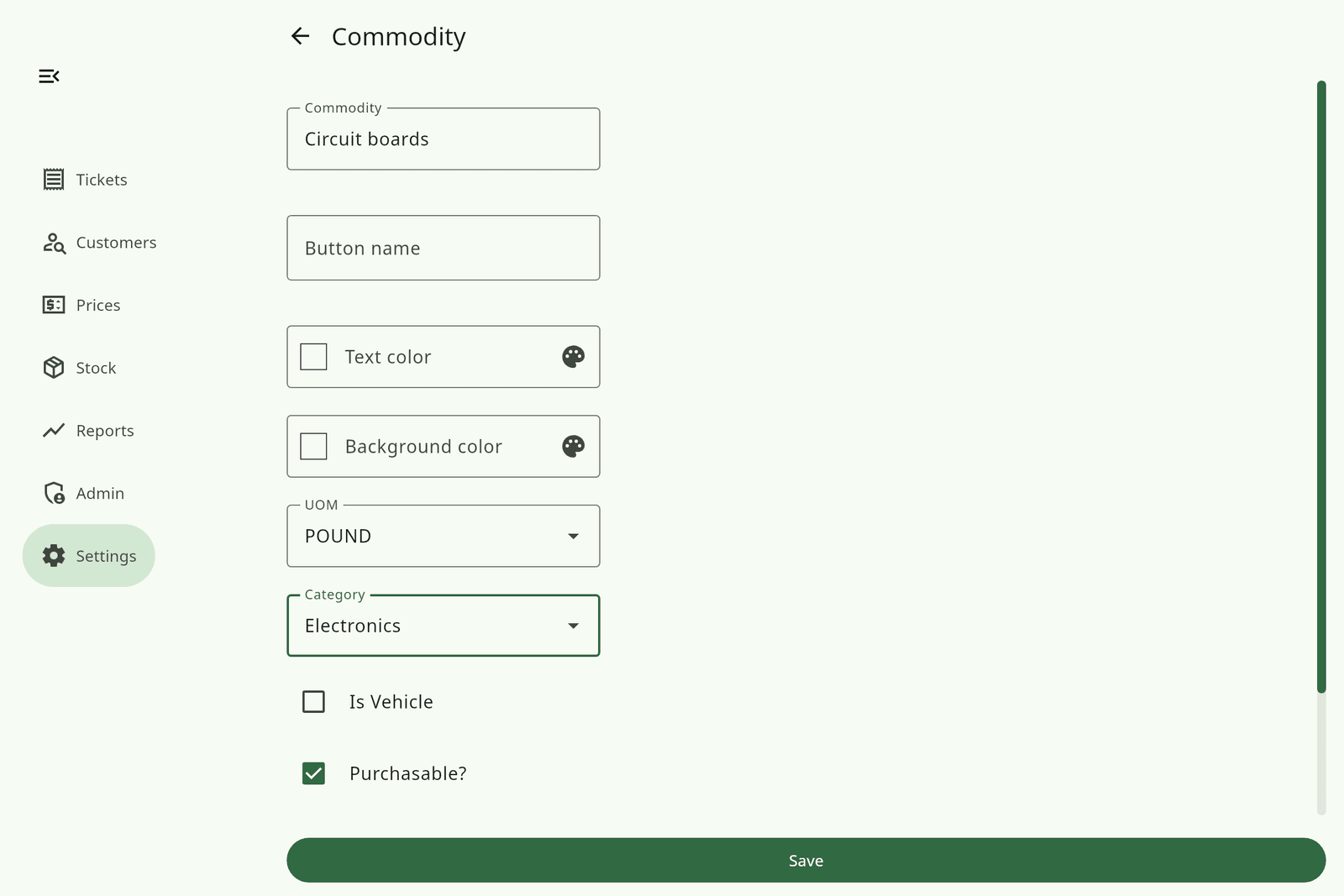
- Scroll down to the checkboxes:
- Purchasable?: leave it checked for anything you buy. Only purchasable commodities appear on the Prices screen and in the picker on a ticket.
- Show on public price list?: uncheck it to leave this commodity off the prices you publish.
- Sellable?: leave it checked for material you package and ship to buyers.
- Tap Save.
Changing or removing a commodity
To change a commodity, tap it in the Commodities list. Use the search box or the filter button at the top to find it.
Once a commodity has been used on tickets, only edit it to correct its name or move it to another category: the change shows on every ticket that has it, past tickets included.
If you stop buying a material, uncheck Purchasable? rather than removing it. It disappears from the picker and the Prices screen, and your past tickets are left alone.
To remove a commodity for good, open it and tap the trash button in the top right corner. It is removed right away, without asking. Removing a commodity doesn't change existing tickets, but you can no longer search for tickets by that commodity.
Set a price
- Open Prices. Commodities are listed under their categories with their current prices.
- Check Price list at the top. To set prices on a different list, choose it there.
- Scroll to the commodity, or type part of its name in the search box, and tap it.
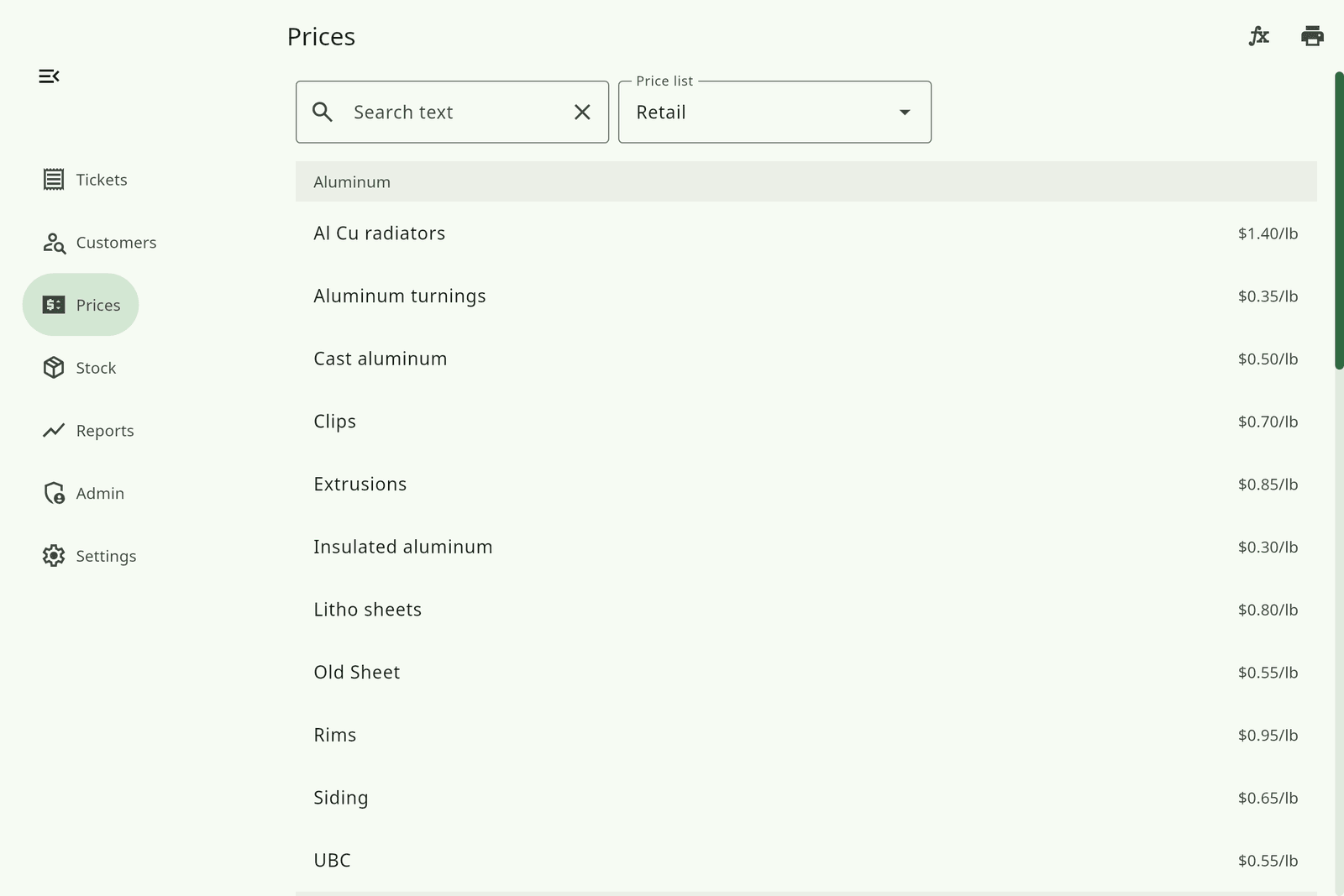
- In Edit price, choose the Price unit. For a commodity weighed in pounds you can price it by the pound, the hundredweight or the ton.
- Type the Price and tap OK.
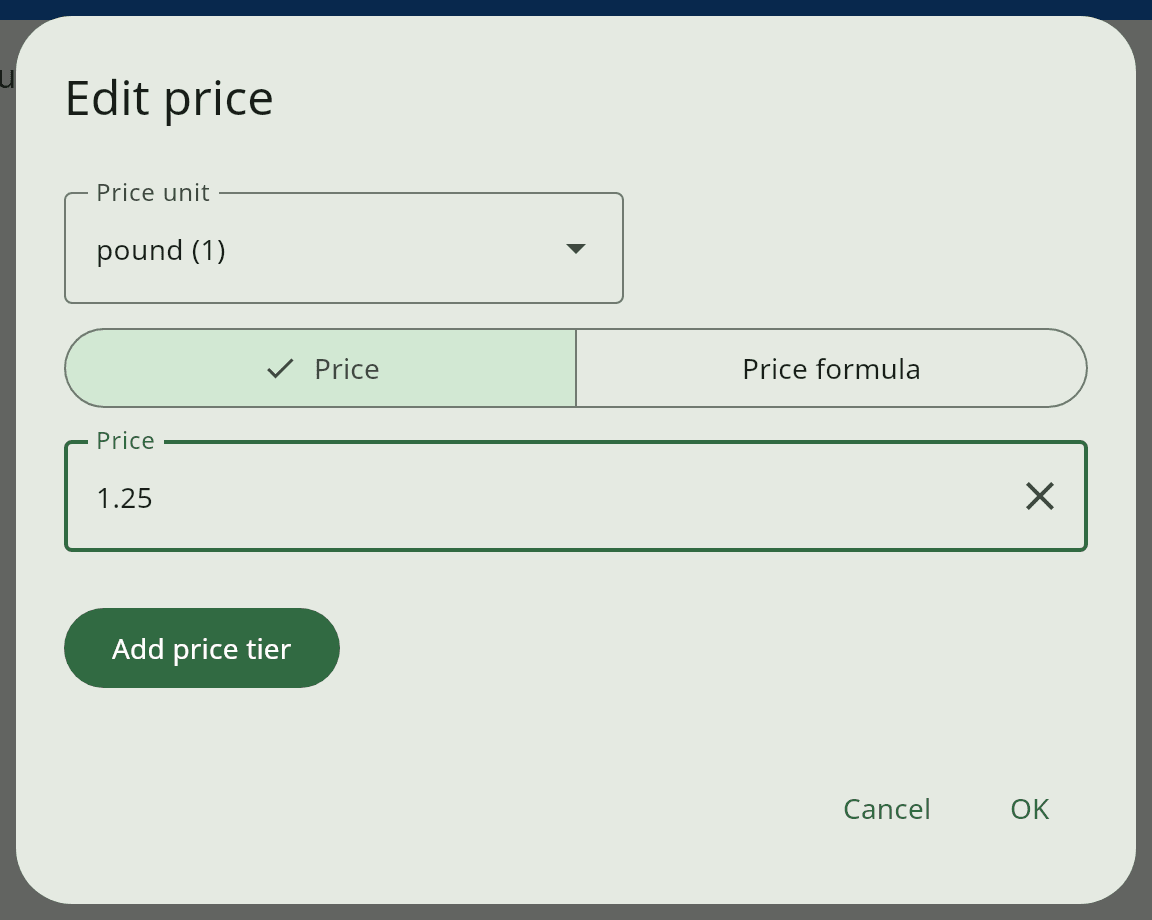
The new price is used from that moment, on every device. Items already on a ticket keep the price they were added at. An item's price is looked up again only if you change its weight or commodity, or the ticket's price list.
To print your prices, tap the printer button in the top right corner of the Prices screen. They print on the receipt printer.
Pay more for bigger loads
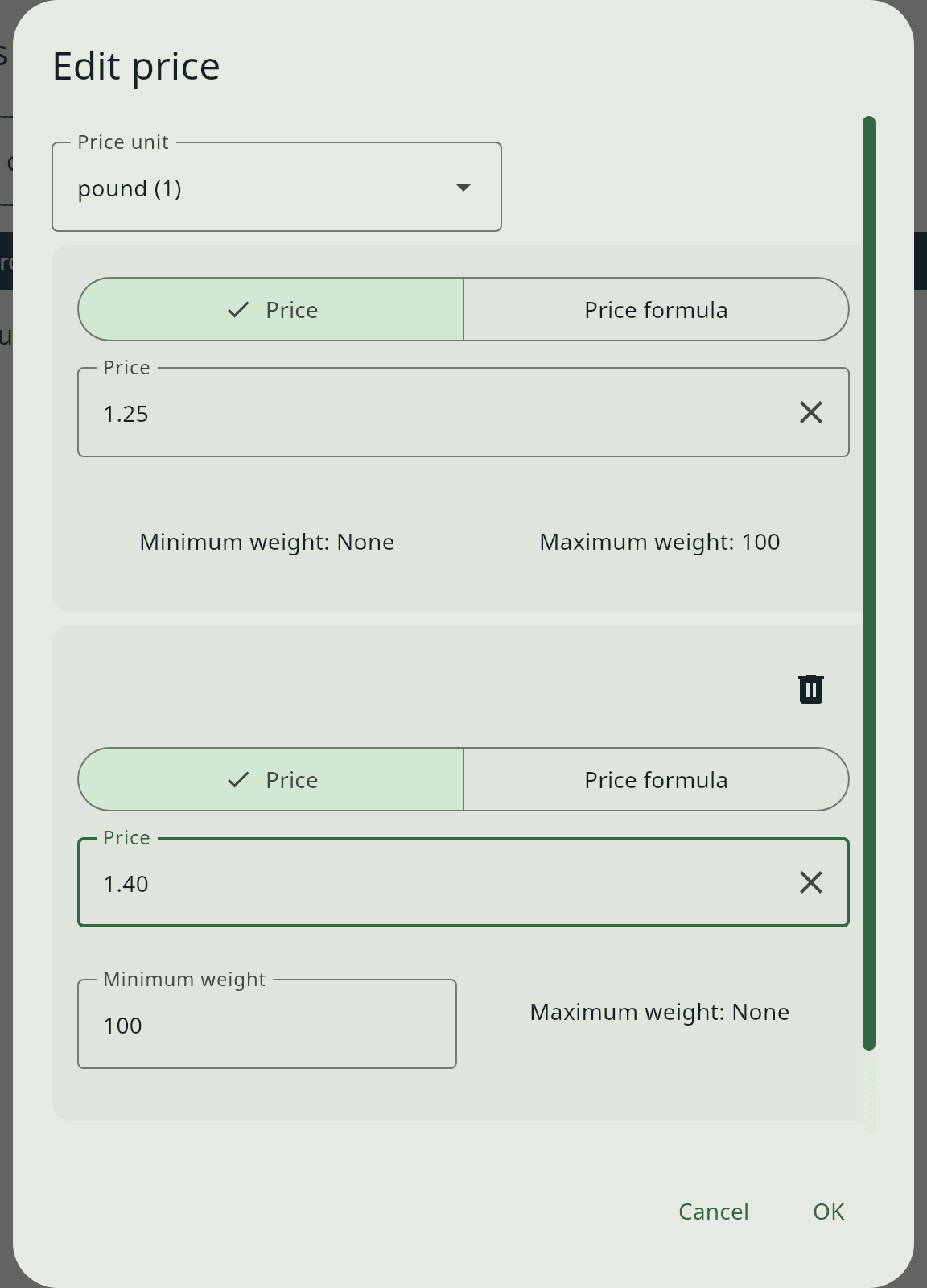
A commodity can have price tiers by weight, such as one price up to 100 lbs and a better price from there up.
- In Edit price, tap Add price tier.
- In the new tier, type its Price and the Minimum weight it starts at.
- Add more tiers the same way. Each one has to start at a higher weight than the one before. Tap OK.
Price lists
A price list is a full set of prices. Every account has a default list, and you can add more, for commercial accounts for example.
- Add a list: on the Prices screen, open the Price list menu and choose Create new price list.
- Give a customer a list: open the customer's record and choose their Price list. Their tickets then use it.
- Use a list for one ticket: tap the Price list card on the ticket.
A commodity with no price on a list is bought at the default list's price, so a second list only needs the prices that differ.
Price lists can't be renamed or removed in the app. Contact support if you need that done.
Price formulas
Instead of a fixed number, a price can be a formula based on a value you update, such as a market price. Change the value once and every price built on it follows.
Add a price variable
- On the Prices screen, tap the ƒx button in the top right corner to open Price variables.
- Tap Add.
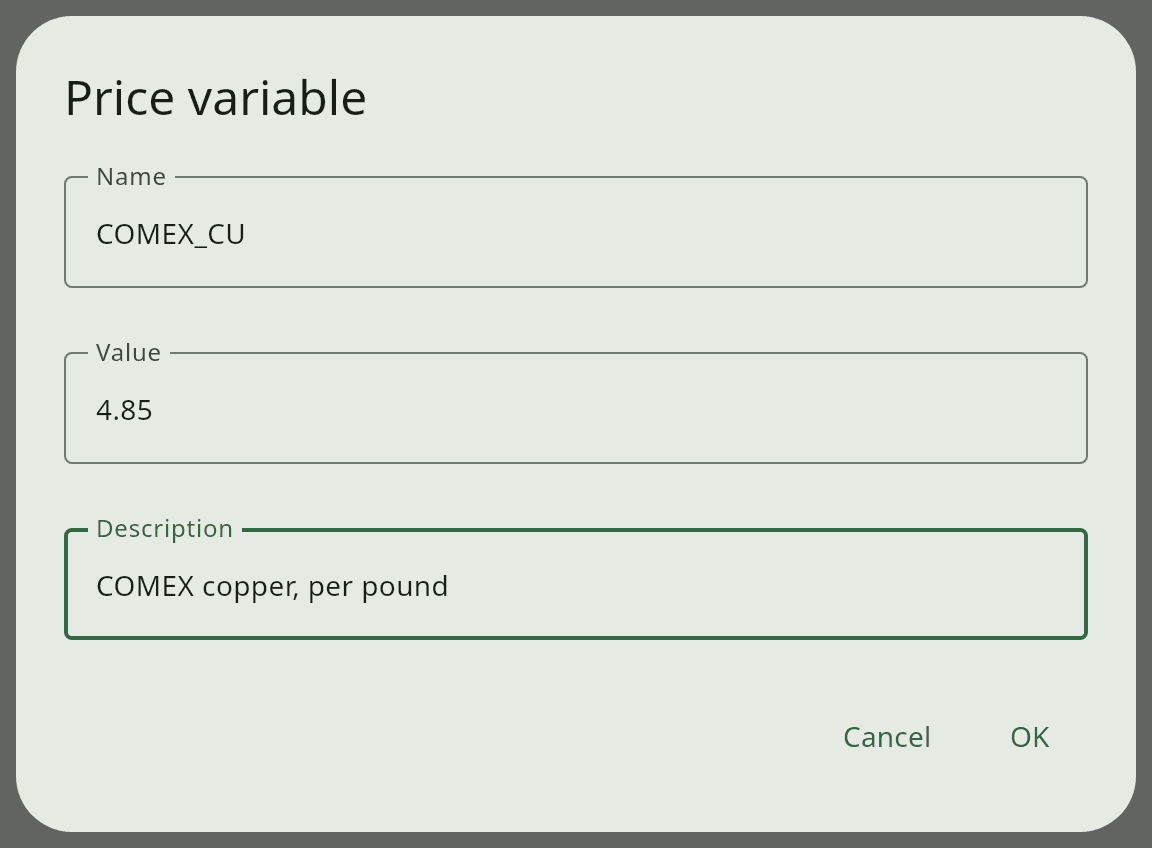
- Type a Name in capital letters, such as COMEX_CU. Use letters, digits and underscores, starting with a letter. The name can't be changed later.
- Type the Value and, if you like, a Description to remind you what it is. Tap OK.
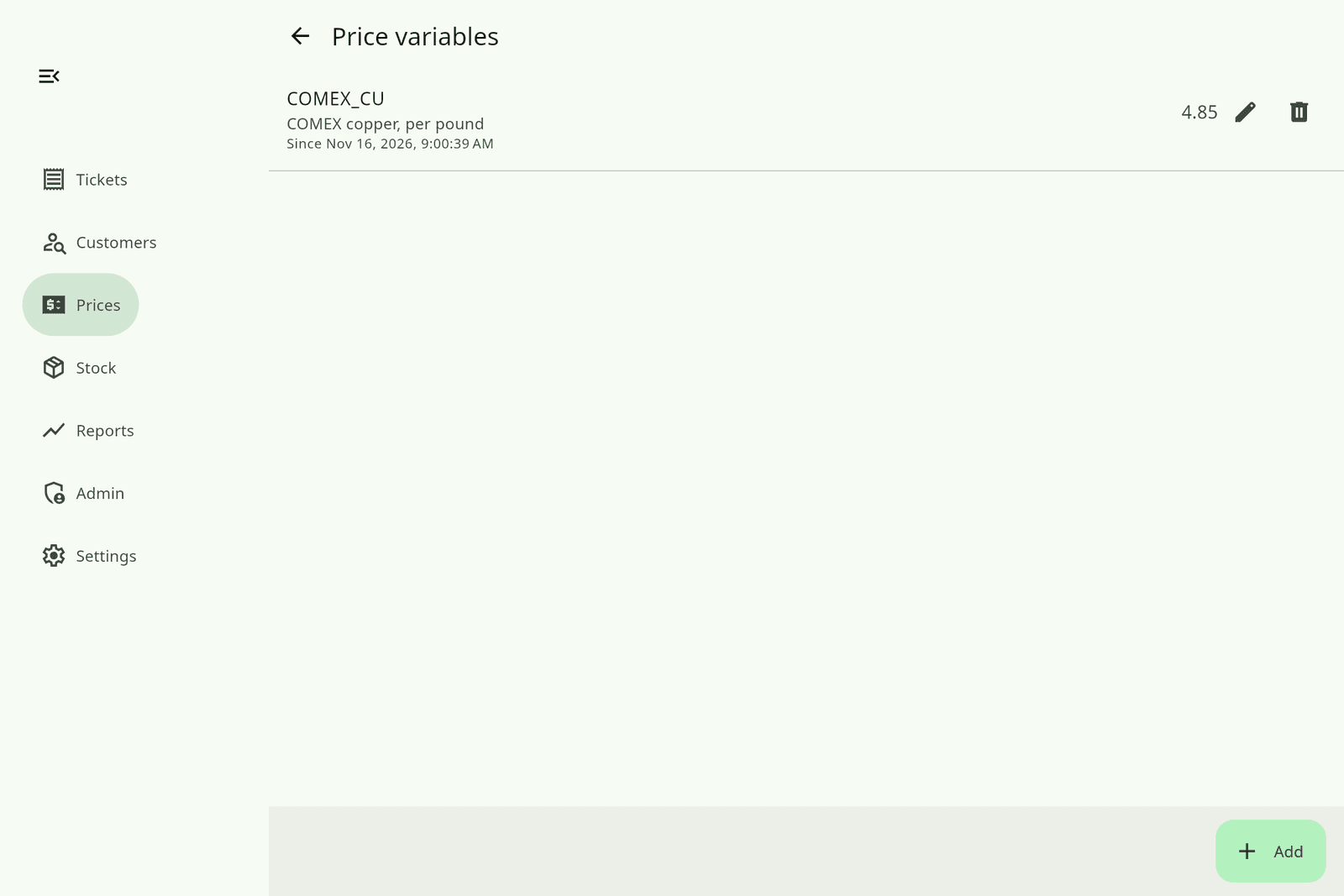
The variable is listed with its value and when that value was set. To update it, tap the pencil button and type the new Value.
Use it in a price
- On the Prices screen, tap the commodity.
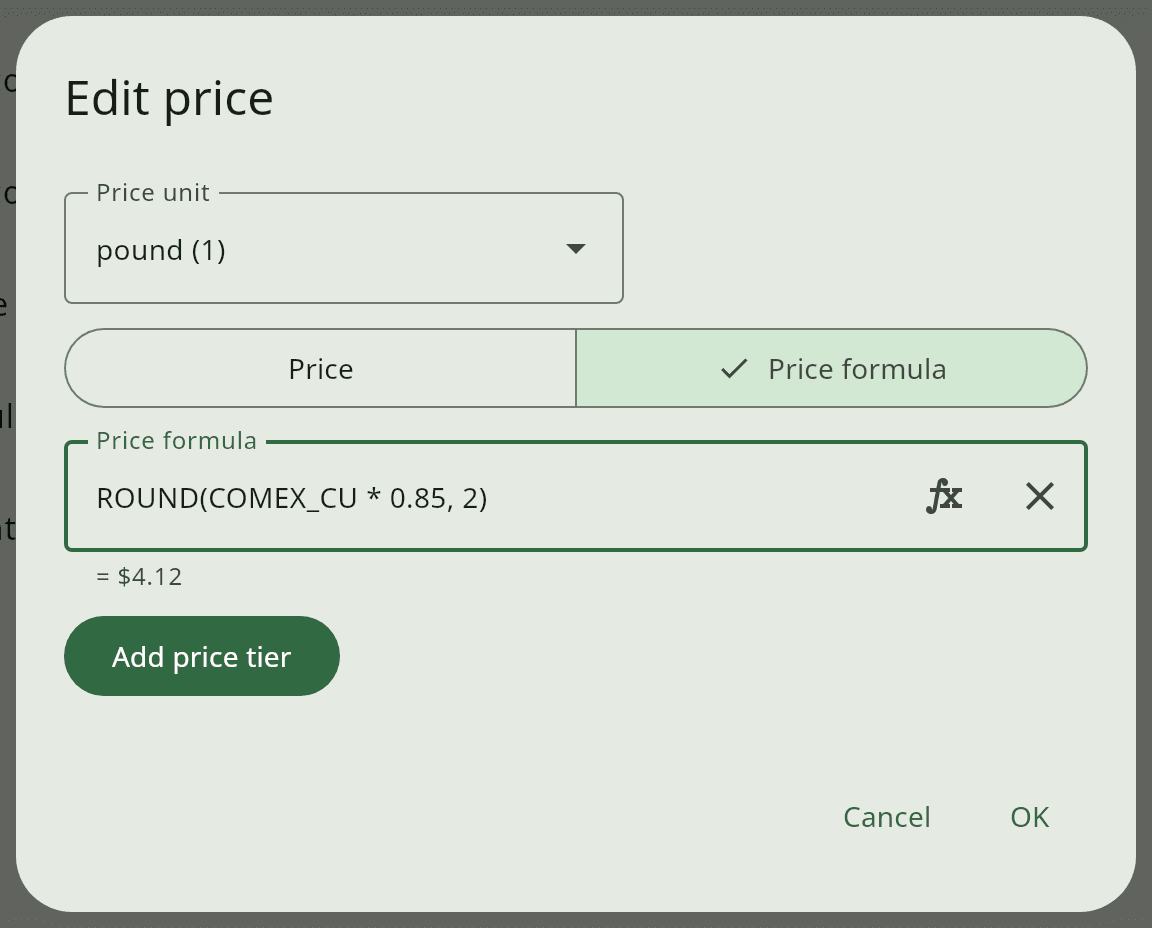
- In Edit price, switch from Price to Price formula.
- Type the formula. The ƒx button in the box inserts a variable's name for you.
- The result appears under the box as you type. When it's right, tap OK.
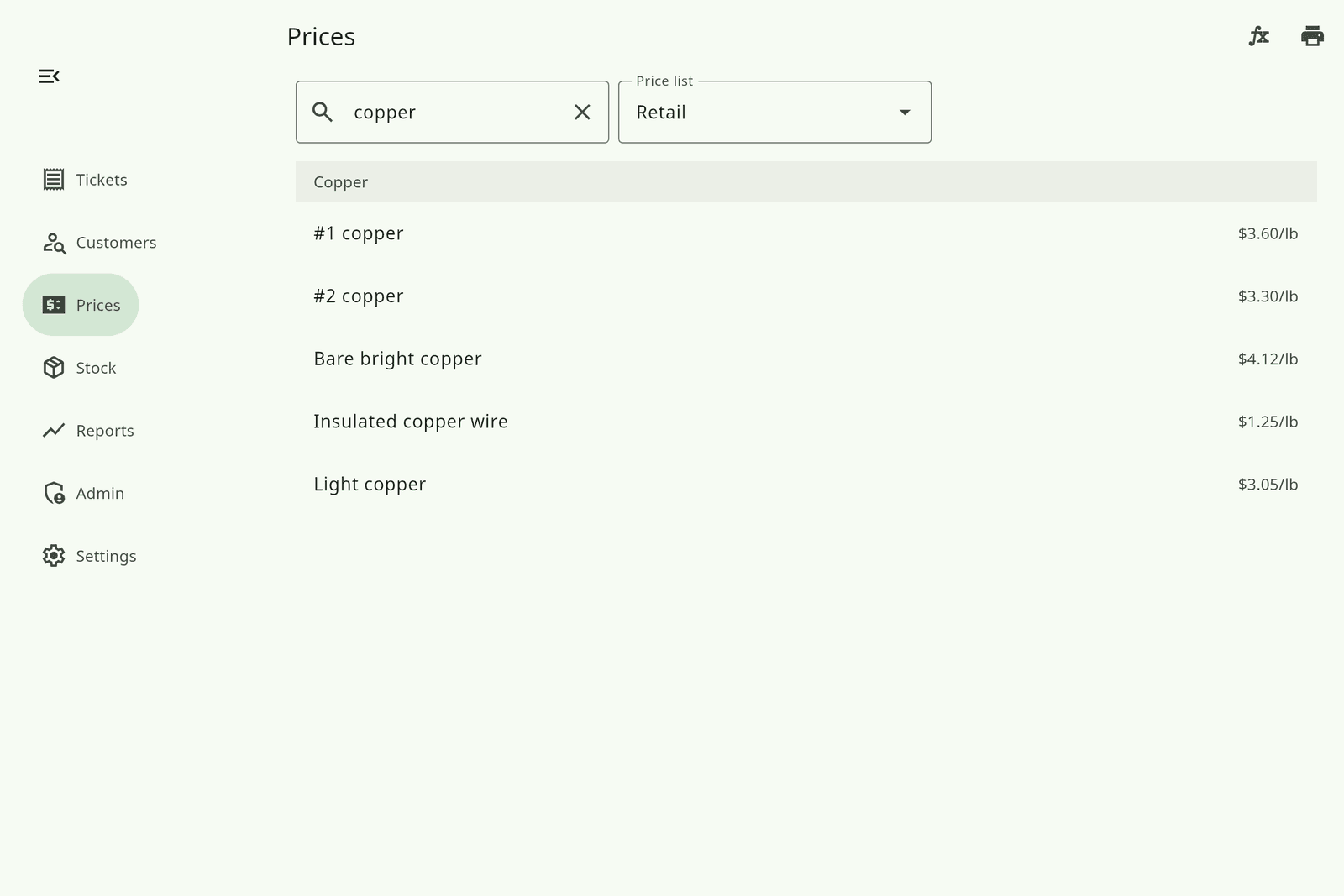
The Prices screen shows the result, not the formula.
A formula can use:
- Numbers and your price variables.
+,-,*and/, with parentheses to group them.ROUND(value, places),ROUNDUP(value, places)andROUNDDOWN(value, places)to round to 0 to 4 decimal places.FLOOR(value, step)andCEILING(value, step)to round down or up to a multiple, such as the nearest 0.05.MIN(a, b)andMAX(a, b)to take the lower or higher of two or more values.
For example, MAX(ROUND(COMEX_CU * 0.85 - 0.10, 2), 2.50) pays 85% of the market price less ten cents, rounded
to the cent, and never less than $2.50.
If a formula can't be worked out, for example because it divides by zero, the Prices screen shows Formula error in red beside the commodity, and tickets get no price for it until you fix the formula. A variable that a price still uses can't be deleted: the app lists the prices to change first.