
Customers
A customer's record holds who they are, the pictures of their ID, their vehicles and everything they have sold you. You can add customers ahead of time, or as they come in, from the ticket (see Building a ticket).
Every role can add and change customers. The device doesn't have to be online: changes made offline are sent when the connection comes back.
Find a customer
Open Customers. The list is in order of last name.
Type in the search box to narrow it down. You can search by first name, last name, company name or license number, and type parts of more than one, such as "car camp" for Carol Campbell.
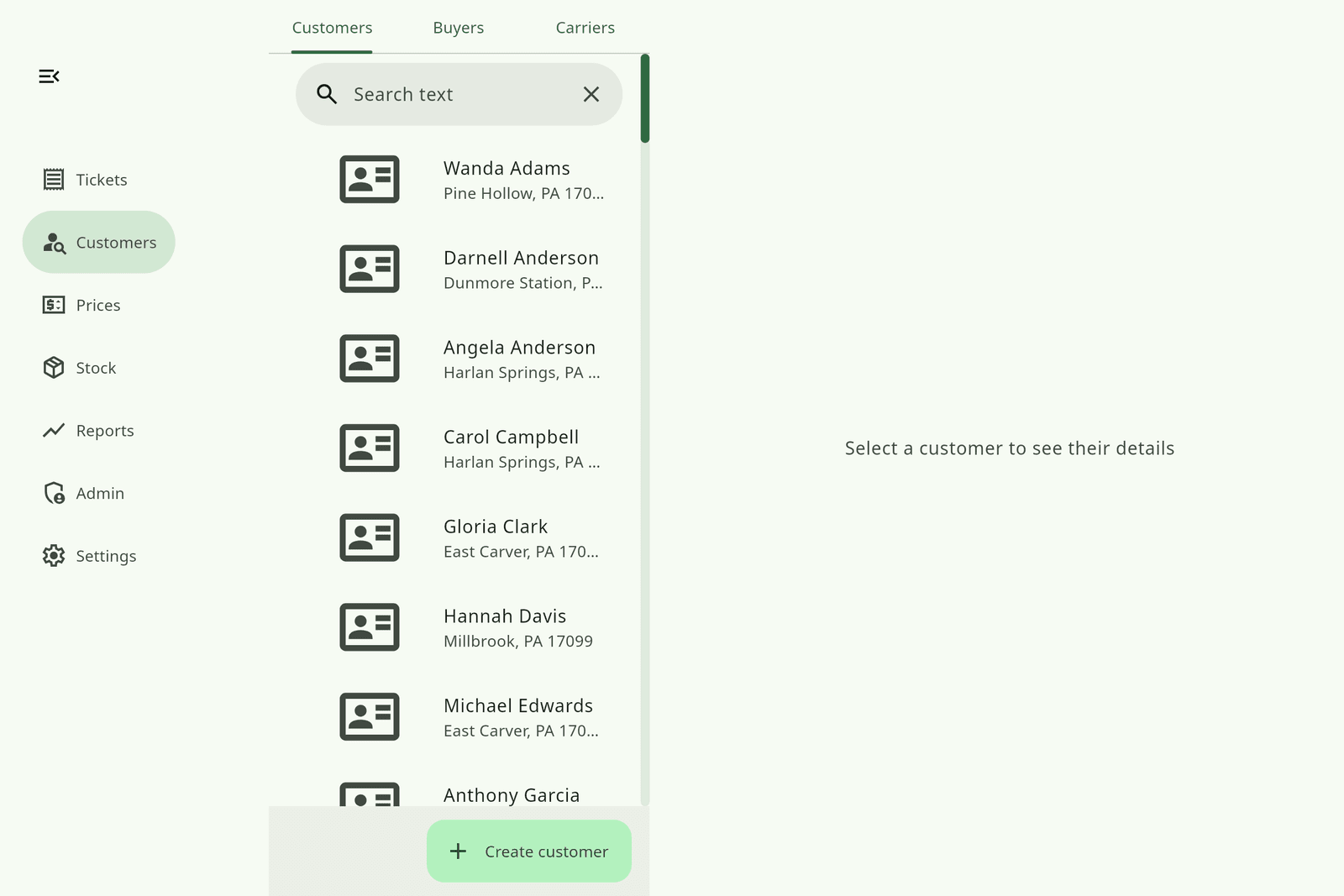
The Buyers and Carriers tabs at the top hold the companies you ship to and the carriers that haul for you. They work the same way.
Add a customer
- Tap Create customer.
- Fill in what you have. Nothing is required, but Check before buying on a ticket will point out anything
that is missing.
- Identification: the customer's name, license number, license expiration and date of birth, with pictures of the Front and Back of their ID. Scanning the license fills these in for you: see Scanning licenses.
- Address and Contact.
- Account: an Account number and Tax ID if you keep them, and the customer's Price list.
- Tap Save.
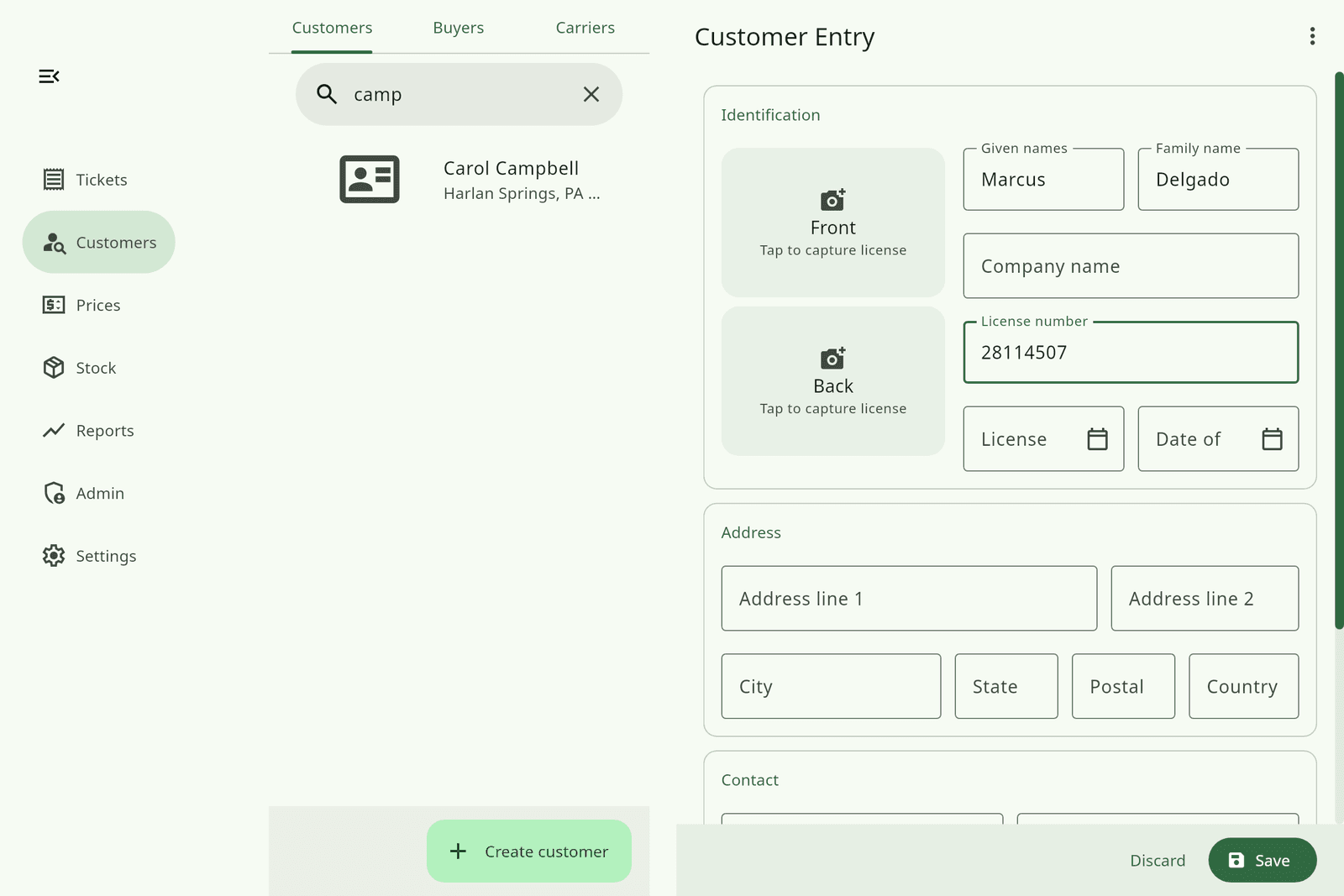
For a business, fill in Company name. The customer is then listed under that name, and you can leave the person's name blank.
If the name or license number you type matches a customer you already have, the app says Matched existing customer and offers to use that one instead. Tap OK to switch to the existing customer, or Cancel to carry on with a new one.
A customer's history
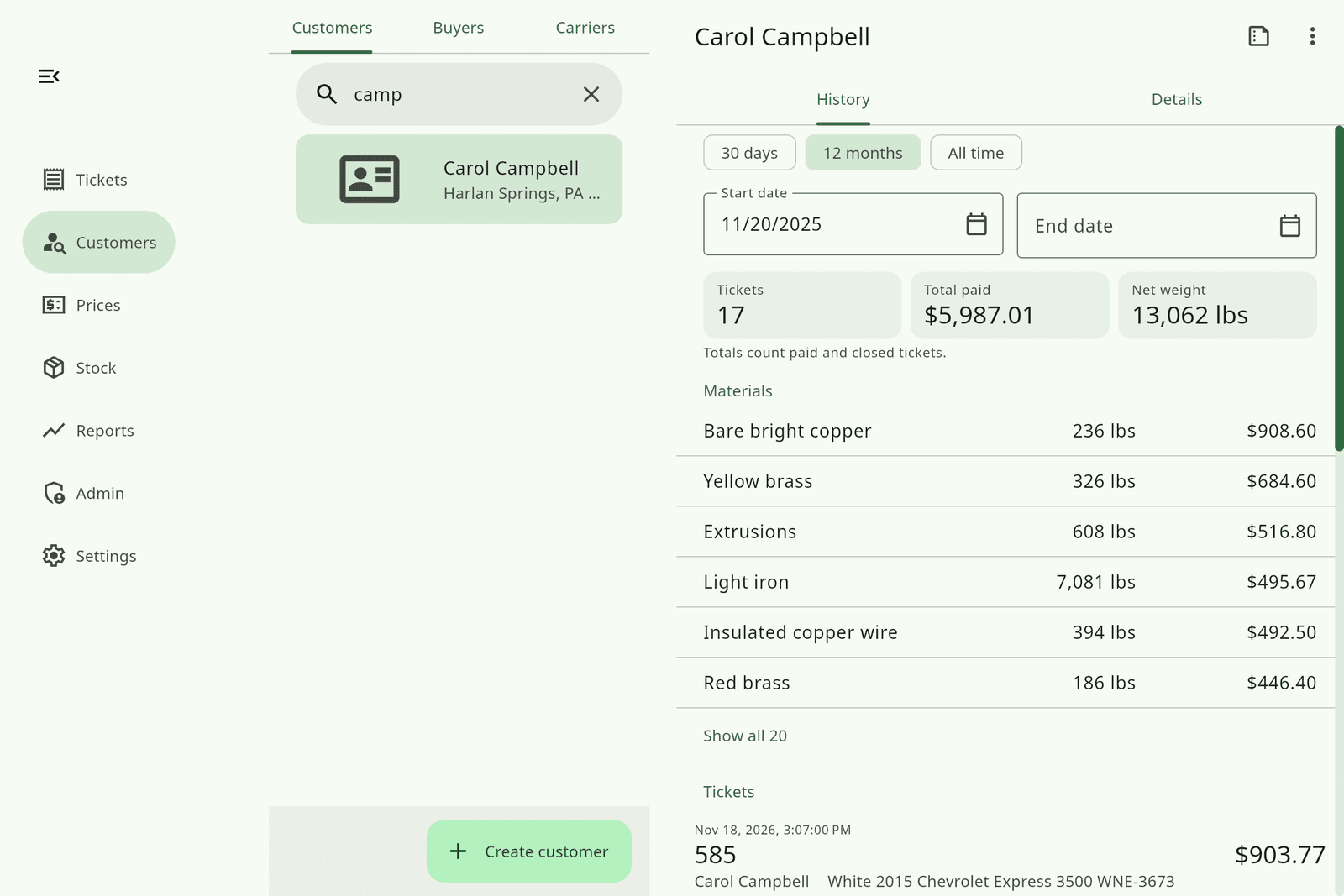
Tap a customer to open their record. History shows what they have sold you:
- Choose 30 days, 12 months or All time, or set a Start date and End date.
- Tickets, Total paid and Net weight add up the paid and closed tickets in that time.
- Materials lists what they brought in, the most valuable first.
- Tickets lists every ticket in that time, including open and voided ones, whether they were the customer or the driver. Tap one to open it.
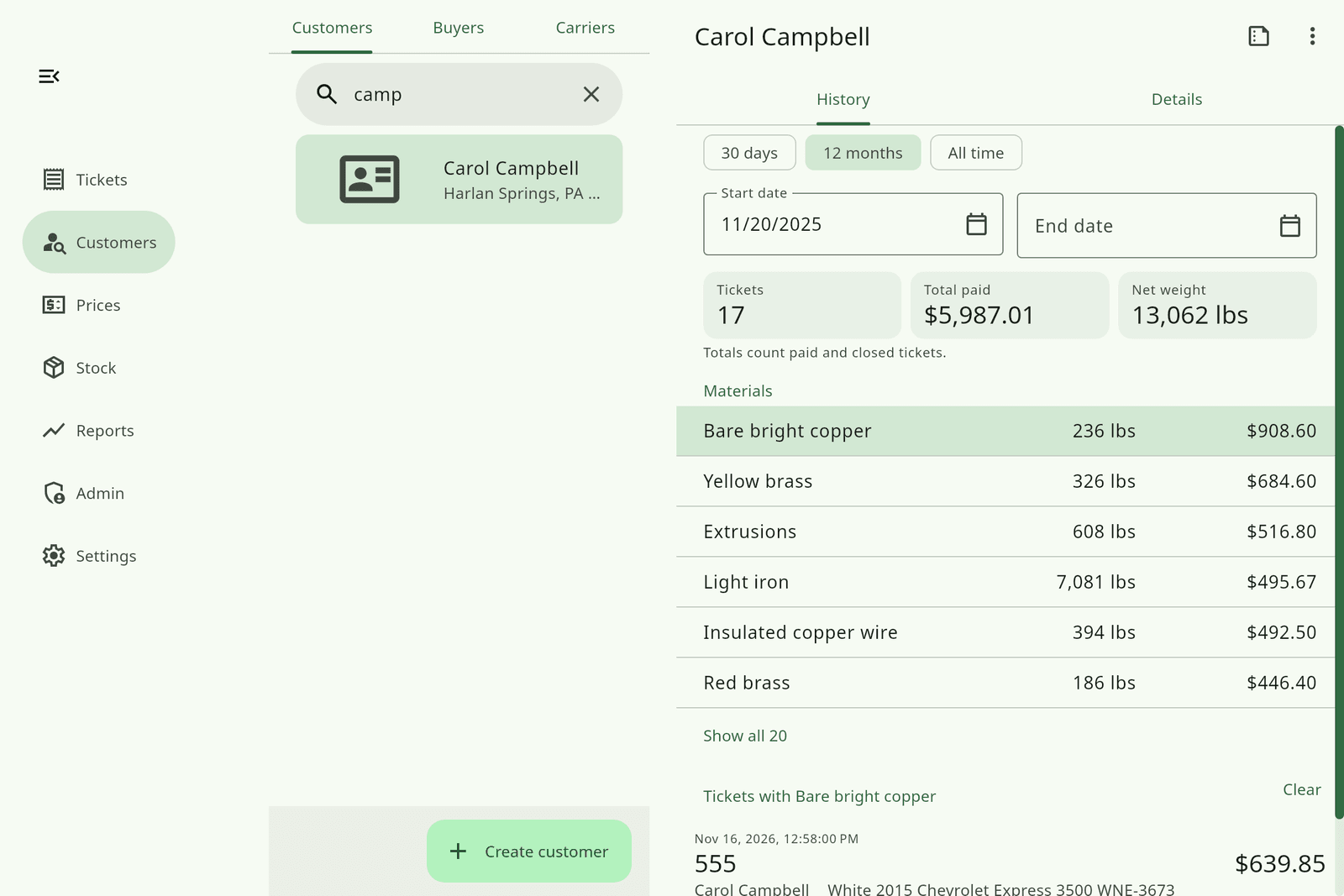
Tap a material to see only the tickets with it. Tap Clear to see them all again.
Change a customer's details
- Open the customer and tap Details. On a wide screen the details are already showing on the left.
- Tap Edit details.
- Make your changes and tap Save. The app says Customer saved.
- Tap Done to close the form.
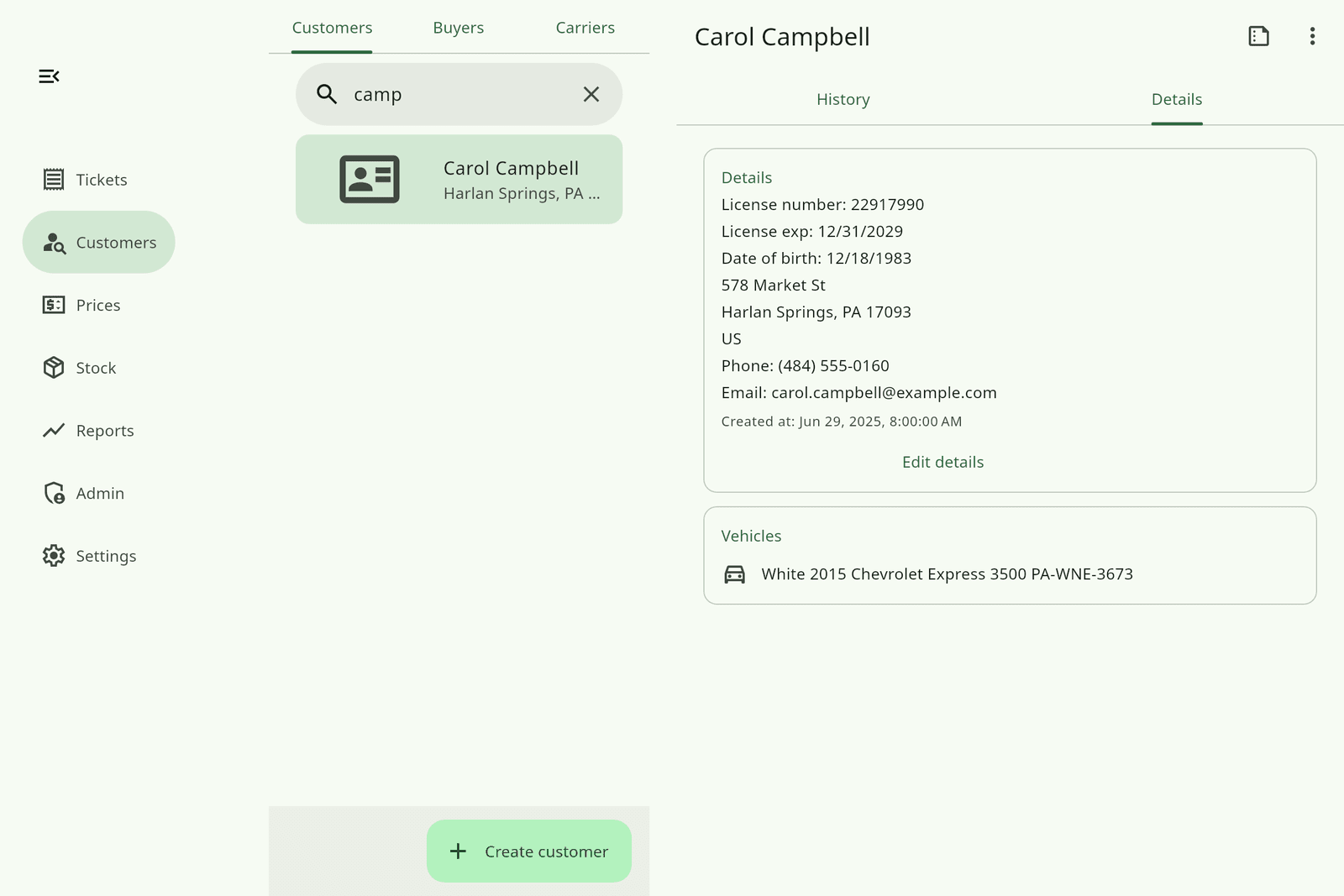
A ticket shows the customer's details as they are now. If you correct a name, it changes on their past tickets too.
To replace a picture of their ID, tap the camera button on it. Turn the picture rotates one that came out sideways.
Give a customer their own prices
Under Account, choose the customer's Price list. From then on, their tickets use that list instead of your default one. See Prices and commodities.
Vehicles
A customer's vehicles are listed on their record, but they are added from a ticket:
- On the ticket, add the driver or customer first.
- Tap Add vehicle. The app lists the vehicles that the driver and the customer already have. Tap one to use it.
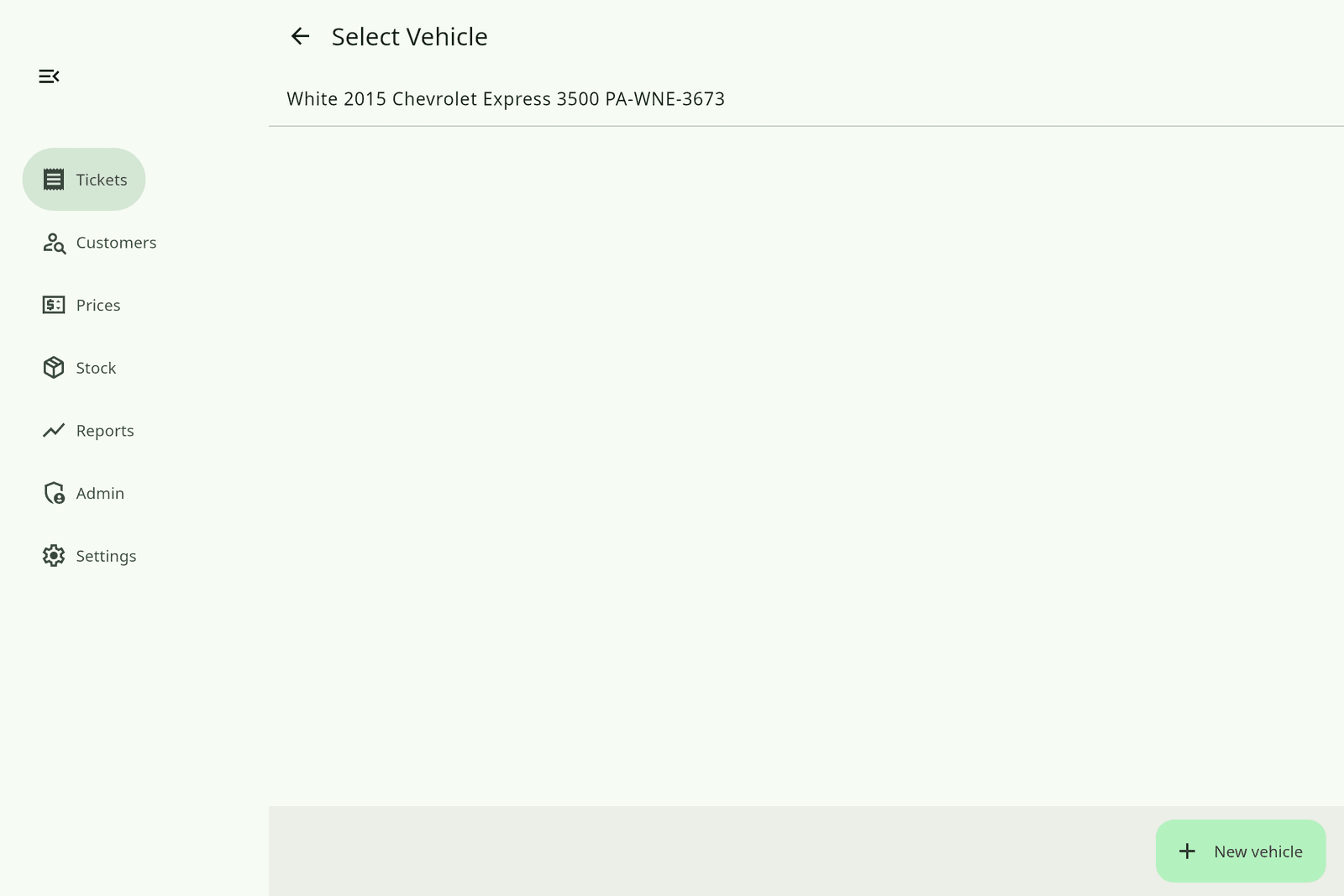
- For one that isn't there, tap New vehicle. Fill in the License plate number, License plate state and whatever else you record, such as the Make, Model, Year, Color and VIN. Tap the picture area to take a photo of it with the vehicle camera (see Cameras).
- Tap Save. The vehicle goes on the ticket, and it is kept for next time.
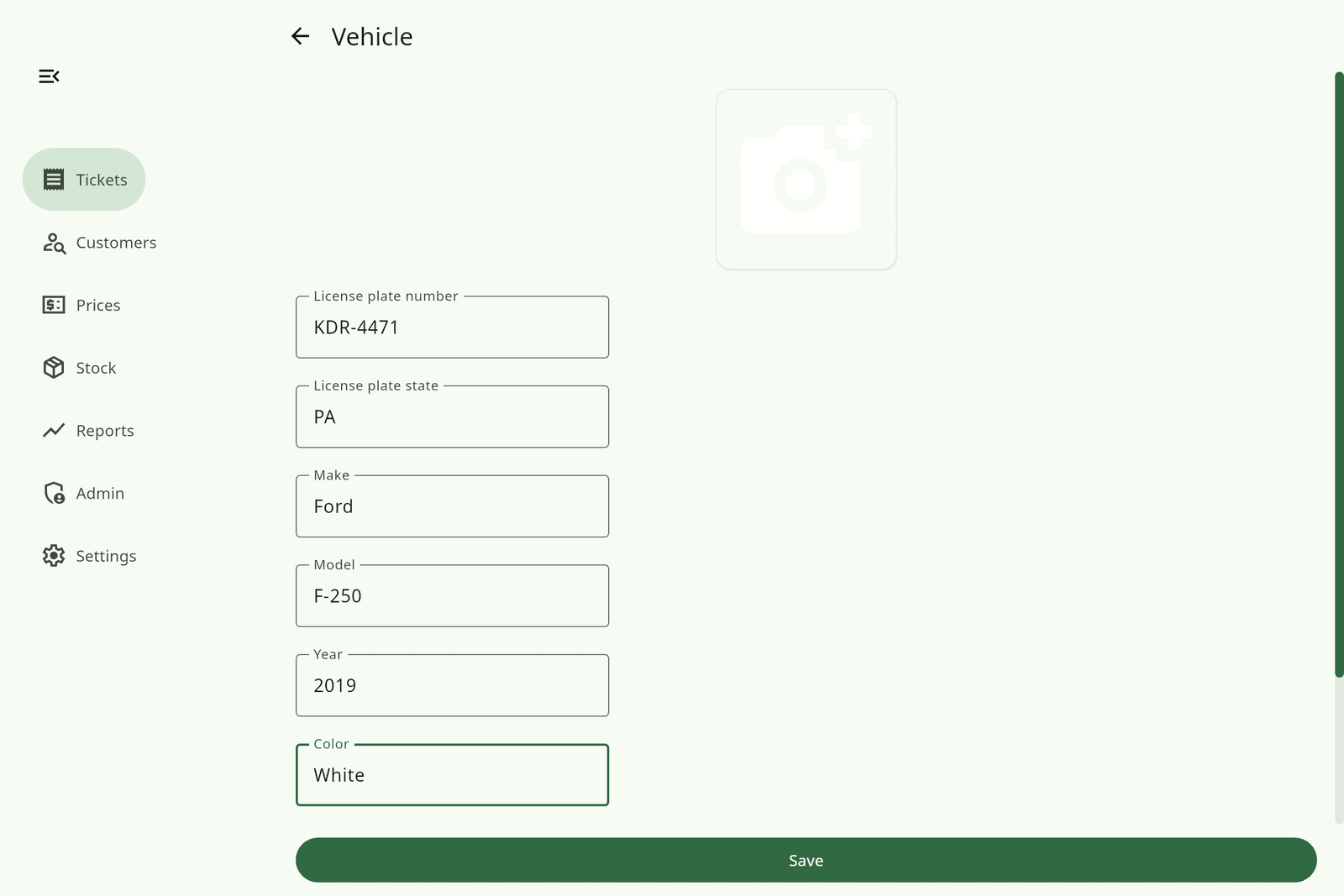
A new vehicle is filed under the ticket's driver if it has one, and under the customer if not. To change a vehicle, tap its card on a ticket. The X on the card takes the vehicle off that ticket only.
Print or export a customer report
A customer report lists what a customer sold you between two dates, for the customer's own records or for anyone who asks you for them.
- Open the customer and tap the report button in the top right corner.
- Choose By commodity for totals of each material, or By ticket for a line per ticket.
- Set the Start date and End date.
- Tap Print report, or Export report to save it as a PDF.
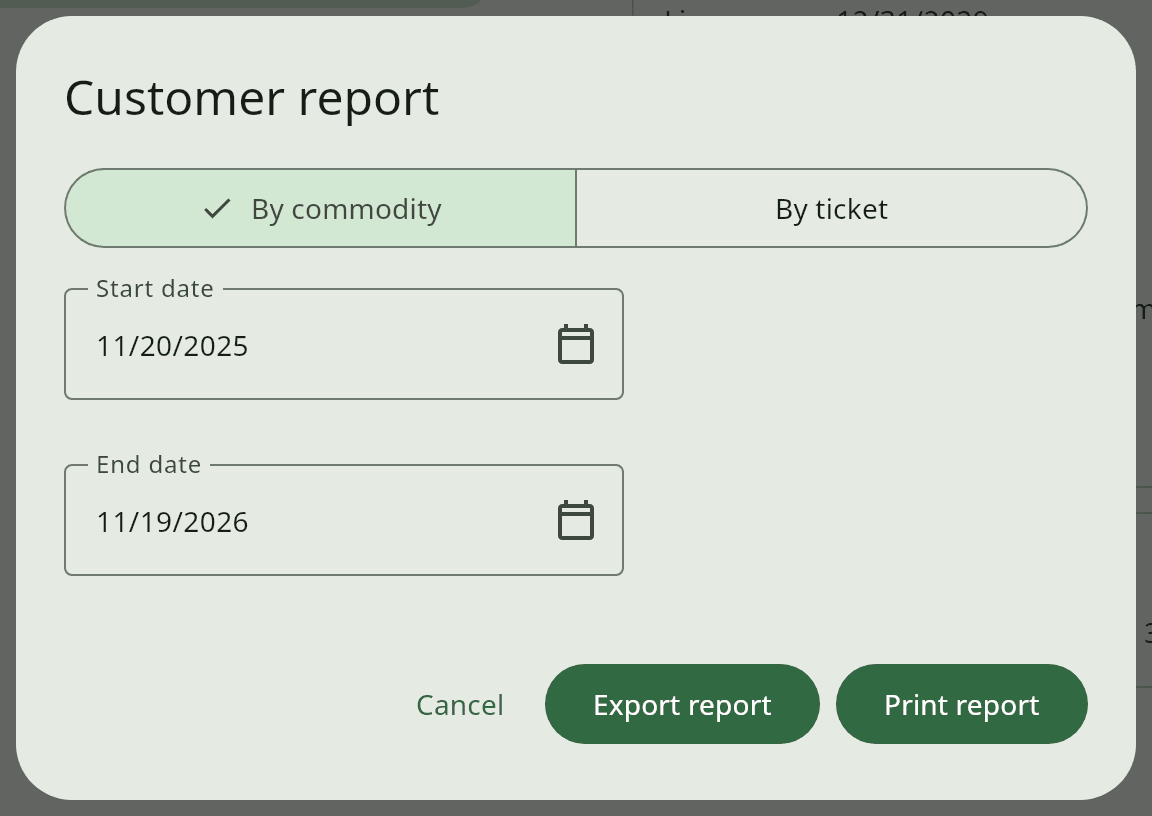
The report prints on the document printer (see Printers). It counts paid and closed tickets only. Export report isn't available in the web browser.
Merge or delete a customer
Both are under the menu button in the top right corner of the customer's record. Neither can be undone.
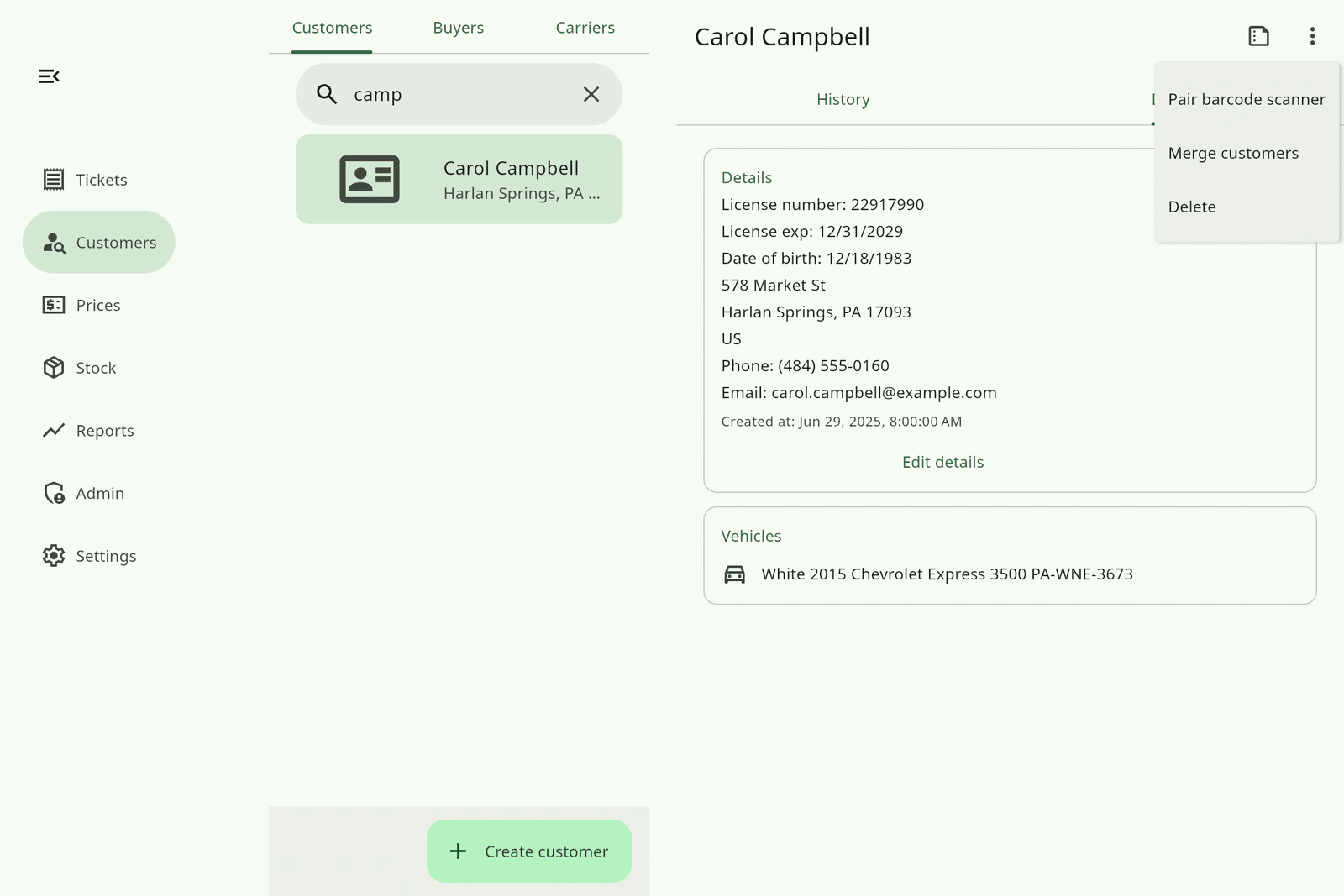
Merge customers is for when the same person was entered twice:
- Open one of the two and choose Merge customers.
- Find and tap the other one.
- The app shows both side by side. Tap the one to keep, then Merge customers.
The tickets and vehicles of the other one move to the customer you keep, and the other one is deleted. Their details aren't combined: the customer you keep stays as it is.
Delete removes the customer from your list. To clear out a duplicate, merge it instead, so its tickets stay with the customer you keep.