
Scales
With a scale connected, Read Scale puts the weight on a ticket item for you, so nobody types it in wrong.
Scrap Golem talks to the scale's indicator over your network. The indicator needs an Ethernet or Wi-Fi connection of its own. One that only has a serial port needs a serial-to-Ethernet adapter. The app doesn't read scales over USB or Bluetooth, and the version of Scrap Golem that runs in a web browser can't read a scale at all.
Each device has its own scale settings and reads one scale. Set them up on every tablet and computer that weighs.
What you need to know about your scale
- Its address: the indicator's IP address on your network. Have your router always give it the same one.
- Its port: the TCP port the indicator answers on. It is set in the indicator's own menu, or on the serial-to-Ethernet adapter. 10001 is a common choice.
- Its protocol: how the app asks for the weight.
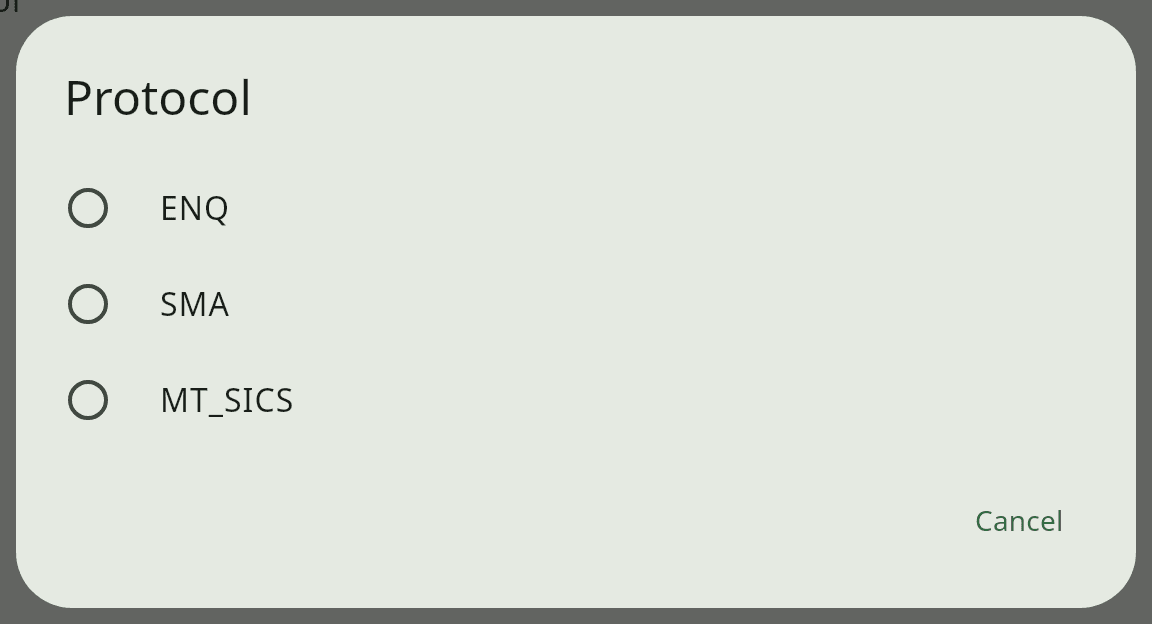
- SMA: the Scale Manufacturers Association standard, which most newer indicators can be set to.
- MT_SICS: Mettler Toledo indicators.
- ENQ: indicators that send the weight when asked with an ENQ character, such as many Cardinal and Fairbanks models.
Your scale dealer can tell you which of these your indicator supports and how to turn it on.
Set the indicator to show the unit you buy in. The app takes the number as it is and doesn't convert between pounds and kilograms.
Enter the scale's settings
- Open Settings. Under Devices, tap Scale.
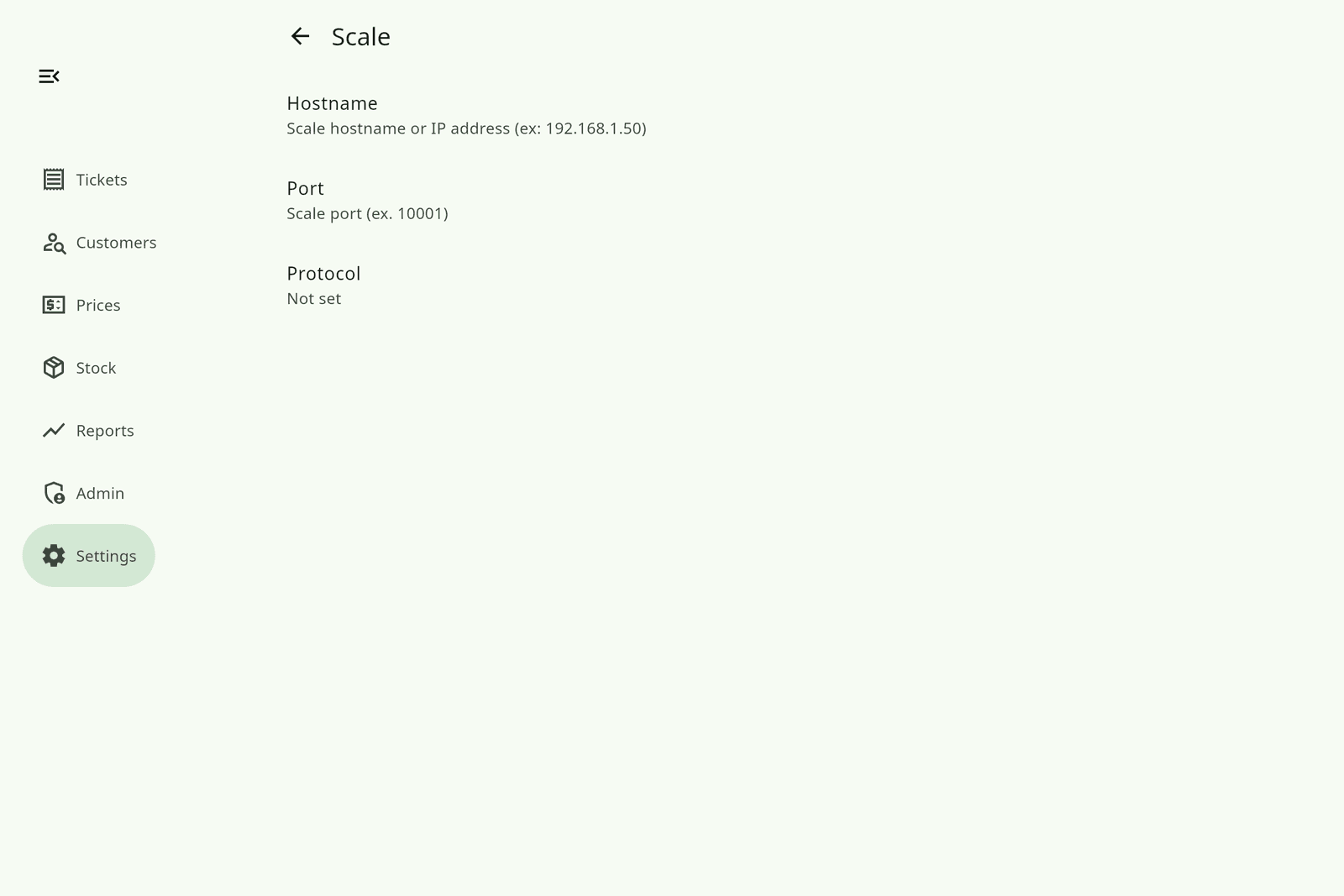
- Tap Hostname, type the indicator's IP address and tap OK.
- Tap Port, type the port and tap OK.
- Tap Protocol and choose ENQ, SMA or MT_SICS.
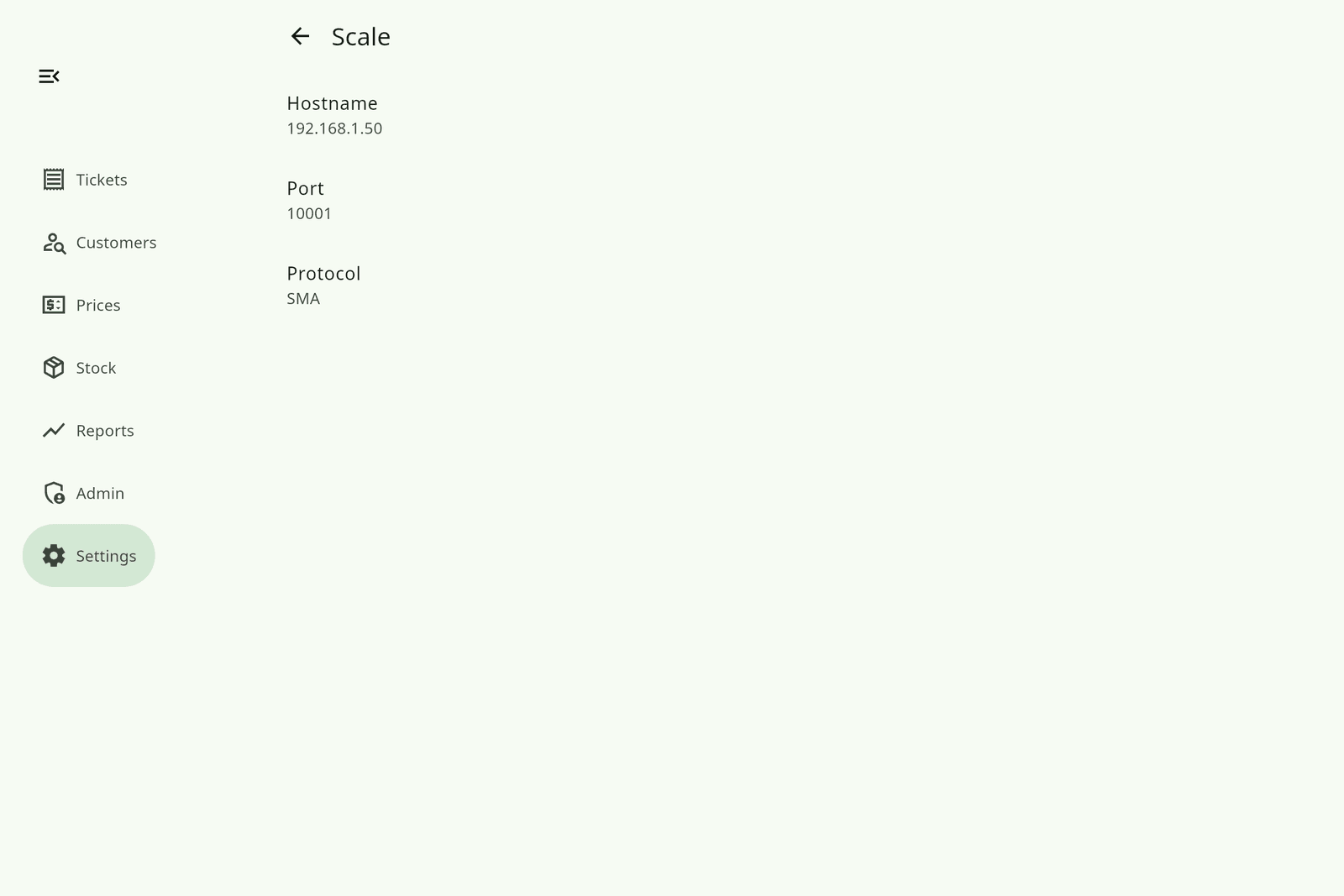
All three have to be set before the app will read the scale. Each one is saved as soon as you confirm it, so there is no Save button.
Motion tolerance
SMA and MT_SICS indicators tell the app when the weight has settled. An ENQ indicator doesn't, so the app watches the weight itself and takes it once it has held still for three seconds. With ENQ chosen, a Motion tolerance setting appears: how far the weight can move and still count as still. Leave it at 0 unless wind or vibration keeps the reading from settling, then raise it a little at a time.
Check that it works
There is no test button on the Scale screen. To check the connection, put something on the scale and read it onto a ticket:
- Open a ticket and tap Add item. Choose any commodity. See Building a ticket.
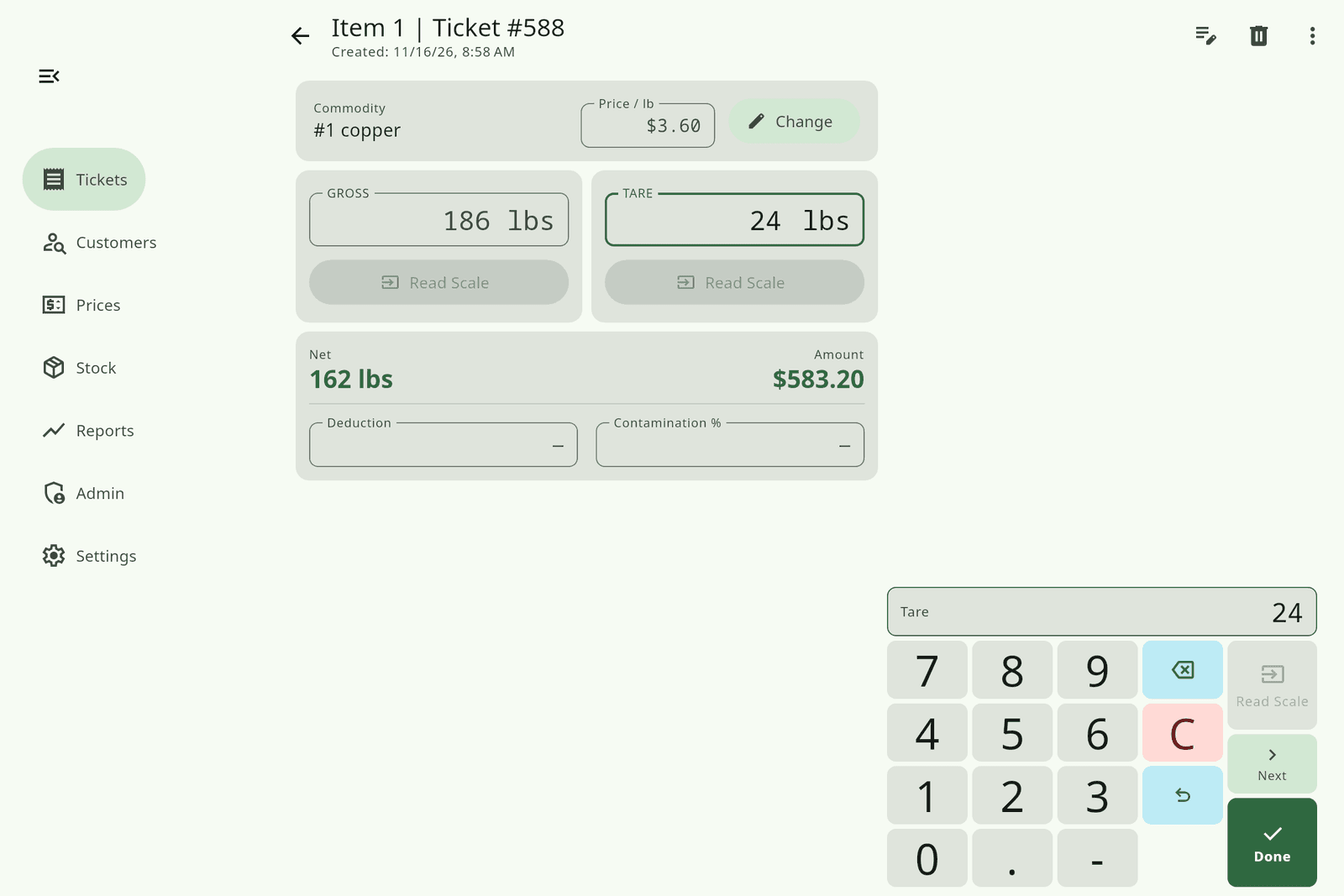
- Tap Read Scale under GROSS.
The button says Connecting…, then Reading…, and the weight appears in the field. If you opened the item before you changed the scale's settings, close it and open it again first.
Reading weights
Read Scale is under both GROSS and TARE, and on the keypad. Packages in Stock have it too.
- While the weight is still moving, the button shows it followed by …, and the app says Waiting for weight to stabilize. It takes the weight once it settles.
- To stop waiting, tap the X on the button, or move to another field.
- If the weight hasn't settled after ten seconds, the app gives up and leaves the field as it was.
- You can always type a weight on the keypad instead. Undo puts back the weight that was there before.
The app works out the net weight: gross, less tare, less any deduction.
If the device has a scale camera and Auto capture item image is on, reading the gross weight also takes the item's picture. See Cameras.
If it can't read the scale
A message starting Scale error appears at the bottom of the screen and the weight is left alone. What the common ones mean:
- Timed out connecting to scale or Scale connection failed: the app can't reach the indicator. Check that it is on, that the device is on the same network, and that the Hostname and Port are right.
- Scale did not respond: the app connected, but nothing answered. The Protocol is probably wrong, or the indicator isn't set to answer requests.
- Scale response format invalid or Scale response was incomplete: something answered, but not in the chosen protocol. Try another Protocol.
- Weight didn't stabilize: the weight kept moving. Wait for the load to settle and read again. With ENQ, raise the Motion tolerance.
- Scale is over capacity or Scale is under capacity: the indicator itself is reporting the problem.
- Scale reads a negative weight: zero the scale at the indicator. The app won't take a negative weight.