
Users and roles
Everyone who uses Scrap Golem signs in as themselves, so each ticket, weight and payment records who did it. The roles you give a user decide what they can change.
Only the account's owner and Admins can add users and change roles. Everyone else has My profile in the same place, where they can change their own name, weighmaster license number and signature.
Add a user
The device has to be online.
- Open Settings. Under Business, tap Users.
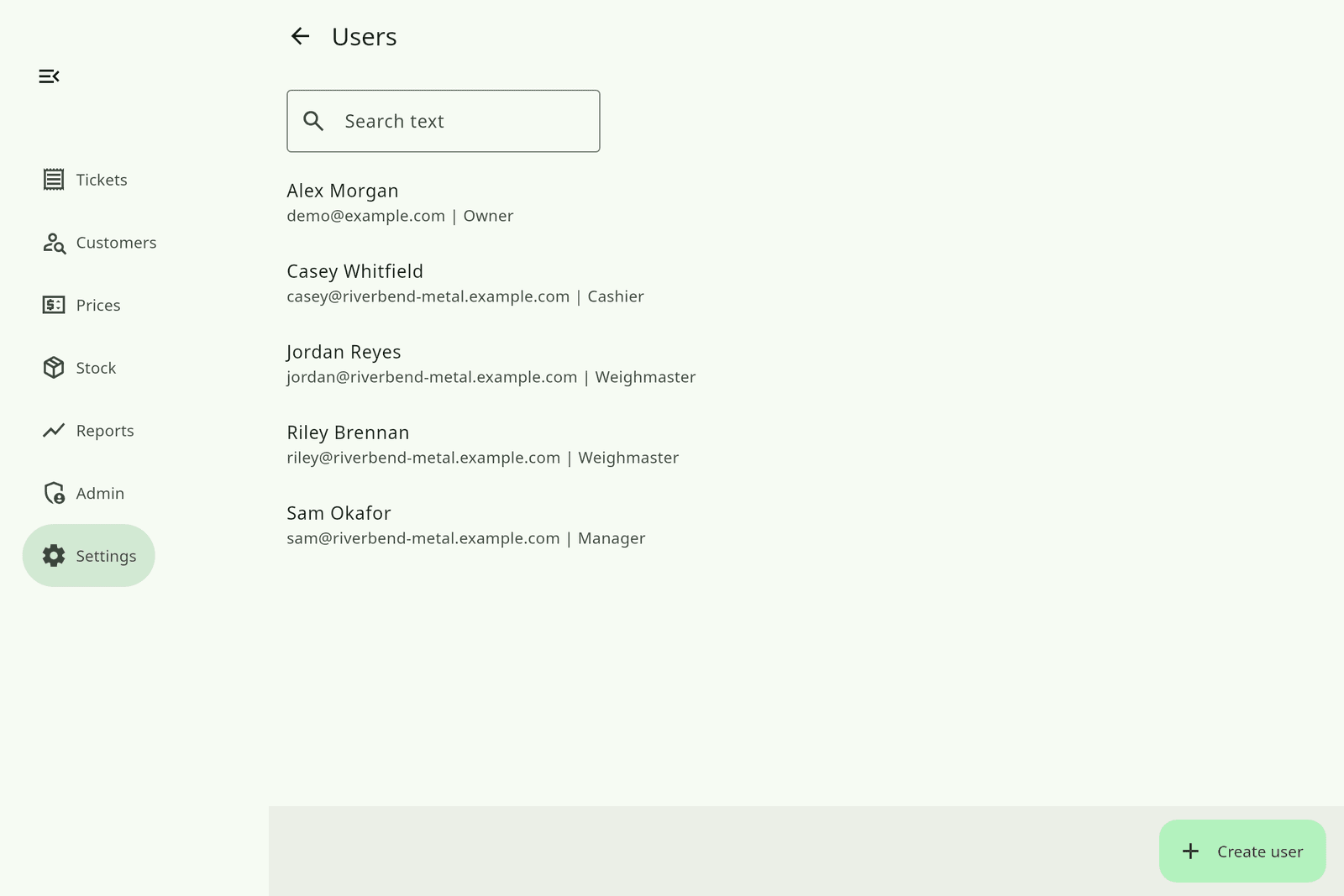
- Tap Create user.
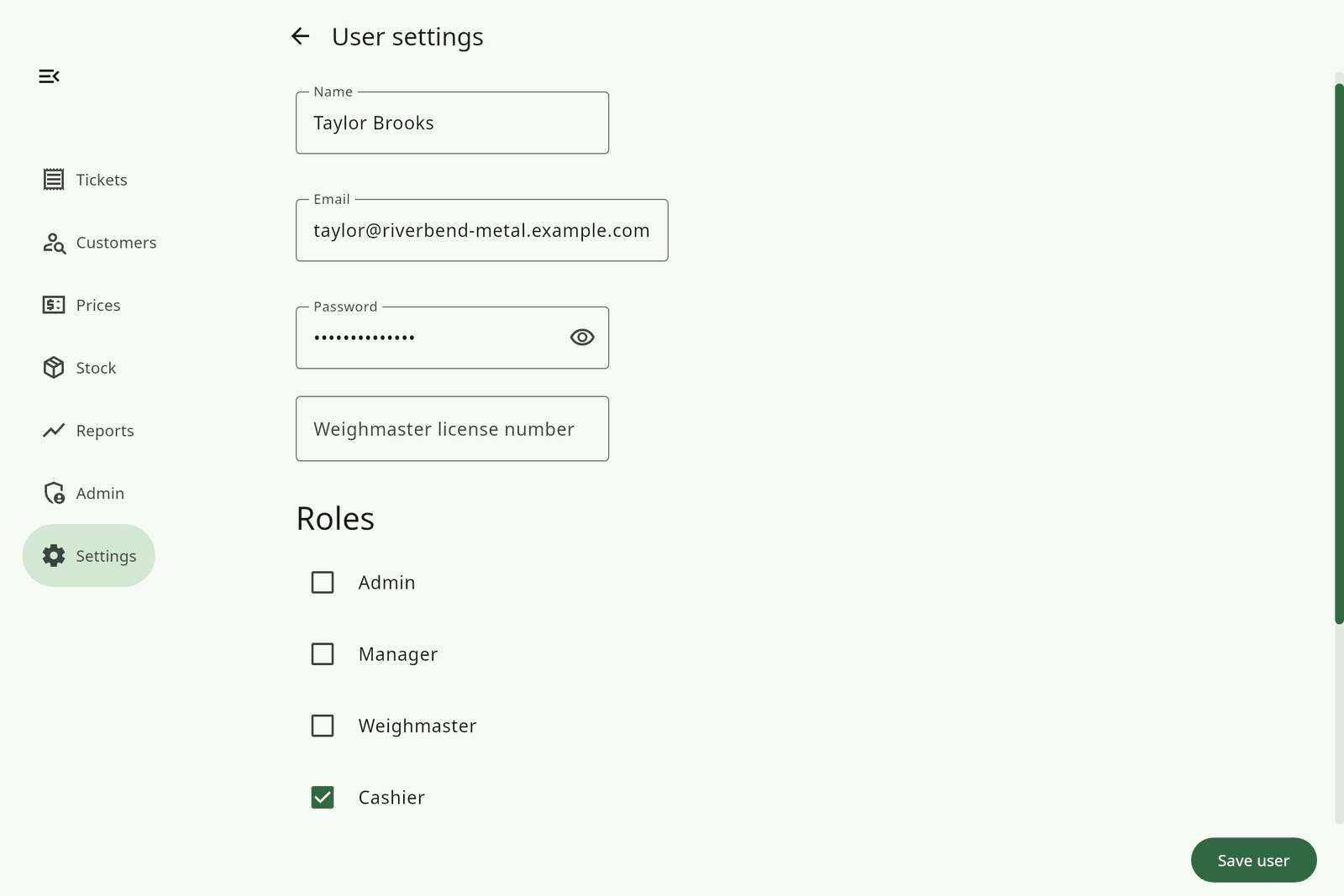
- Fill in the form:
- Name: as it appears on tickets.
- Email: what they sign in with. It can't be changed later.
- Password: their first password.
- Weighmaster license number: for staff who weigh. It prints on receipts beside the items they weighed. Without one, their name prints there.
- Under Roles, check the roles they need. See the next section.
- Tap Save user. The app says User created.
Scrap Golem doesn't email the new user. Tell them their email address and password yourself. They can choose a new password with Forgot password when they sign in.
Next, the user signs in on the devices they will use: see Signing in and device modes.
Roles
A user can have more than one role, and gets everything that any of their roles allows. Everyone on the account can see its tickets, customers and prices, whatever their roles. Roles decide what they can change.
- Owner: the person who created the account. The owner can do everything, with or without roles.
- Admin: everything. Only the owner and Admins can change the business's settings (Account, Users, Locations, Commodities, Categories and Quick Words), open the Admin screen and change Device Settings.
- Manager: runs the yard day to day. A Manager can do everything on a ticket, including changing an item's price and paying. Managers set prices, handle stock and shipments, reconcile inventory, and set up till stations and run the cash drawer.
- Weighmaster: buys material. A Weighmaster creates tickets, adds customers and vehicles, weighs items and handles packages and shipments. Weighmasters can't pay a ticket, reopen one, change prices or use the cash drawer.
- Cashier: pays. A Cashier pays and reopens tickets and works the cash drawer, and can create tickets and add customers and vehicles. Cashiers can't add or weigh items, choose a ticket's customer or change prices.
At a small yard where one person does everything at the scale, give them both Weighmaster and Cashier.
Change a user
Tap a user in the Users list.
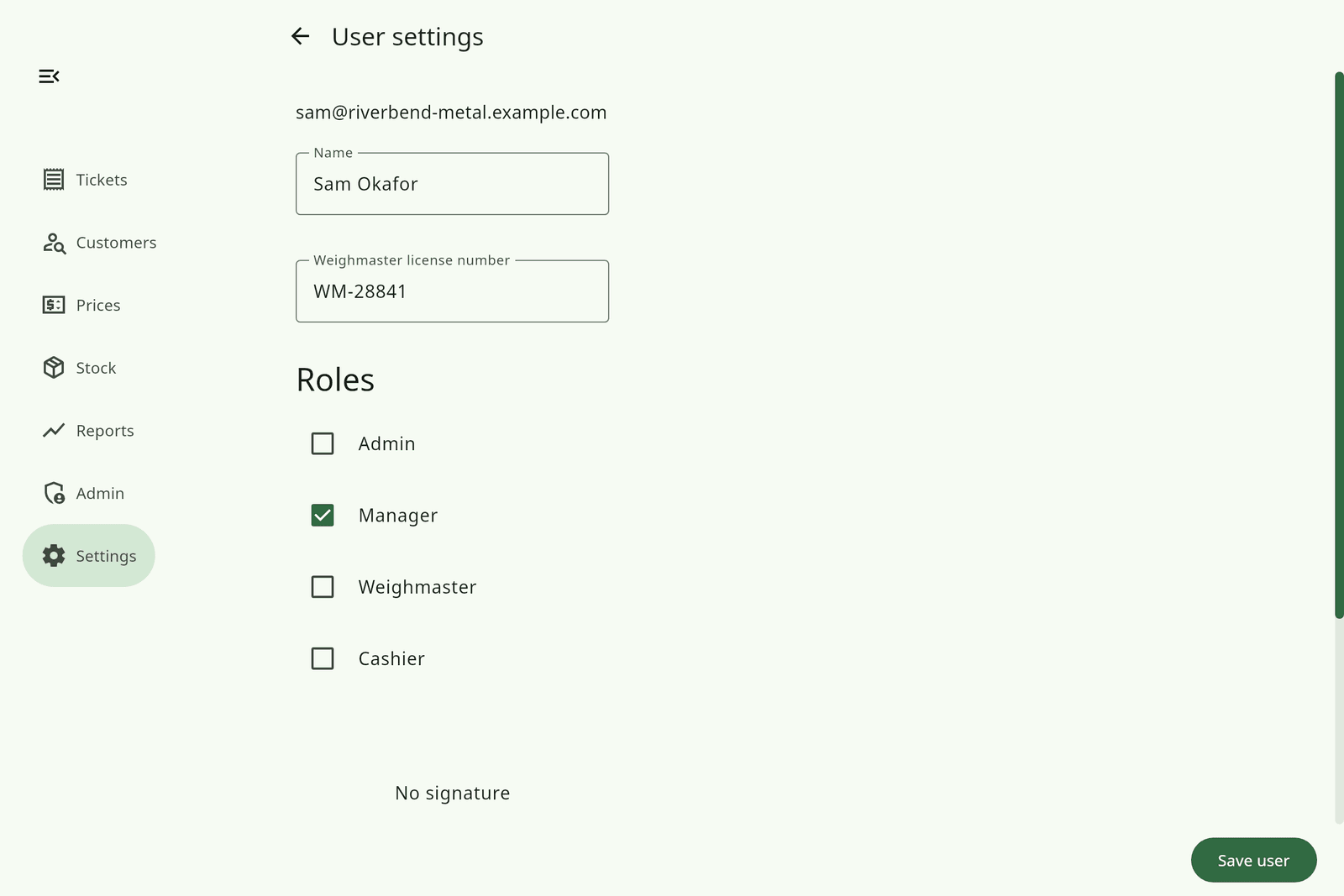
- Change their Name, Weighmaster license number or Roles, then tap Save user.
- To add a signature, tap the signature box, sign in it and tap OK, then tap Save user.
- A new role takes effect right away. Whether someone can open Device Settings can take up to an hour to catch up on a device they are already signed in on.
There is no way to change a user's password here. They use Forgot password on the sign-in screen, which emails them a link.
This Device
On a device set up for multiple employees, the bottom of User settings shows how that user signs in on the device you are holding:
- Remove card takes away their access card.
- Reset PIN makes them choose a new PIN the next time they sign in here.
- Remove from device stops them signing in on this device until they are added again.
A user with only a card, or only a PIN, is removed from the device when you take that away.
When someone leaves
A user can't be deleted in the app. When someone leaves:
- Uncheck all of their roles and tap Save user. They can no longer change anything.
- On each device they used, open their User settings and tap Remove from device.
With no roles they can still sign in with their password and look at the account. Contact support to have a user removed completely.
None of this stops the account's owner, who can do everything with or without roles. If the owner is the one leaving, contact support to have the account moved to a new owner.