The cash drawer
Cash drawer management keeps count of the cash in each till. You count the till when you open it, the app takes off every cash ticket you pay, and when you count it again at closing it shows whether the drawer is over or short.
It is off until you turn it on. Without it, cash tickets are paid as usual and the app keeps no count of the drawer.
A few words the app uses:
- A till station is one cash drawer, such as "Front counter".
- A session is one shift on a till, from the opening count to the closing count.
- A movement is cash going into or out of the till during a session.
Turn it on
Only the account's owner and Admins can do this, and the device has to be online.
- Open Settings. Under Business, tap Account.
- Scroll to the bottom and check Enable cash drawer management.
- Tap Save account.
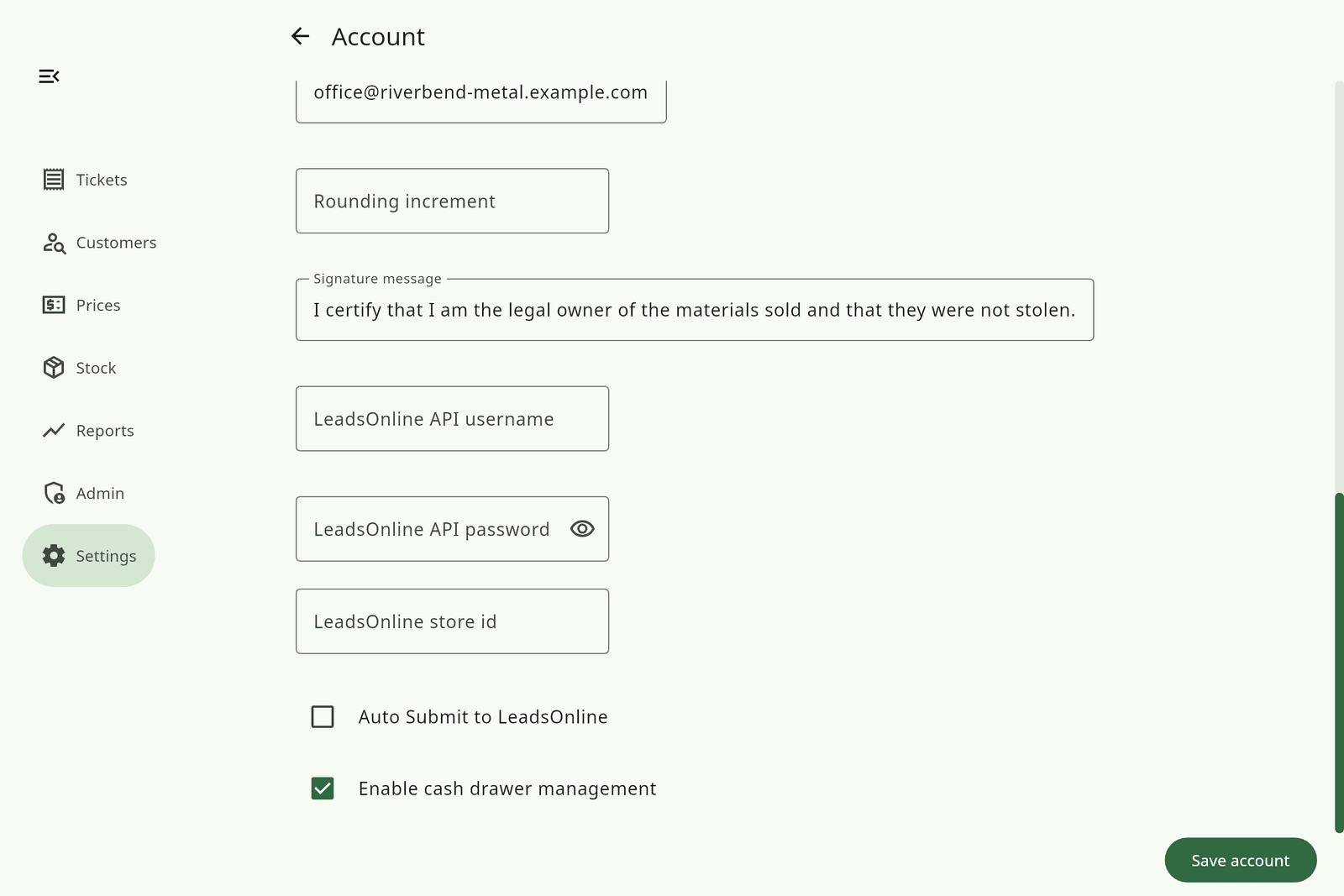
Drawer is added to the menu on every device, and Till stations to Settings. From now on, every cash payment has to come out of a till with an open session.
Set up a till station
Admins and Managers set up till stations. The device has to be online.
- Open Settings. Under Business, tap Till stations.
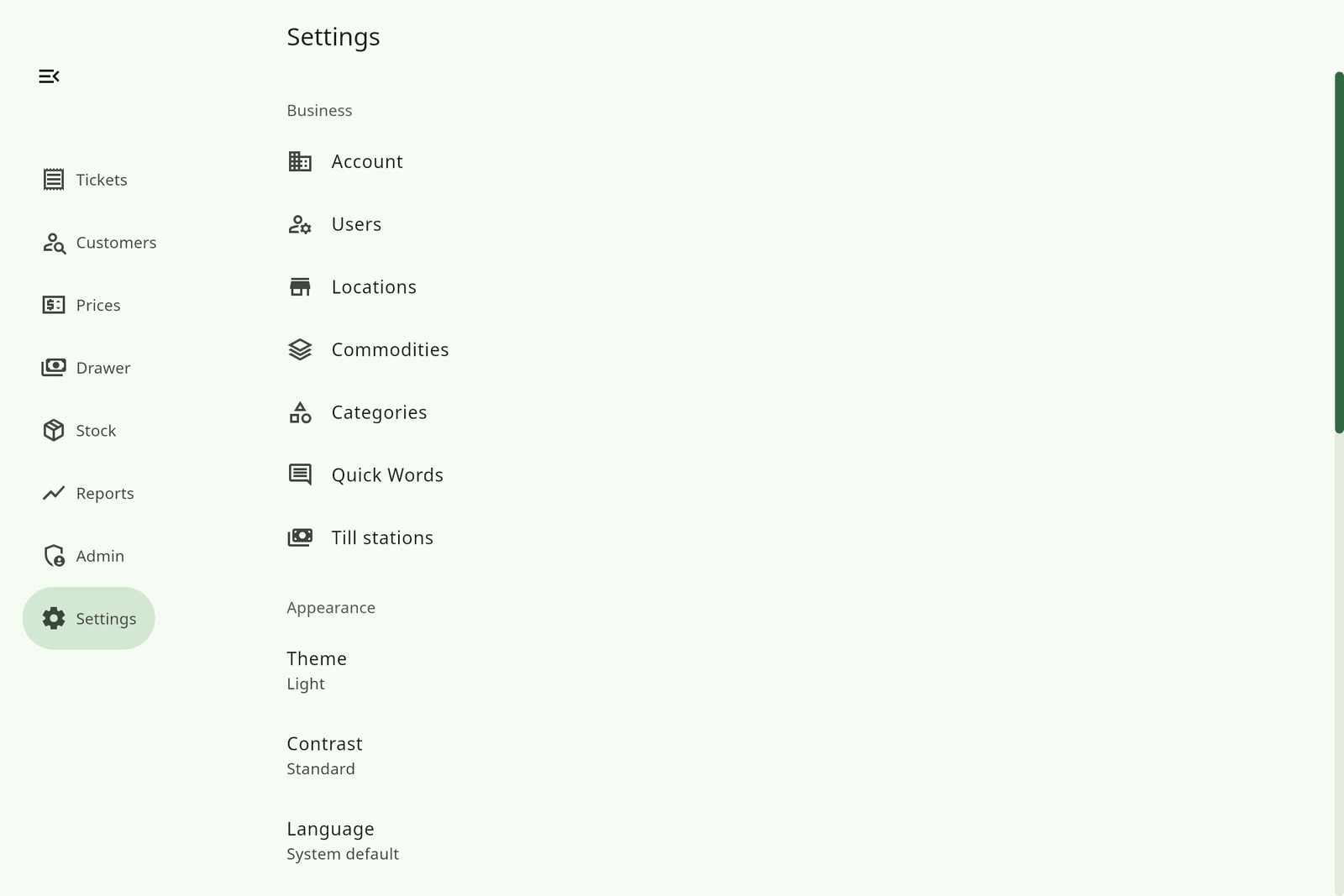
- Tap Create station.
- Fill in the form:
- Station name: what you call this drawer.
- Ownership mode: with Shared, anyone who can use the cash drawer can pay from an open session. With Single user, only the person who opened the session can.
- Opens cash drawer on payouts: leave it checked to have the drawer pop open when you pay a ticket in cash.
- Low-balance threshold: the app warns you when a payment would leave the till at or below this amount.
- Bind to this device: check it on the device that sits at this drawer. That device then pays from this till without asking.
- Tap Confirm.
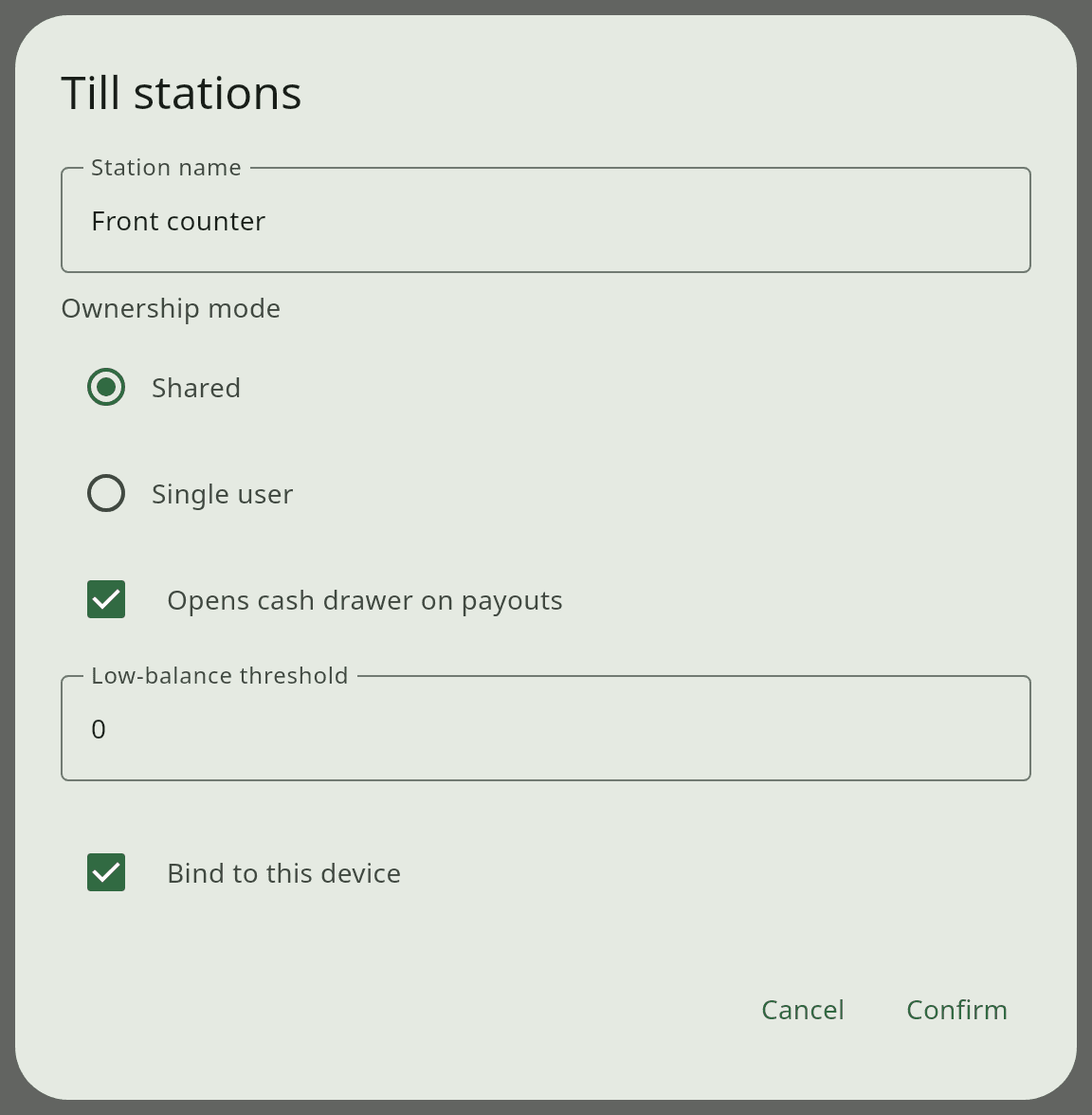
To bind another device to the same till, open Till stations on that device, tap Edit on the station and check Bind to this device. A device is bound to one till at a time.
A station can't be deleted. Tap Edit and uncheck Active to retire one.
Open a session
Admins, Managers and Cashiers can open and close sessions. Do it on the device bound to the till.
- Open Drawer.
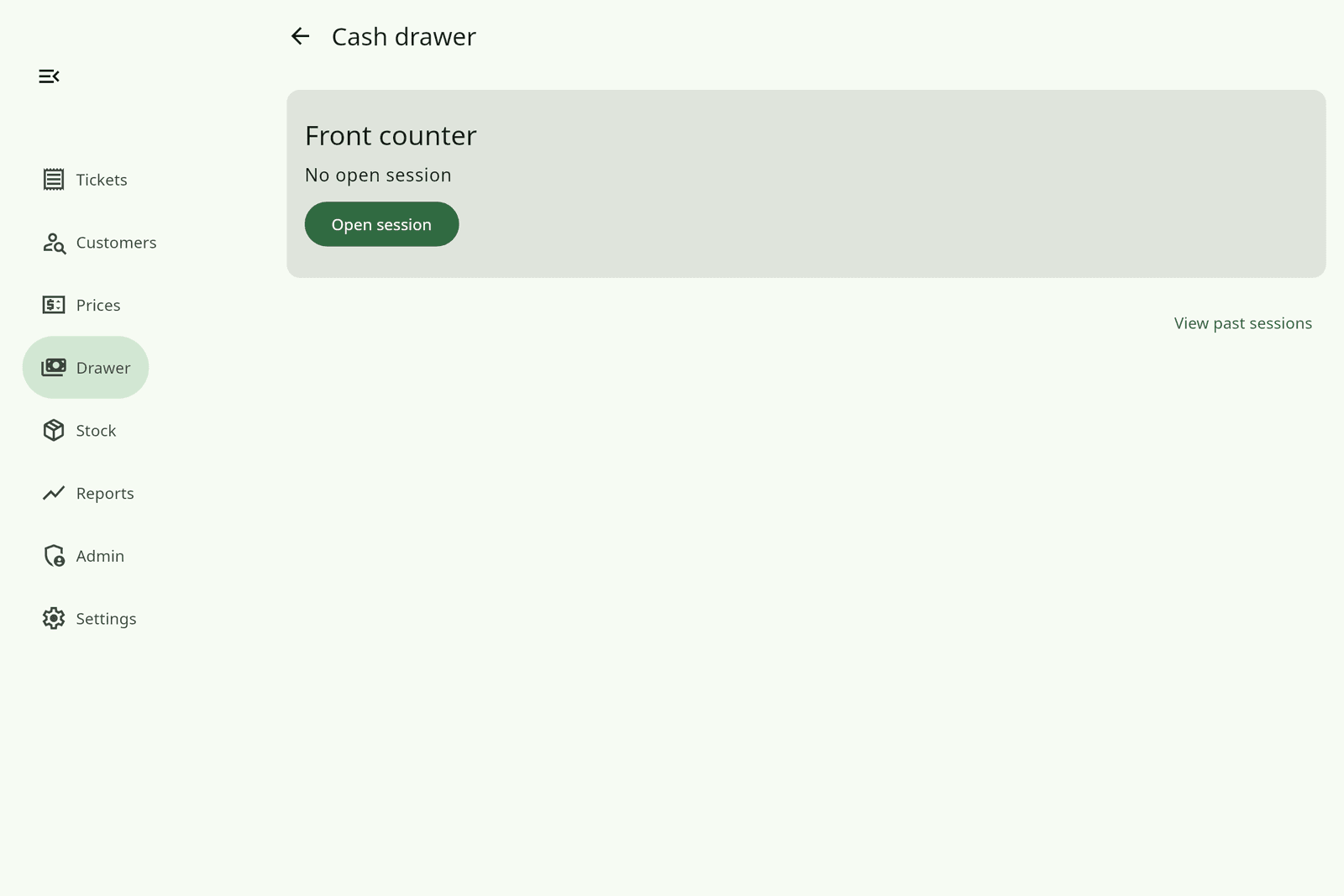
- Tap Open session.
- Count the cash in the drawer and type how many of each bill and coin there are. The + beside a row adds a stack to its count, so you can count a pile at a time.
- Check the Opening float total, then tap Confirm.
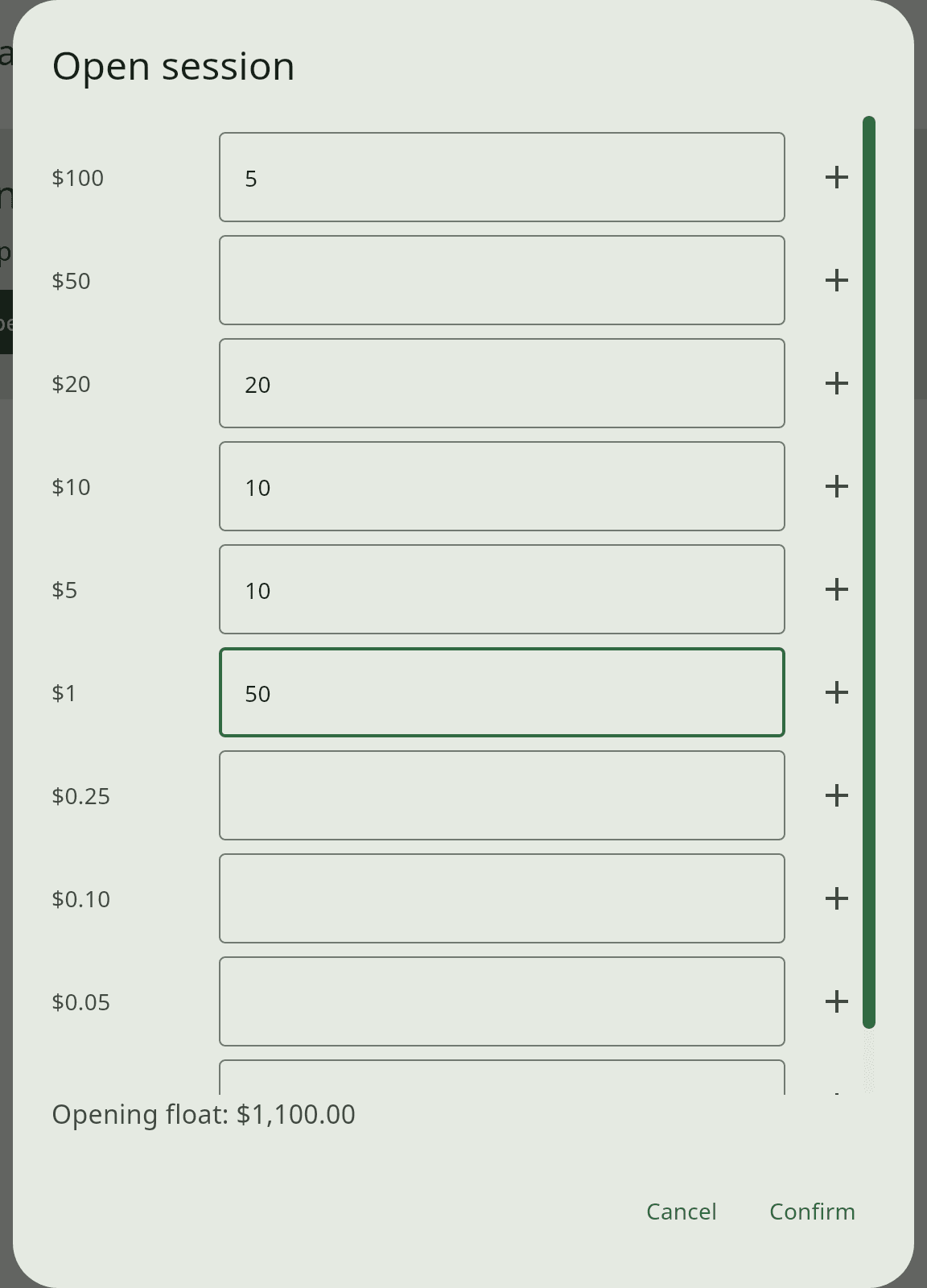
A till has one open session at a time.
During the day
The Cash drawer screen shows the open session: its Opening float, and Expected, which is what should be in the drawer right now. Every movement is listed underneath.
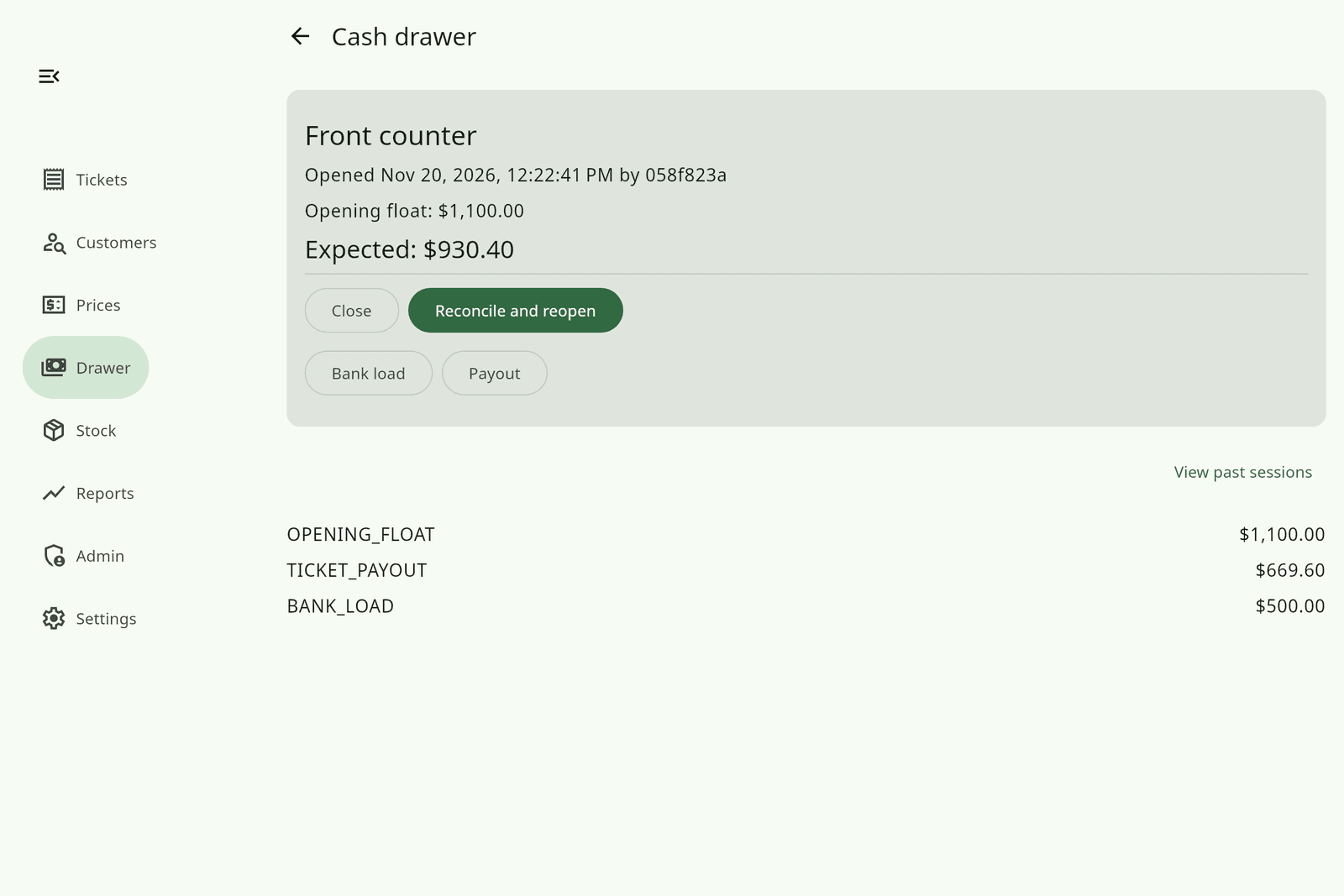
Paying a ticket in cash takes the amount out of the till by itself. When a customer pays you, it is added. Reopening a ticket that was paid in cash puts the money back, so it needs an open session too.
For cash that moves for any other reason:
- Bank load adds cash to the till, such as change brought from the bank or the safe.
- Payout takes cash out, such as a drop to the safe.
Type the Amount and, if you like, a Note saying what it was for, then tap Confirm.
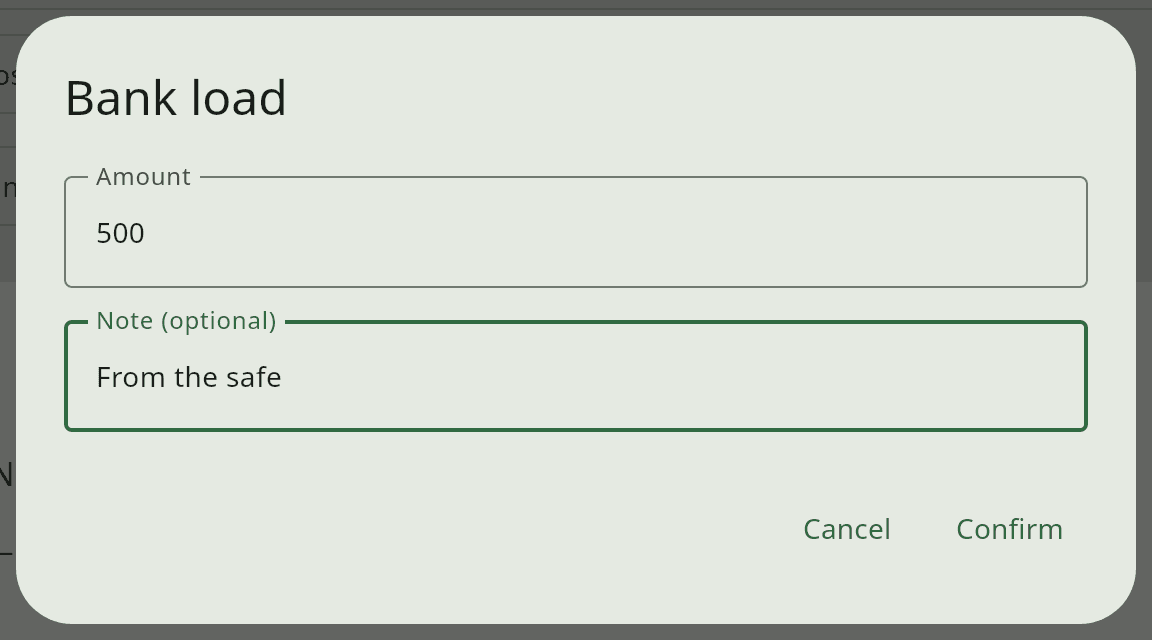
The app warns you when a payment or payout would take the till below zero or to its low-balance threshold. The warning doesn't stop you.
Paying a ticket
On the payment screen, In till beside Cash shows what the device's till holds before you pay.
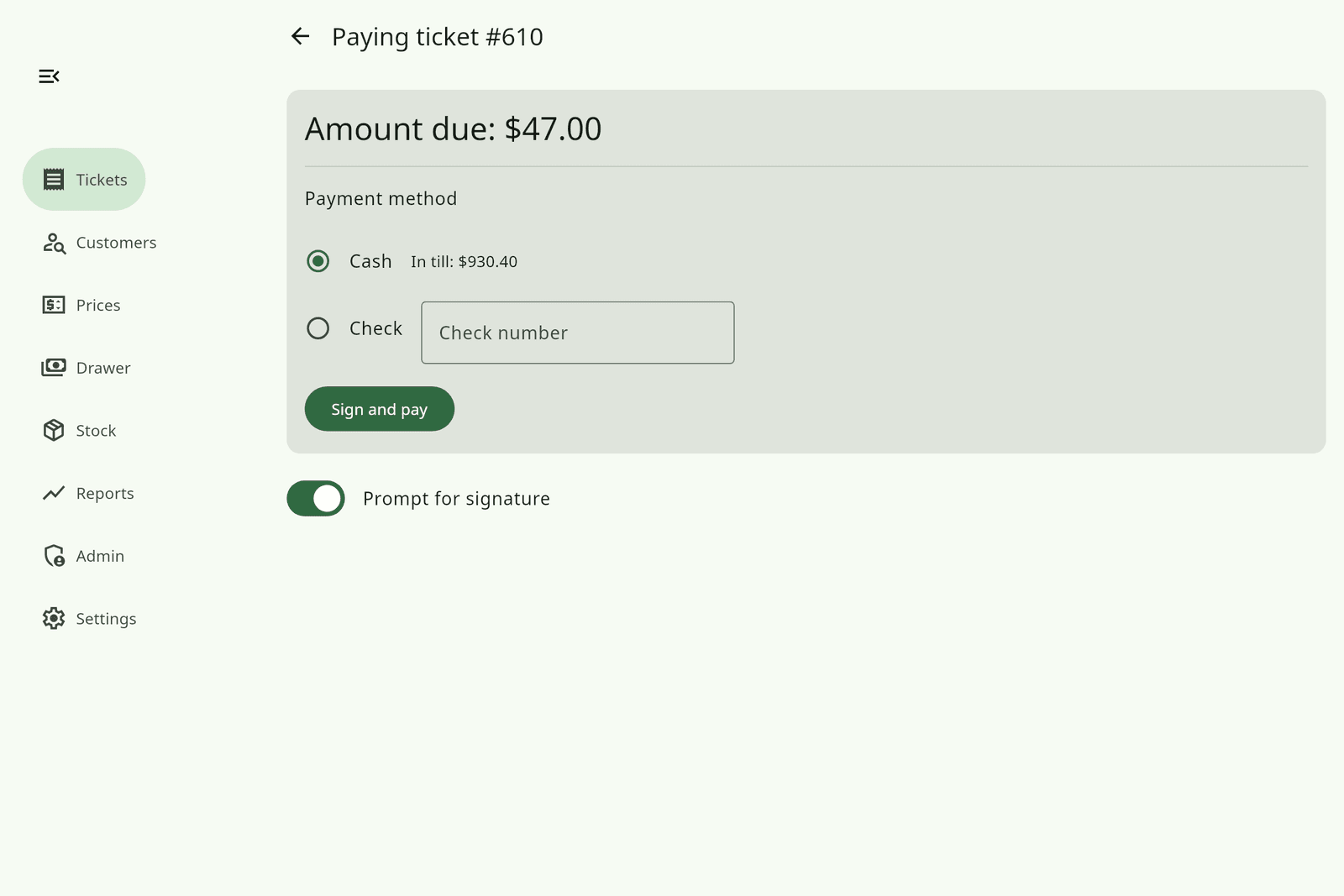
If the device isn't bound to a till, or its till has no open session, the app asks you to Choose a till when you pay in cash:
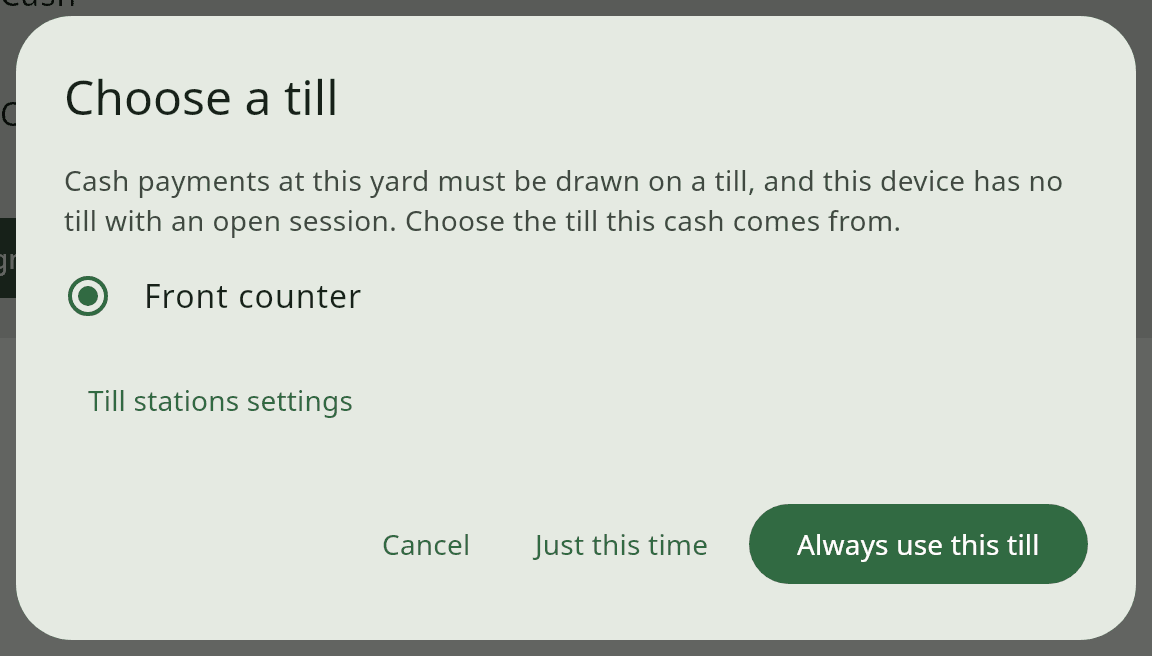
- Tap the till the cash is coming from. Tills with No open session can't be chosen.
- Just this time pays this ticket from that till and asks again next time.
- Always use this till binds the device to it. Only Admins and Managers see this button, and the device has to be online.
Checks never need a till.
Close the session
At the end of the shift, count the drawer:
- Open Drawer and tap Close.
- Count the cash and enter how many of each bill and coin there are.
- Compare Actual, which is your count, with Expected. Variance is the difference. It is negative when the drawer is short.
- Add a Note if there is something to explain, then tap Confirm.
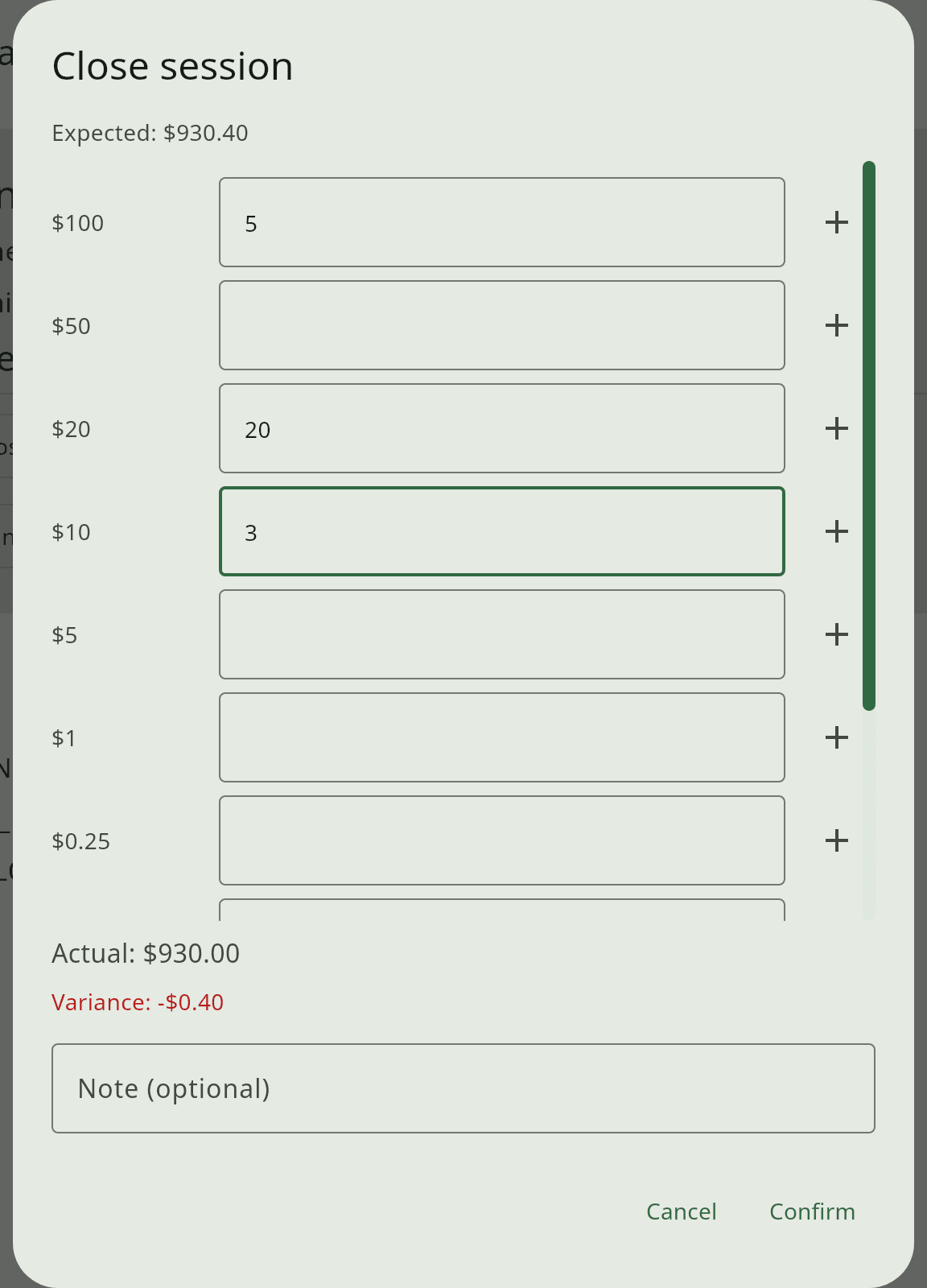
Reconcile and reopen closes the session the same way and opens a new one with the count you just made as its opening float. Use it at a shift change, when the drawer is handed over as it stands.
A closed session can't be opened again. Closing needs the device to be online. If payments made while a device was offline are still waiting to upload, the app asks you to wait for the connection before closing.
Look back
View past sessions on the Cash drawer screen lists every session with its opening float, closing count, expected balance and variance.
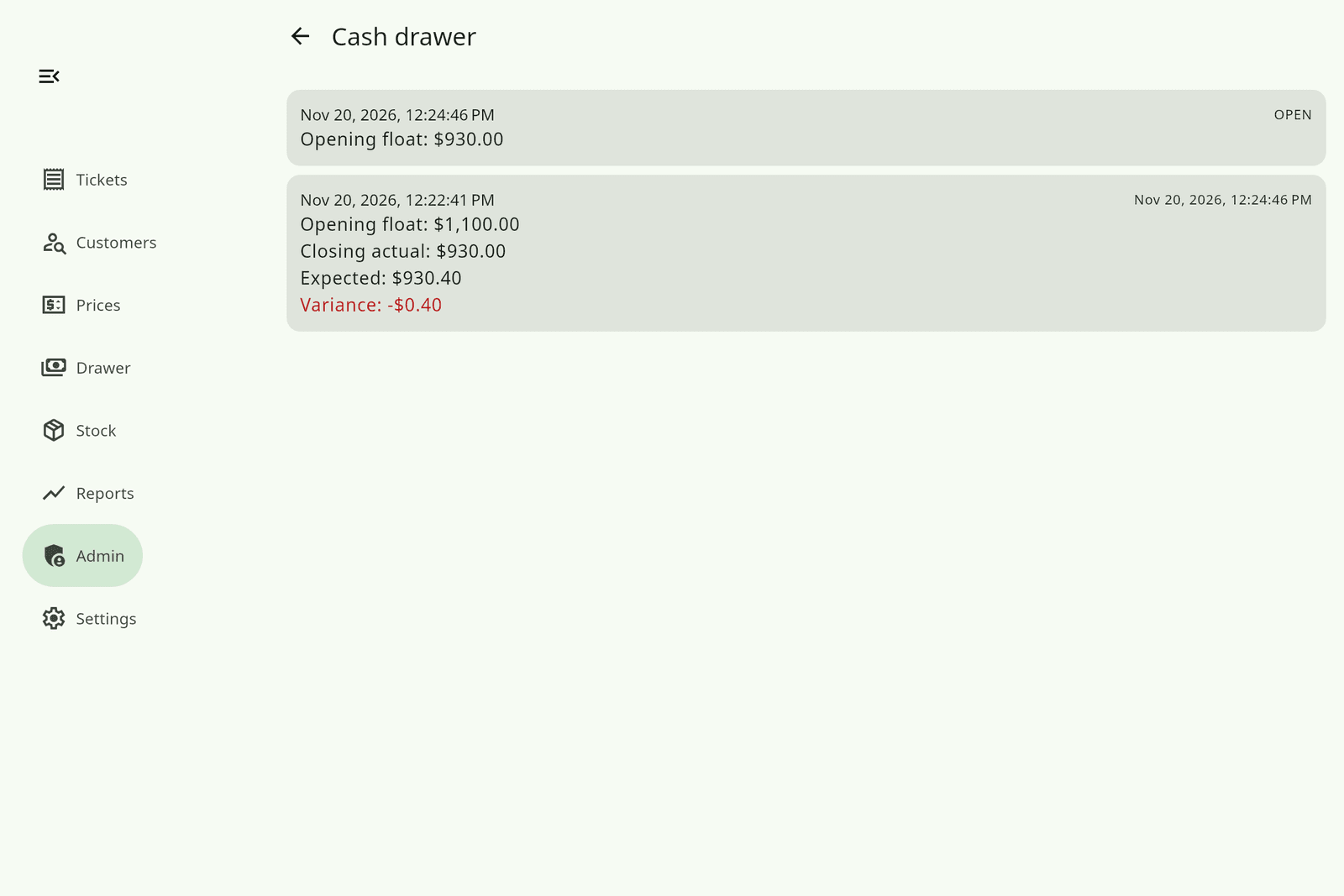
The owner and Admins also have the Admin screen. Under Cash drawer there:
- Daily cash summary adds up each day's sessions across all of your tills.
- All sessions is the same list as View past sessions.
The lists show the sessions of every till together, and don't say which till each one was on.
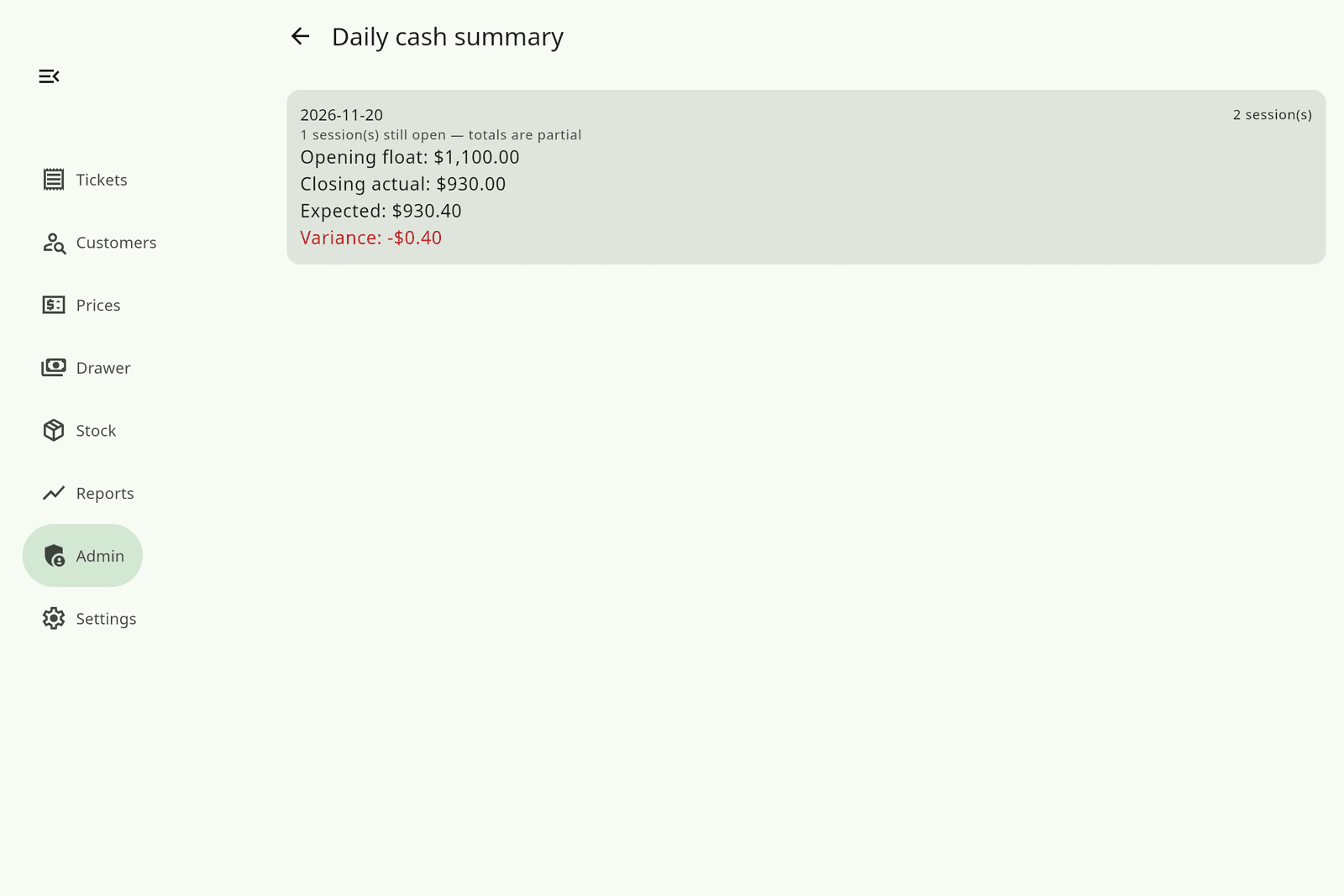
A day's totals count closed sessions only. While a session is still open, the day is marked as partial.
The drawer itself
The physical cash drawer plugs into your Star receipt printer, and the printer opens it. It opens after a cash payment, once you have chosen Print receipt or No receipt, when all of these are true:
- This device's receipt printer is a Star printer, chosen or entered by address on the Printers screen. See Printers.
- This device is bound to a till station.
- That station has Opens cash drawer on payouts checked.
A payment made with Just this time doesn't open the drawer, and neither does a Bank load or Payout.